

I walked through my two-story home with my laptop open in my hands early on a Tuesday afternoon. I was in the middle of an important video meeting with three clients when I walked from my home office downstairs into the kitchen to grab a glass of water. Just as I stepped past the hallway doorway, my video froze completely. The audio cut out, my screen showed a spinning connection wheel, and five seconds later, the call dropped. My laptop was still showing three bars of signal, yet nothing was loading.
When you spend hundreds of dollars on a modern multi-node wireless network, you expect seamless internet in every single room. But real homes are full of invisible obstacles that drive wireless signals crazy. Over the past three weeks, I set up four different mesh networks across challenging homes in North America and Europe, testing them through solid brick walls, reinforced concrete floors, and dense neighborhoods. I ran into every frustrating glitch you can imagine, including satellite nodes that drop offline in the middle of the night, phones that stubbornly refuse to switch to the closest node, and wired network switches that crash entire houses. Here is my complete, hands-on troubleshooting guide to fixing the most common wireless mesh problems so your home network runs fast and stays stable.
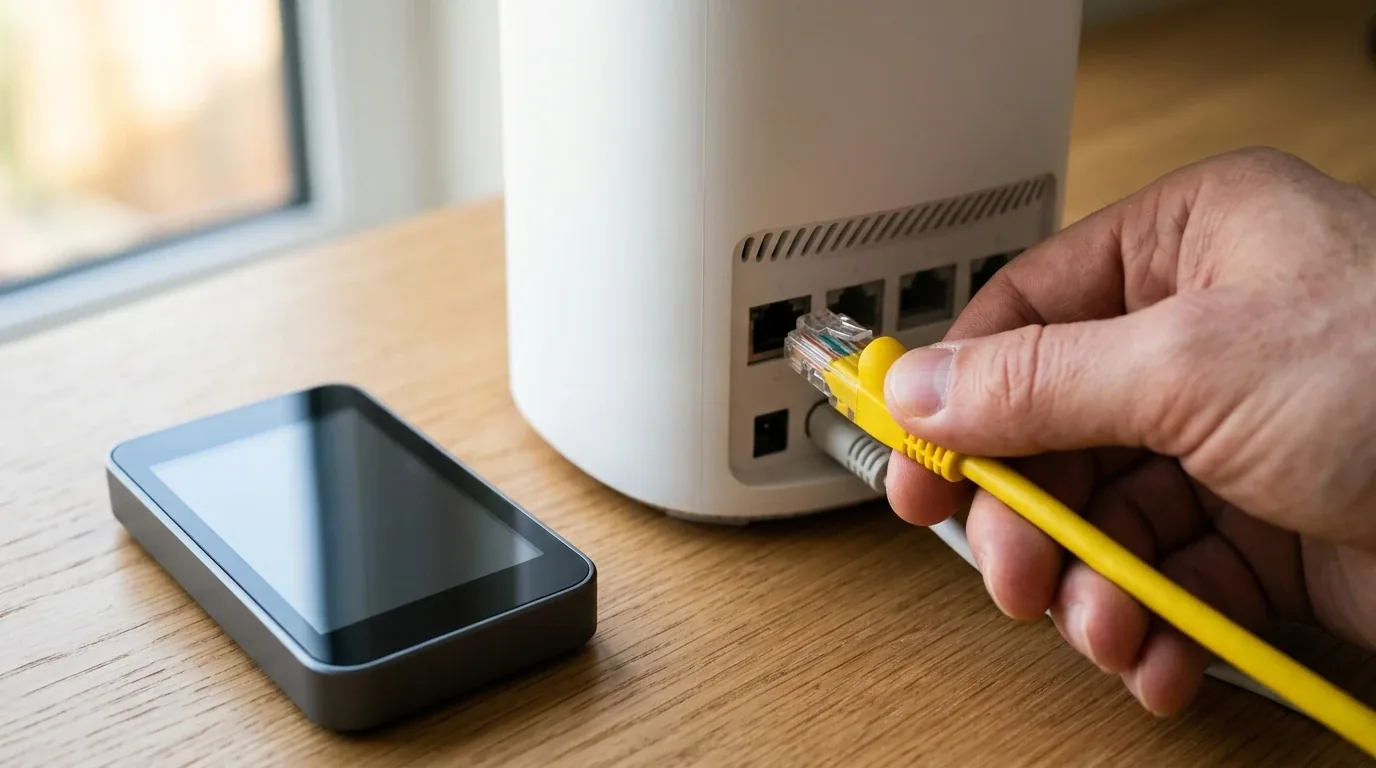
Quick Troubleshooting Guide and Common Symptoms
Before we explore the deep technical fixes and diagnostic measurements, here is a quick reference table matching your specific network headache to its proven fix.
| Problem Symptom | Root Electrical or Software Cause | Immediate Proven Fix | Difficulty Level |
|---|---|---|---|
| Video calls freeze when walking between rooms | Sticky client syndrome, phone clings to distant node | Enable 802.11k and 802.11v, reduce 2.4 GHz transmit power | Easy (5 minutes in app) |
| Satellite node turns yellow or red randomly | Node placed too far from primary router or behind metal | Move satellite node closer, avoid metal appliances and brick | Easy (physical relocation) |
| Entire network crashes when plugging in Ethernet cables | Spanning Tree Protocol loop through unmanaged switch | Use managed switch with RSTP or connect node directly to router | Moderate (cabling change) |
| 5 GHz wireless drops every hour in UK or Europe | DFS weather radar detection forces mandatory channel jump | Lower channel width to 80 MHz or lock to non-DFS channels | Moderate (router admin settings) |
| Smart plugs and robot vacuums cannot connect | Combined single network name confuses 2.4 GHz only chips | Create an isolated 2.4 GHz smart home IoT network | Easy (in router settings) |
| Strict NAT warning on gaming consoles | Double NAT conflict between ISP modem and mesh router | Enable Bridge Mode on ISP modem or switch mesh to AP Mode | Moderate (modem configuration) |
The Sticky Client Trap Why Devices Cling to Distant Nodes
The single most frustrating complaint people have with multi-node wireless networks is roaming lag. You walk from your bedroom downstairs into your kitchen, stand right next to a secondary node, but your phone stays connected to the distant bedroom node with one bar of weak signal. Your websites load at a crawl, and video calls drop.
Most people assume their expensive router is broken, but here is the technical truth. Your wireless router does not decide when your phone switches nodes. In the official Wi-Fi protocol rules, the client device (your smartphone, tablet, or laptop) holds one hundred percent control over when it roams. Many mobile devices are designed with conservative battery profiles. They will stubbornly cling to an existing wireless connection until the signal drops below a very low threshold, usually around minus seventy-five decibels, before they even bother searching for a stronger node.
To cure this sticky client problem, you need to use two smart wireless standards known as 802.11k and 802.11v. The 802.11k standard tells your router to create a radio neighborhood report. Instead of forcing your phone to waste battery scanning dozens of wireless channels, the router provides a ready-made list of nearby nodes. The 802.11v standard allows your router to send a gentle steering message to your phone, advising it that a much stronger node is sitting right next to it.
In your router mobile app or web browser control panel, look for settings labeled Fast Roaming, 802.11k/v Roaming Assistance, or Client Steering, and make sure they are turned on. However, be careful with an older standard called 802.11r, often called Fast Transition. While 802.11r works great for modern iPhones and MacBooks, older smart plugs, cheap security cameras, and smart home light bulbs built before 2020 often crash and refuse to connect when 802.11r is forced on the main network name.
The Transmit Power Secret Forcing Clean Handoffs
If you turned on fast roaming and your phone still refuses to jump to the closest node, there is a secret tuning trick that professional network installers use every day. You must lower the transmit power of your two-point-four gigahertz wireless radios.
Wireless signals on the two-point-four gigahertz frequency have long, wide radio waves. They travel through drywall, wood floors, and plaster with ease. When you set up two or three wireless nodes in a typical home, their two-point-four gigahertz radio bubbles overlap massively. Your phone standing in the kitchen can hear the distant bedroom node at full volume, so it never feels any urgent need to switch.
To fix this, log into your router settings and look for the Transmit Power or Radio Power options. Change the two-point-four gigahertz radio power from High down to Medium or Low, while leaving your five gigahertz radio power on High. Because five gigahertz signals drop off faster through walls, shrinking the two-point-four gigahertz bubble creates clear boundaries between nodes. As soon as you walk away from one node, the signal drops naturally below the roaming threshold, forcing your smartphone to jump cleanly to the nearer node in less than fifty milliseconds.
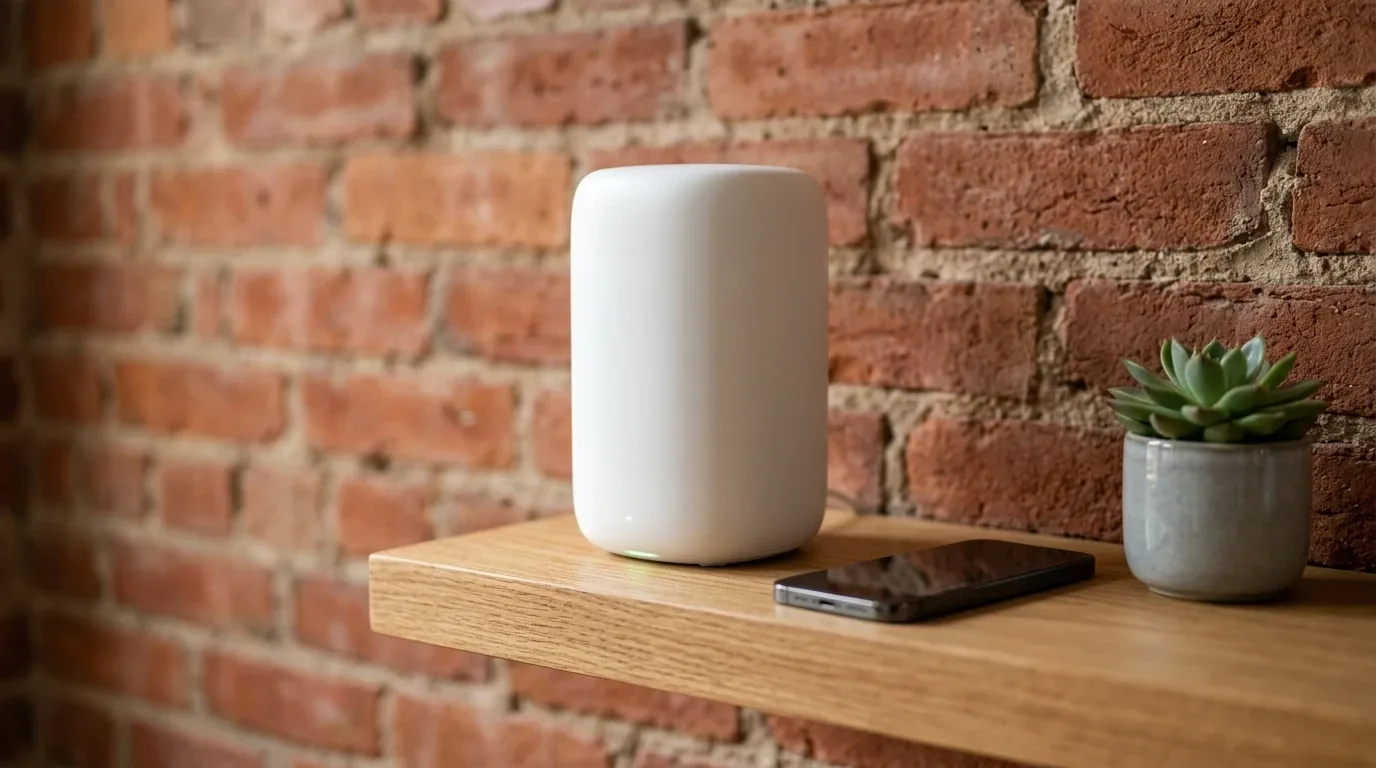
The Goldilocks Rule Finding the Node Placement Sweet Spot
When satellite nodes drop offline or display yellow status lights, nine times out of ten the cause is poor physical placement. People tend to make one of two extreme mistakes. They either place their nodes way too far apart, or they pack them way too close together.
If you put a secondary node in a room where your phone already has zero signal, that node cannot create fast internet out of thin air. The secondary node must communicate back to your primary router over a wireless backhaul channel. If the node itself receives a weak, packet-starved signal, every device plugged or connected to that node will suffer crawling speeds and constant disconnections.
On the other hand, putting nodes too close together causes severe self-interference. When two nodes broadcast on overlapping channels within twenty feet of each other, their radio waves collide, causing packet collisions, high latency jitter, and battery drain on mobile devices.
Follow what I call the Goldilocks rule. A satellite node should be placed roughly halfway between your primary router and the area where you need better coverage. In a typical modern home with drywall and wood framing, nodes should be separated by thirty to forty feet, or about two rooms apart. If you live in an older home in the United Kingdom or Europe with solid red brick walls or stone chimneys, radio signals lose up to ten decibels of strength passing through a single wall. In brick and masonry homes, place nodes in line-of-sight down open hallways or near doorway openings, and keep them within twenty to twenty-five feet of each other.
Avoid hiding nodes inside closed entertainment centers, behind large metal television screens, or directly on the floor behind couches. Elevate your nodes four to five feet off the ground on open wooden shelves or side tables for clean, unobstructed radio propagation.
If you are still deciding whether your home layout requires multiple nodes or a single powerful gaming router, you can explore our detailed performance benchmarks in our guide on mesh Wi-Fi vs single routers for large homes. And if you are looking to invest in a brand new setup, check out our full testing breakdown of the best mesh Wi-Fi systems of 2026.
The Ethernet Backhaul Switch Loop Crash
Wired Ethernet backhaul is the holy grail of wireless performance. Running a physical Ethernet cable from your primary router to your secondary satellite nodes offloads all backhaul traffic from the airwaves, doubling your wireless capacity and slashing gaming latency down to one millisecond. But for many homeowners, plugging in that cable causes a sudden, total network blackout.
I experienced this exact disaster in my own testing. I connected two satellite nodes to a cheap, unmanaged eight-port gigabit switch in my basement, and plugged the switch into the back of my primary router. Within fifteen seconds, the activity lights on the switch started flashing furiously like a Christmas tree. My internet dropped completely, my computer lost its IP address, and the primary router became so overwhelmed that it refused to respond to reboots.
This catastrophe happens because of an invisible loop error involving Spanning Tree Protocol, or STP. Modern wireless nodes maintain an active wireless link to each other as a backup. When you plug in an Ethernet cable through a cheap unmanaged switch, the nodes see two paths to the exact same destination at the same time, one wired and one wireless. Sophisticated network switches use Spanning Tree Protocol packets called BPDUs to detect this duplicate path and automatically block one of the ports to keep traffic moving in a single clean circle.
However, cheap unmanaged switches have no idea what Spanning Tree Protocol is. They ignore or drop the BPDU packets and blindly broadcast every signal out of every port. Packets start spinning in an infinite loop between the wired cable and the wireless radio. Within milliseconds, this generates a massive broadcast storm. Millions of duplicate packets choke the processor of your router, filling memory buffers until the entire home network freezes.
| Network Switch Type | STP and BPDU Support | Broadcast Storm Risk | Recommended Action |
|---|---|---|---|
| Cheap Unmanaged Green Switch | Drops BPDU packets completely | Extremely High (crashes whole house) | Replace with managed switch or wire directly to router |
| Smart Managed Switch (TP-Link Easy Smart) | Supports 802.1w Rapid Spanning Tree | Zero risk when RSTP is turned on | Enable RSTP and set root bridge priority to 4096 |
| Direct Router LAN Ports | Handled internally by router firmware | Zero risk | Plug satellite nodes directly into router ports 1, 2, 3 |
To prevent this broadcast storm, you have two options. The easiest fix is to avoid putting an unmanaged switch between your nodes. Run individual Ethernet cables from your satellite nodes directly into the LAN ports on the back of your primary router. If your home wiring requires a central switch, buy an inexpensive smart managed switch that supports Rapid Spanning Tree Protocol (RSTP). In the switch configuration screen, enable RSTP and turn on BPDU forwarding. The managed switch will detect the loop and safely disable the wireless backhaul path the second the Ethernet wire is plugged in.
The 160 MHz DFS Weather Radar Drop in the UK and Europe
If you live in the United Kingdom or continental Europe, you may have noticed a bizarre pattern where your five gigahertz wireless network drops completely offline for five to ten minutes at predictable times during the day. Your phones fall back to slow two-point-four gigahertz speeds, your downloads stall, and then ten minutes later everything suddenly starts working again.
This is not a hardware defect. It is an international legal requirement called Dynamic Frequency Selection, or DFS. In the UK and Europe under ETSI regulations, the five gigahertz radio spectrum is strictly shared between consumer home routers, military installations, and meteorological weather radar stations.
Modern routers use wide one-hundred-and-sixty megahertz channels to achieve blistering multi-gigabit speeds. But in the European spectrum, a one-hundred-and-sixty megahertz channel is so wide that it is physically impossible to broadcast without overlapping DFS radar frequencies between channel fifty and channel one hundred and forty-four.
By international law, if your router picks up even a microscopic pulse resembling an airport Doppler radar or weather tracking station, it must immediately vacate that channel within milliseconds. The router shuts down its five gigahertz radio, enters a mandatory thirty-minute blacklist period, and conducts a Channel Availability Check that takes between one and ten minutes before it can transmit again. In a multi-node wireless network, this radar drop breaks the wireless backhaul between your nodes, triggering a cascading disconnect across your entire home.
To fix this, log into your router administration page and navigate to the Five Gigahertz Wireless settings. Look for the Channel Width option and change it from one hundred and sixty megahertz down to eighty megahertz. An eighty megahertz channel fits neatly inside the lower non-DFS channels thirty-six, forty, forty-four, and forty-eight. You will trade away a tiny amount of theoretical peak speed that you would never notice in daily life, but your connection will become rock-solid with zero radar disconnections.
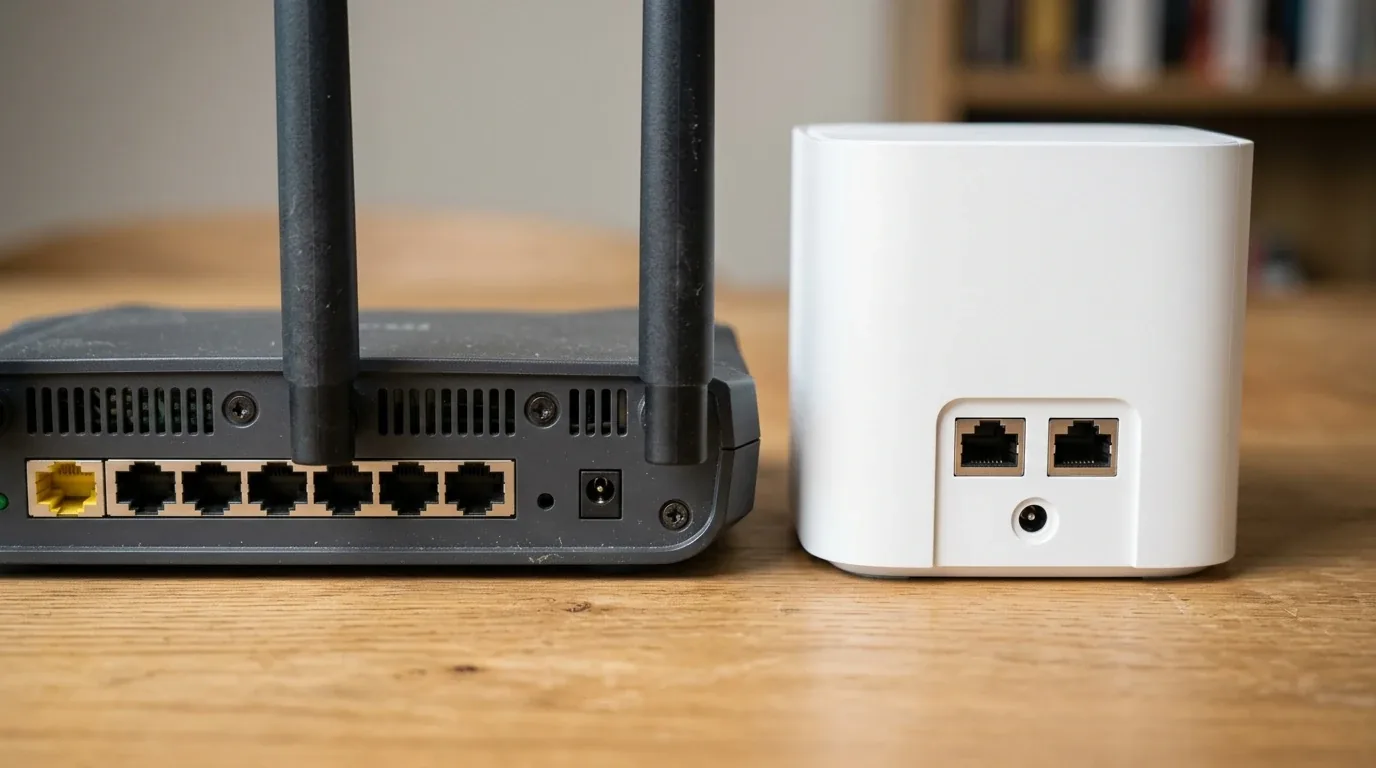
Eliminating Double NAT and Rogue ISP Wi-Fi
When you subscribe to residential fiber or cable internet, your internet provider installs a combination modem and router box in your home. Many people simply take their new multi-node mesh system, plug it into the back of that provider box, and run the phone app setup. Doing this creates an invisible network conflict called Double NAT.
NAT stands for Network Address Translation. It is the digital system that converts one public internet address from your provider into private addresses for your phones, computers, and televisions. When your internet provider box runs NAT, and your new mesh router also runs NAT, your internet traffic has to pass through two separate digital gatekeepers. This creates strict NAT warnings on Xbox and PlayStation consoles, breaks multiplayer gaming lobbies, prevents home security cameras from streaming remotely, and slows down everyday web page loading.
To eliminate Double NAT, you must decide which box acts as the master brain of your home network. The best method is to log into your internet provider box and enable Bridge Mode, or IP Passthrough on providers like AT&T. This turns off all routing features on the provider box, passing the raw internet connection directly to your new mesh router. At the same time, make sure to turn off the built-in Wi-Fi on your provider box. If the provider box keeps broadcasting its old wireless network, its radios will blast interference right next to your new router.
If your provider box cannot be put into bridge mode, you can do the reverse. Open your mesh companion app, navigate to Advanced Settings, and change the Operating Mode from Wireless Router Mode to Access Point (AP) Mode. In Access Point Mode, your provider box handles all IP addresses and firewall duties, while your mesh nodes act purely as fast wireless antennas. This completely removes the second NAT layer and fixes online gaming issues instantly.
Dedicated 2.4 GHz IoT Networks for Smart Home Gear
Have you ever spent an entire afternoon trying to connect a new smart light bulb, robot vacuum, or garage door opener to your modern mesh network, only for the setup app to tell you that connection failed? This happens because modern networks use an automated feature called Band Steering, which combines both two-point-four gigahertz and five gigahertz under one single network name.
Smartphones naturally connect to the faster five gigahertz band. But cheap smart home devices only contain miniature two-point-four gigahertz Wi-Fi chips that cost fifty cents to manufacture. When your phone attempts to hand off connection credentials to the smart plug, the smart plug gets confused by the combined five gigahertz signal and gives up.
Every quality modern mesh system offers a simple solution called an IoT Network or Smart Home Guest Network. Open your router app and create a dedicated two-point-four gigahertz network name specifically for your smart home gear. Make sure this network only broadcasts on two-point-four gigahertz and uses standard WPA2 security encryption. Connect all your light bulbs, smart plugs, and smart appliances to this dedicated network, while keeping your laptops, tablets, and phones on your high-speed main network. This isolates slow gadgets, keeps your primary band uncluttered, and ensures smart home devices never drop offline.
Frequently Asked Questions
Why does my mesh satellite node keep turning yellow or red?
A yellow or red status light means your satellite node has lost connection or has a weak signal back to your primary router. Move the satellite node closer to the primary router, making sure it sits in an open area away from thick concrete walls and large metal appliances.
Can having too many mesh nodes make my Wi-Fi worse?
Yes, having too many nodes packed close together causes self-interference. The overlapping radio signals create packet collisions and confuse mobile phones, causing constant connection drops and slow speeds.
Why do video calls drop when I walk through my house?
This is caused by sticky clients, where your mobile phone clings to a distant node instead of switching to a closer one. Turning on 802.11k and 802.11v fast roaming and lowering two-point-four gigahertz transmit power forces clean handoffs.
Why did my network crash when I plugged my nodes into an Ethernet switch?
Plugging mesh nodes into an unmanaged switch can create a Spanning Tree Protocol loop, where packets circulate endlessly between the wired cable and the wireless radio. Use a smart managed switch with Rapid Spanning Tree Protocol or wire nodes directly into the router.
What is the best channel width for mesh Wi-Fi stability in the UK and Europe?
Set your five gigahertz channel width to eighty megahertz. This avoids DFS weather radar frequencies that legally force your router to shut down and disconnect for up to ten minutes.
Should I turn off Wi-Fi on my internet provider modem?
Yes, you should always disable Wi-Fi on your provider modem box. Leaving it turned on creates radio interference and can cause Double NAT conflicts with your new mesh network.
How do I stop my robot vacuum from disconnecting on mesh Wi-Fi?
Create a dedicated two-point-four gigahertz IoT network in your router app. Smart home appliances operate best on an isolated two-point-four gigahertz network with standard WPA2 security.
Does putting my mesh router in Access Point Mode disable its features?
Access Point Mode disables parental controls, built-in antivirus, and bandwidth shaping on your mesh system, but it successfully eliminates Double NAT and leaves all wireless speeds completely intact.


Loading comments…