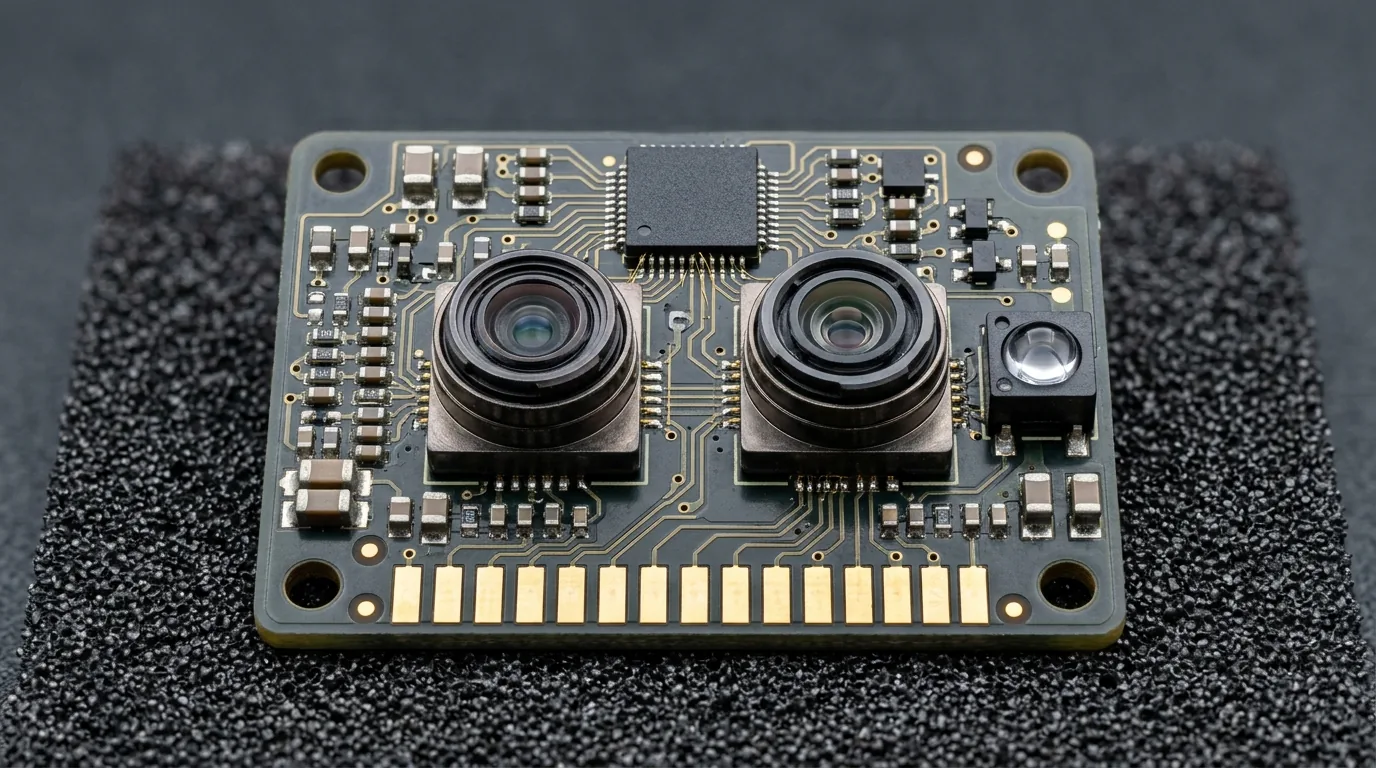



What Makes Wi-Fi 7 Different: Technical Foundation
Wi-Fi 7, designated as IEEE 802.11be, represents the most significant leap in wireless networking since the transition to Wi-Fi 6. Three core technological advances drive its capabilities: expanded channel widths, higher-order modulation, and Multi-Link Operation. Understanding these fundamentals helps you evaluate whether a Wi-Fi 7 router delivers meaningful improvements for your setup.
Channel Width and Spectrum Access
The IEEE 802.11be amendment defines operation across three frequency bands. The 2.4 GHz band remains available for backward compatibility, while the 5 GHz band continues offering reliable mid-range coverage. The critical addition is the 6 GHz band, which supports channel widths up to 320 MHz. That is twice the maximum 160 MHz channel width available under Wi-Fi 6 and Wi-Fi 6E.
Wider channels accommodate more simultaneous data streams. Where a 160 MHz channel might carry data across four spatial streams, a 320 MHz channel effectively doubles that capacity. The Wi-Fi Alliance announced that Wi-Fi 7 devices achieve peak data rates exceeding 40 Gbps, substantially outpacing previous generations. This increase matters most when moving large files across a local network, streaming uncompressed 8K video, or running bandwidth-intensive applications on multiple devices simultaneously.
4K-QAM Modulation
Quadrature Amplitude Modulation determines how much data each transmission symbol carries. Wi-Fi 6 introduced 1024-QAM (1K-QAM), which encodes 10 bits per symbol. Wi-Fi 7 advances to 4096-QAM (4K-QAM), encoding 12 bits per symbol. According to Qualcomm technical documentation, this 20% improvement in throughput per symbol becomes most apparent under strong signal conditions where the router and client can maintain the highest modulation rates.
Multi-Link Operation
Multi-Link Operation (MLO) changes how devices communicate with the network. Previous Wi-Fi generations treated each frequency band as a separate pathway. A device connected to the 5 GHz band used that single band for all transmissions. MLO allows a Wi-Fi 7 device to transmit and receive simultaneously across the 2.4 GHz, 5 GHz, and 6 GHz bands.
Intel describes MLO as enabling concurrent operation across multiple frequency bands for reduced latency and improved reliability. In practice, a router can send some packets over the 6 GHz band while receiving acknowledgment on 5 GHz, or aggregate throughput across two bands for a single data transfer. When one band experiences interference, traffic routes through other bands without requiring the device to disconnect and reconnect.
These three technologies work together. The 320 MHz channels provide raw bandwidth, 4K-QAM extracts maximum efficiency from that spectrum, and MLO intelligently distributes traffic across available bands. The combination addresses congestion issues that become apparent in households with dozens of connected devices competing for wireless capacity.

6 GHz Band Availability: USA vs Europe
The 6 GHz band forms the backbone of Wi-Fi 7's high-throughput capabilities, but the spectrum available to consumers varies significantly between the United States and Europe. Understanding these regulatory differences helps you set realistic expectations for your router's performance and choose hardware suited to your region.
In the United States, the Federal Communications Commission opened 1200 MHz of spectrum in the 6 GHz band for Unlicensed National Information Infrastructure devices. This allocation enables routers to operate using 320 MHz channel widths; the configuration that delivers Wi-Fi 7's maximum throughput. American consumers with Wi-Fi 7 routers can access seven 160 MHz channels or one 320 MHz channel in the 6 GHz band, depending on local spectrum congestion and device capability.
European implementation follows the European Telecommunications Standards Institute framework, which currently limits initial deployments to 160 MHz channel widths. Some European countries have begun expanding access to wider channels, but the rollout varies by nation. Regulators in the European Union prioritize coordination with existing fixed-service links in the 6 GHz band before opening additional spectrum for consumer use.
The practical implication is that European users may experience Wi-Fi 7 speeds closer to Wi-Fi 6E performance in some configurations until regulations expand. When comparing routers, check whether a model supports your region's maximum channel width. Most flagship Wi-Fi 7 routers sold in Europe still deliver meaningful improvements over Wi-Fi 6 through Multi-Link Operation and 4K-QAM modulation, even when limited to 160 MHz channels.
Signal propagation in the 6 GHz band follows characteristics similar to the 5 GHz band, with reduced ability to penetrate walls and floors compared to 2.4 GHz. Placement matters considerably for 6 GHz coverage. Position your router centrally and minimize obstructions between the device and your connected clients. Mesh systems using the 6 GHz band for backhaul work well in larger homes where a single router cannot provide complete coverage.
Both regions require WPA3 security for Wi-Fi 7 certification, so you will encounter the same mandatory encryption standards regardless of where you purchase equipment.
Setting Up Your Wi-Fi 7 Router: Step-by-Step
Deploying a Wi-Fi 7 router requires a methodical approach that differs from previous generations. The new capabilities, particularly Multi-Link Operation and the 6 GHz band, demand careful initial configuration to deliver the promised performance gains.
Position the router in a central location before connecting any cables. The 6 GHz radio in Wi-Fi 7 operates with reduced wall penetration compared to 2.4 GHz, so placement matters significantly for coverage quality. Avoid enclosed spaces, metal surfaces, and locations behind large furniture. Most Wi-Fi 7 routers ship with external antennas that you should orient outward and slightly apart to maximize signal distribution.
Connect the router to your modem using the designated WAN or Internet port, typically color-coded in yellow or blue on consumer models. Plug the power adapter and wait approximately two minutes for the device to complete its boot sequence. The status LEDs will indicate when the router establishes its baseline connection.
Access the administration interface through a web browser or companion mobile application. The default gateway address is usually printed on the router label, commonly 192.168.0.1 or 192.168.1.1. Connect your client device directly to one of the router's LAN ports using an Ethernet cable for the initial setup, which eliminates potential wireless configuration issues during the process.
Check for available firmware updates immediately after accessing the admin interface. Manufacturers frequently release updates that address security vulnerabilities, improve radio calibration, and optimize the new Wi-Fi 7 features. Navigate to the firmware or system update section, which typically resides under Advanced, Administration, or System Settings depending on the vendor interface layout.
Download and apply any pending updates before modifying other settings. The router will restart automatically after installation, so plan for approximately three to five minutes of downtime. Never power off the router during a firmware update. After the reboot completes, reconnect to the admin interface and verify the firmware version matches the expected release.
The Wi-Fi Alliance requires WPA3 security for Wi-Fi 7 certification, meaning every certified Wi-Fi 7 router supports this protocol by default. Access the wireless security settings and confirm WPA3-Personal is enabled for all bands. Some routers offer WPA3-SAE or WPA3-Enterprise options; for home networks, WPA3-Personal with a strong password provides adequate protection.
If you operate legacy devices that do not support WPA3, enable mixed-mode compatibility (WPA2/WPA3) in the router settings. This allows older clients to connect while maintaining WPA3 protection for compatible devices. Avoid falling back to WPA2-only or WEP encryption, as these protocols lack the protections built into WPA3 against password-guessing attacks.
Change the router's default administrator password during initial setup. Default credentials present a significant security risk because manufacturers use predictable combinations that attackers have catalogued. Choose a unique password of at least 12 characters combining letters, numbers, and symbols.
Wi-Fi 7 routers broadcast across three frequency bands: 2.4 GHz, 5 GHz, and 6 GHz. The admin interface allows you to enable or disable each band and configure separate network names. For optimal experience, maintain distinct SSIDs for each band initially so you can verify which frequencies your devices are using.
The 2.4 GHz band provides maximum compatibility with older devices and better range through walls. Reserve this band for smart home devices, IoT gadgets, and clients that do not require maximum throughput. The 5 GHz band offers a strong balance of speed and range suitable for most laptops, tablets, and streaming devices. Reserve the 6 GHz band for newer clients that support Wi-Fi 6E or Wi-Fi 7, as these devices will benefit most from the expanded channel widths and reduced congestion.
Some routers automatically steer devices between bands based on signal strength and client capabilities. If this feature is available, enable it to reduce manual intervention when moving throughout your home.
Multi-Link Operation represents the defining capability of Wi-Fi 7, allowing devices to transmit and receive simultaneously across multiple frequency bands. Locate the MLO or Multi-Link settings in your router interface, which manufacturers place in varying locations depending on their firmware design. Common paths include Wireless Settings, Advanced Wireless, or a dedicated Wi-Fi 7 section.
Enable MLO for both the 5 GHz and 6 GHz bands. The router will then coordinate with compatible clients to establish aggregated connections that span both frequencies. This simultaneous operation reduces latency by allowing packets to travel on whichever band is immediately available, rather than waiting for a congested channel to clear.
After enabling MLO, verify the configuration by checking the status of connected Wi-Fi 7 clients. The router admin interface should display MLO-capable devices separately from legacy clients, confirming that the feature is active and functioning.
Set your geographic region correctly in the router configuration, as this determines available channel widths. The router uses region information to comply with local regulatory requirements for spectrum access. Incorrect region settings may limit available channels or disable the 6 GHz band entirely.
If your router supports manual channel selection, consider leaving channel selection on automatic for the 6 GHz band initially. The router will scan for interference and select an optimal channel. For the 5 GHz band, automatic selection typically provides acceptable results in residential environments. Channel width settings of 160 MHz or 320 MHz (where permitted by regional regulations) maximize throughput for compatible clients.
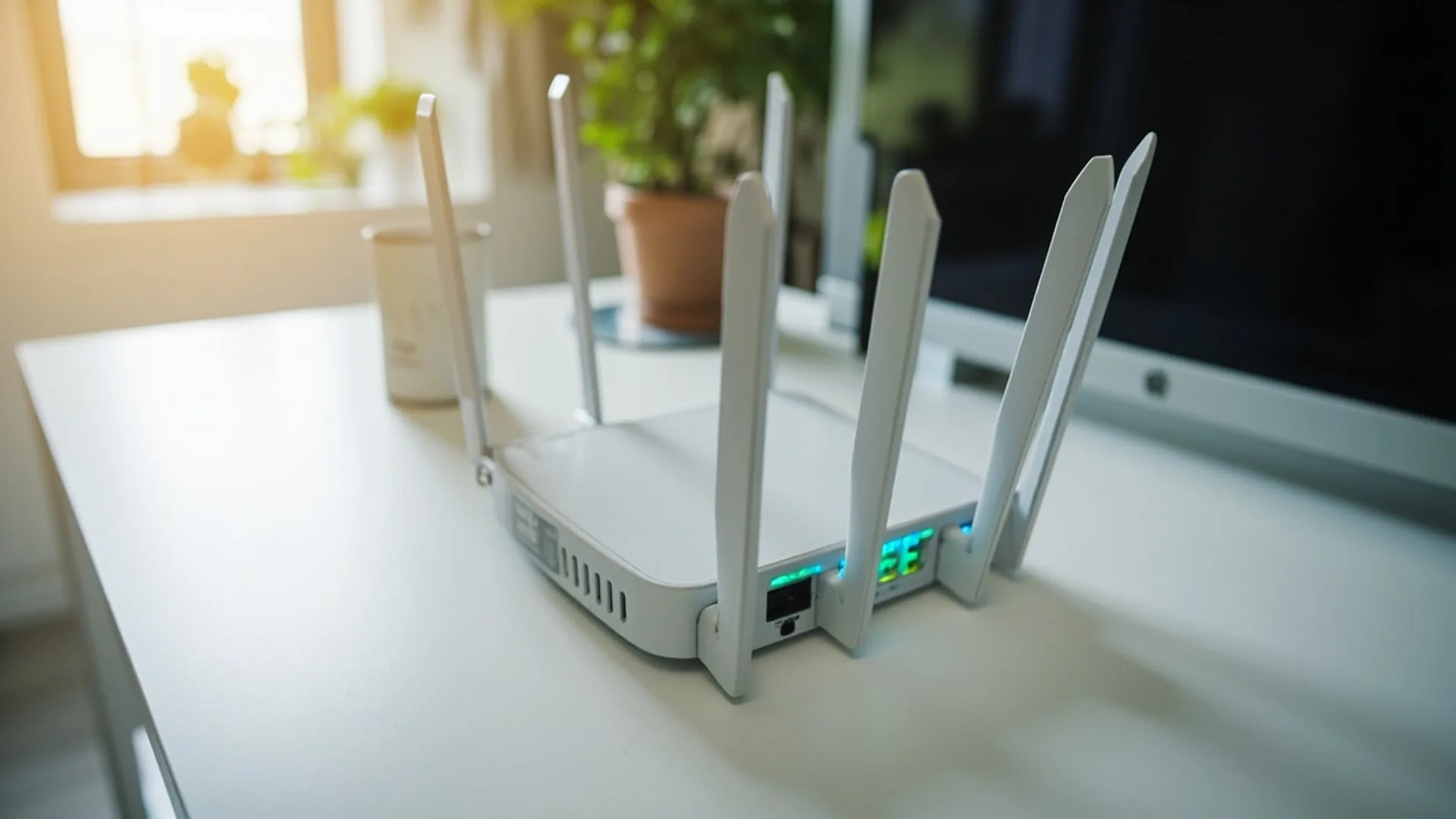
Current Wi-Fi 7 Client Device Ecosystem
Owning a Wi-Fi 7 router means little without compatible client devices to connect to it. The smartphone and laptop markets are in an early transition phase, which shapes what you can actually achieve with a new router today.
The first wave of Wi-Fi 7 smartphones appeared in early 2024. Samsung's Galaxy S24 Ultra incorporated Wi-Fi 7 support through Qualcomm's FastConnect 7800 chip, and Xiaomi followed with its Xiaomi 14 lineup using the same silicon. These devices can take advantage of your router's 320 MHz channels and Multi-Link Operation when positioned close enough to access the 6 GHz band. For a reader who already owns one of these phones, a Wi-Fi 7 router delivers measurable improvements in controlled environments.
Laptop adoption moved more slowly. Intel released the BE200 Wi-Fi 7 adapter toward the end of 2024, and original equipment manufacturers began integrating it into premium notebooks. Most business and mid-range laptops shipping in 2024 still carried Wi-Fi 6E adapters. Desktop users who want native Wi-Fi 7 connectivity can purchase the Intel BE200 as a standalone PCIe card or USB adapter, though driver maturity and firmware updates have been ongoing.
This creates a practical reality for most enthusiasts building out a Wi-Fi 7 network in 2024 and 2025: your router will likely serve a mix of Wi-Fi 7, Wi-Fi 6E, and older devices simultaneously. Your Galaxy S24 Ultra or Xiaomi 14 will negotiate the fastest connection the router offers, while your older laptop, smart home devices, and gaming consoles fall back to their maximum capability. This mixed-device environment is normal and expected. Your Wi-Fi 7 router remains backward compatible with every previous Wi-Fi standard, so existing devices continue functioning without issues.
If your current devices are all Wi-Fi 6E or older, the practical benefit of upgrading to a Wi-Fi 7 router is limited. The router's advanced features require compatible clients to activate them. Consider the timeline of your next device purchase when deciding whether to invest in Wi-Fi 7 hardware now or wait until your upgrade cycle naturally brings Wi-Fi 7 devices into your home.
Wi-Fi 7 Router Recommendations for Enthusiasts
Several manufacturers released Wi-Fi 7 routers for the consumer market beginning in early 2024. TP-Link announced availability of its Archer BE series in March 2024. ASUS brought its ROG Rapture GT-BE98 to market with broader availability throughout 2024. Netgear followed with its Nighthawk RBE700S lineup. These releases gave enthusiasts three distinct performance tiers to evaluate.
Entry-Level Performance ($179-$230)
TP-Link offers the Archer BE230 as an entry point into Wi-Fi 7 at approximately $179.99. This model includes a quad-core processor, tri-band wireless configuration, and a modest antenna array. Port selection typically includes a 2.5 Gbps WAN port paired with multiple 1 Gbps LAN ports. The processor handles basic routing tasks adequately, though demanding environments with many simultaneous clients may reveal limitations. This tier suits enthusiasts evaluating Wi-Fi 7 for the first time or those with straightforward home network needs.
Mid-Range Performance ($349-$400)
ASUS positions the RT-BE88U at approximately $349.99 as the mid-range option. This router delivers significantly upgraded specifications compared to entry-level models. The processor handles sustained throughput and complex traffic management without degradation. Port selection expands to include dual 10 Gbps ports alongside multiple 2.5 Gbps connections, accommodating high-speed local network storage and direct device connections requiring maximum bandwidth.
The antenna configuration in mid-range models typically provides stronger signal strength and improved coverage compared to entry-level alternatives. Processing power scales accordingly, with manufacturers using faster clock speeds and additional cores to manage the increased data throughput Wi-Fi 7 delivers.
Flagship Performance ($549 and above)
Netgear's RBE700S reaches approximately $549.99 in the flagship consumer category. This tier emphasizes maximum wireless capability, expanded port selection, and robust processing for environments with numerous connected devices. Antenna arrays grow larger and more sophisticated, providing enhanced coverage for larger homes or complex layouts.
Port configurations at this level typically include multiple 10 Gbps ports, allowing enthusiasts to build high-speed local networks connecting NAS devices, workstations, and other bandwidth-intensive equipment directly via wired connections while relying on Wi-Fi 7 for wireless clients. Processing power handles firewall inspection, VPN termination, and network storage functions without creating bottlenecks that would negate the wireless performance gains Wi-Fi 7 provides.
Selecting the Right Model for Your Setup
Consider three primary factors when evaluating which tier matches your needs. First, processor capability determines how effectively the router manages traffic under load. Gaming enthusiasts benefit from lower latency processors, while those running network storage prioritize sustained throughput performance.
Second, port selection must accommodate your wired devices. Enthusiasts with NAS systems, workstations, or gaming consoles benefit from models offering multiple multi-gigabit ports. Those relying primarily on wireless connections may find entry-level port configurations adequate.
Third, antenna configuration directly affects coverage area and signal quality throughout your space. Larger homes or multi-story layouts require more capable antenna systems to maintain consistent 6 GHz performance, which suffers more from obstructions than lower frequencies.
All current Wi-Fi 7 consumer routers include WPA3 security as a mandatory certification requirement from the Wi-Fi Alliance. This means whichever model you select provides the same baseline security level. Differences in firmware features matter more than security fundamentals at this point.
ASUS routers typically ship with ASUSWRT firmware, which offers extensive configuration options including traffic monitoring, adaptive QoS, and comprehensive guest network management. Netgear оборудование includes the Nighthawk app for streamlined setup alongside advanced configuration through the web interface. TP-Link provides the Tether app for mobile management with full web-based configuration available.
For enthusiasts planning future network expansion, several models across price tiers support Easy Mesh or proprietary mesh extension protocols. This allows adding compatible access points later without replacing the primary router, extending coverage to areas where the primary router cannot reach effectively.
The processor and RAM specifications matter most for enthusiasts running additional network services. VPN passthrough and routing, firewall rules, and network storage functions all consume resources. Higher-end models provide headroom for these applications, while entry-level hardware may struggle when running anything beyond basic routing and DHCP services.
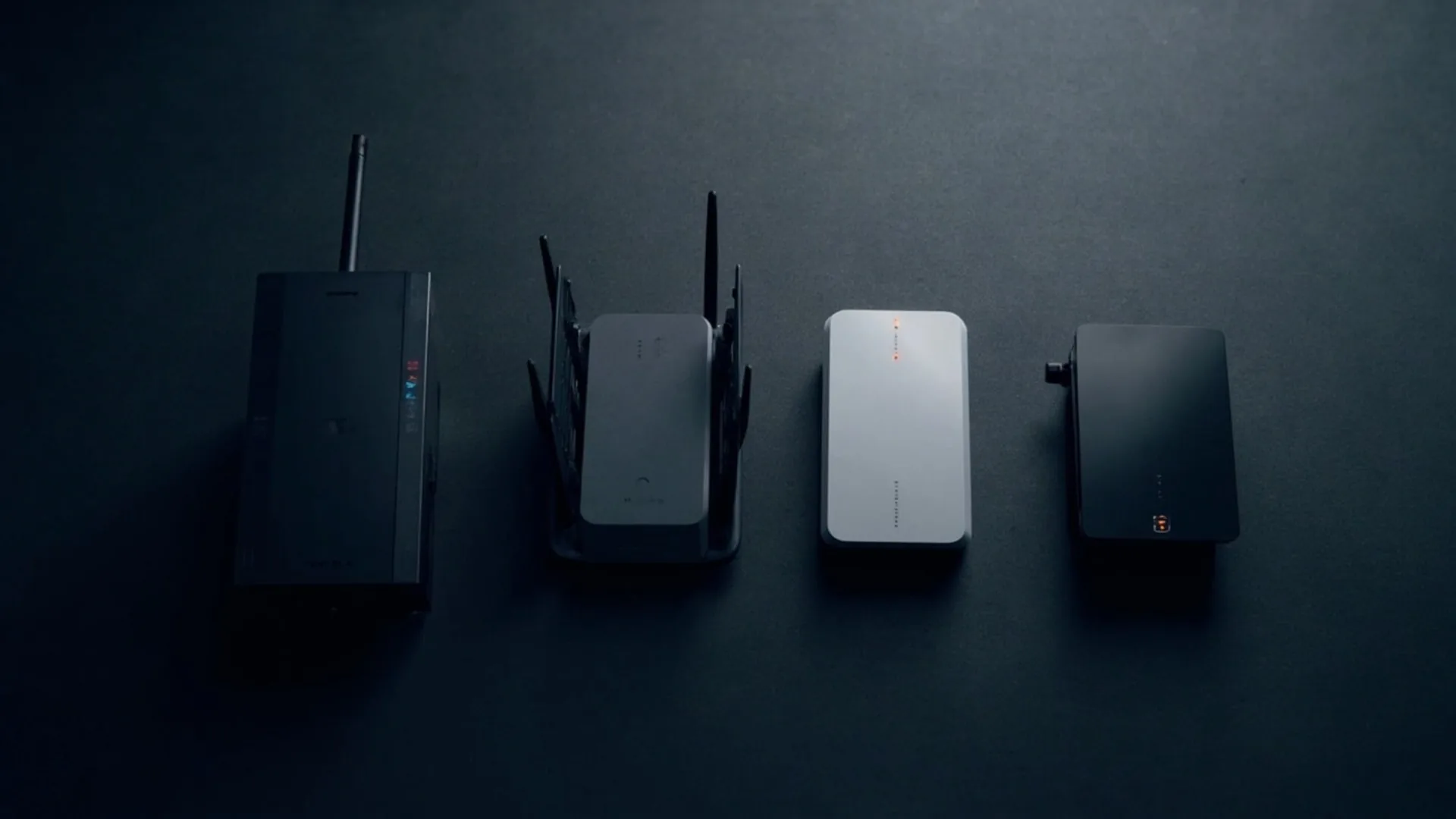
| Tier | Model | Price | Key specs |
|---|---|---|---|
| Entry-level | TP-Link Archer BE230 | ~$180 | Quad-core CPU, tri-band, 2.5 Gbps WAN, multiple 1 Gbps LAN |
| Mid-range | ASUS RT-BE88U | ~$350 | Dual 10 Gbps ports + multiple 2.5 Gbps, stronger antennas, faster processor |
| Flagship | Netgear RBE700S (Nighthawk) | ~$550 | Multiple 10 Gbps ports, large antenna array, sustained throughput for many clients |
Frequently Asked Questions
Is Wi-Fi 7 backward compatible with older devices?
Wi-Fi 7 routers maintain full backward compatibility with devices using Wi-Fi 6, Wi-Fi 6E, Wi-Fi 5, and earlier standards. When a legacy device connects, the router automatically negotiates the highest common protocol the device supports. This means you can deploy a Wi-Fi 7 router into an existing network without replacing smartphones, laptops, or smart home devices. However, older devices cannot access Wi-Fi 7-specific features such as Multi-Link Operation or 4K-QAM modulation. They will operate on whichever band the router allocates based on the device's supported protocols and current network conditions.
What is Multi-Link Operation and why does it matter for home networks?
Multi-Link Operation allows a single Wi-Fi 7 device to transmit and receive data simultaneously across multiple frequency bands instead of selecting one band for communication. A Wi-Fi 7 client can use 2.4 GHz and 5 GHz together, or combine 5 GHz and 6 GHz for a single data stream. This concurrent operation reduces latency because the device does not wait for a congested band to become available. In practice, MLO provides more consistent performance in households with many connected devices competing for bandwidth. Not all Wi-Fi 7 routers enable MLO identically, so checking router specifications for multi-band aggregation support matters when comparing models.
How does the 6 GHz band affect optimal router placement?
The 6 GHz frequency used by Wi-Fi 7 for 320 MHz channels propagates differently than the 2.4 GHz band that passes through walls more readily. Signals at 6 GHz have reduced penetration through construction materials and experience higher attenuation over distance compared to lower frequencies. Placing a Wi-Fi 7 router in a basement or behind multiple concrete walls significantly diminishes 6 GHz coverage. For homes with multiple floors, positioning the router on an upper floor or central location improves 6 GHz reach to nearby rooms. The 2.4 GHz band continues providing broader coverage for distant devices, while 6 GHz serves nearby devices requiring maximum throughput.
Is WPA3 security mandatory for Wi-Fi 7 routers?
The Wi-Fi Alliance requires WPA3-Personal or WPA3-Enterprise security for devices to receive Wi-Fi CERTIFIED 7 designation. This certification ensures interoperability and baseline feature compliance. All major Wi-Fi 7 routers from ASUS, TP-Link, and Netgear include WPA3 by default, though some allow falling back to WPA2 for compatibility with older devices that lack WPA3 support. Using WPA3 provides protection against password-guessing attacks that vulnerable older protocols cannot defend. Keeping WPA3 enabled whenever possible balances security with the minor compatibility trade-off for legacy hardware.
Why are regulatory restrictions important for Wi-Fi 7 performance in Europe?
Different regulatory bodies control spectrum allocation in each region, directly affecting available channel widths. The FCC in the United States opened the full 1200 MHz of the 6 GHz band for unlicensed use, enabling contiguous 320 MHz channels. The European Telecommunications Standards Institute implementation varies by country, with some regions initially limiting operations to 160 MHz channels rather than the full 320 MHz width available in the USA. This difference means a Wi-Fi 7 router purchased in Europe may not achieve the same peak throughput as an identical model used in the United States, depending on local regulations. Checking regional spectrum allocation rules before purchasing helps set realistic performance expectations.
What should I check when speeds do not match Wi-Fi 7 specifications?
Several factors commonly cause measured speeds below theoretical maximums. The client device must support Wi-Fi 7 features; a Wi-Fi 6 device connecting to a Wi-Fi 7 router will perform at Wi-Fi 6 speeds regardless of router capabilities. Physical distance from the router matters significantly, especially for 6 GHz signals. Interference from neighboring networks operating on the same channels, building materials blocking signals, and outdated router firmware can all degrade performance. Verifying that the client device supports 160 MHz or 320 MHz channels, that the connection is actually using the 6 GHz band, and that the internet service itself provides sufficient bandwidth helps isolate whether the limitation originates from the local network or the ISP connection.
Cited sources
- IEEE 802.11 Task Group BE
- Wi-Fi Alliance Press Release on Wi-Fi CERTIFIED 7
- Intel Wi-Fi 7 Technology Overview
- Qualcomm Wi-Fi 7 Platform Overview
- TP-Link Wi-Fi 7 Product Launch Press Release
- FCC Consumer Guide on Wi-Fi 6E and Wi-Fi 7
- AnandTech Qualcomm FastConnect 7800 Wi-Fi 7 Brief
- Wi-Fi Alliance Certification Requirements
- FCC 6 GHz Band Ruling
- Amazon Wi-Fi 7 Router Listings (aggregated)




Loading comments…