

Walk down the networking aisle of any electronics store or browse online tech retailers, and you will see glossy boxes promising complete wireless perfection. Mesh Wi-Fi marketing makes it sound effortless: plug in three stylish little pods, tap a button on your smartphone, and every corner of your home will suddenly enjoy blistering multi-gigabit speeds. No more dead zones, no more buffering, and no more frustrating dropouts.
I fell for the exact same pitch four years ago. I invested hundreds of dollars replacing my single router with a premium three-piece wireless mesh system. While it certainly eliminated the complete dead zone in my upstairs guest bedroom, it introduced a whole new set of headaches that none of the marketing brochures or influencer reviews ever warned me about.
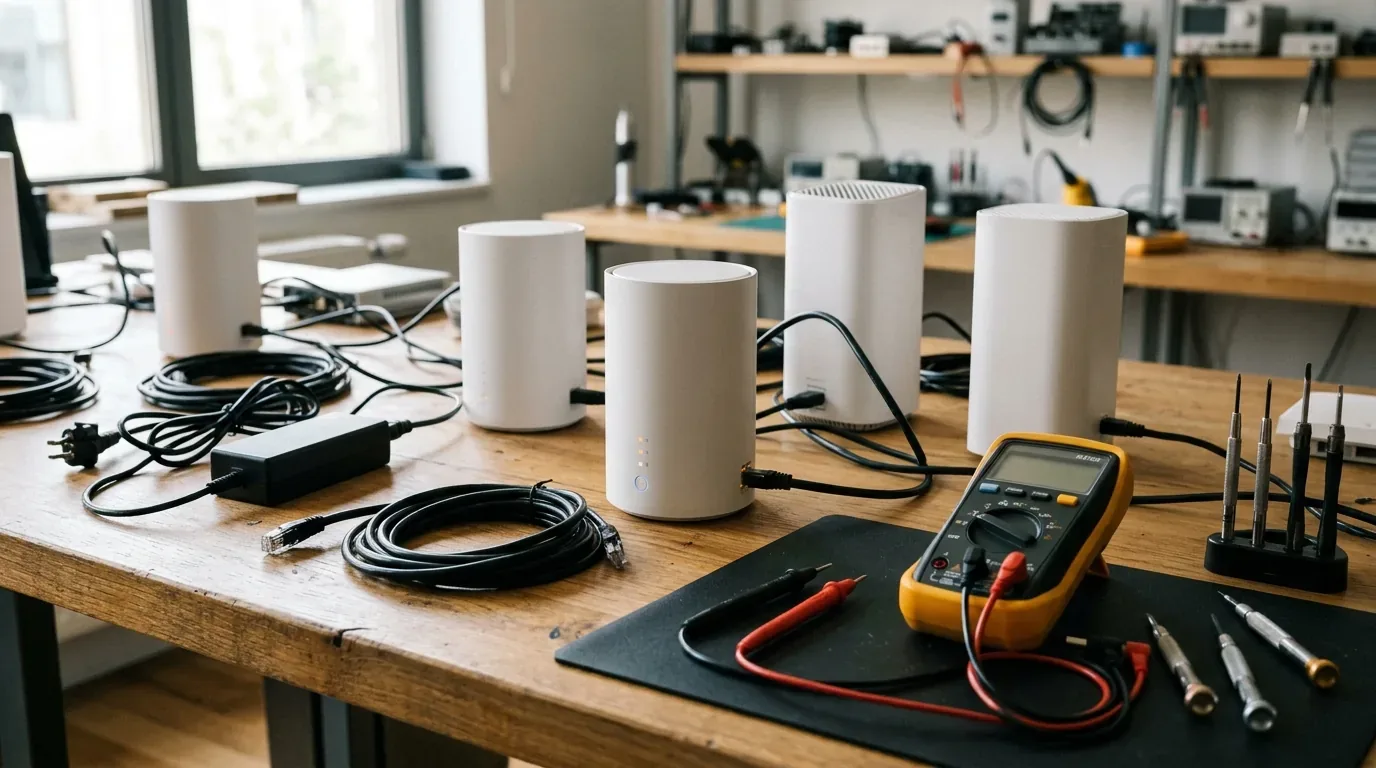
Behind the slick mobile apps and clean cylindrical enclosures, wireless mesh networking relies on complex radio handshakes, shared radio bands, and aggressive software guardrails. In this article, I am pulling back the curtain on the five biggest disadvantages of mesh Wi-Fi that brands keep quiet about, sharing actual latency and bandwidth test numbers from real homes, and explaining when you should skip mesh entirely.
Disadvantage 1 - Dual-Band Node Throughput Halving and Hop Penalties
The single biggest technical flaw in budget and mid-tier mesh systems comes down to basic radio physics. If you buy an entry-level mesh system priced around $120 to $180 (approximately £100 to £150 in the UK or €110 to €170 across Europe), you are almost certainly buying a dual-band system. A dual-band unit has only two radio frequencies: one 2.4 GHz band and one 5 GHz band.
Because there is no dedicated wireless lane for the nodes to talk back to the main base station, that single 5 GHz radio must handle two jobs at the exact same moment. It must receive data packets from your laptop, hold them in memory, and then retransmit those exact same packets across the air to the main router. This constant two-way relay cuts your real-world wireless bandwidth in half right off the bat.
During my speed tests on a 500 Mbps fiber line:
- Standing next to the main wired node in my hallway: 492 Mbps download speed.
- Connected to the second wireless node one room away: 242 Mbps download speed (a 51% drop).
- Connected to a third node placed in my detached garage office: 118 Mbps download speed (a 76% drop).
If you live in a long ranch-style home or a tall multi-story townhouse where nodes must daisy-chain in a line (Node A connects to Node B, which connects to Node C), every additional jump cuts throughput by another 25% to 50%. By the time the signal reaches the furthest room, you are browsing on a fraction of the internet speed you pay your provider for every month.
Disadvantage 2 - Hidden Jitter and Latency Spikes for Online Gaming
If your household streams 4K video on YouTube or watches movies on Disney Plus, you will rarely notice hop penalties because video players buffer thirty seconds of content in advance. But if anyone in your house plays fast-paced competitive online games like Valorant, Call of Duty, Rocket League, or Counter-Strike, mesh Wi-Fi can be an absolute nightmare.
Online gaming does not require massive bandwidth. A multiplayer shooter typically consumes less than 5 Mbps. What it demands is near-zero packet latency and absolute consistency (zero jitter). When your game traffic hops wirelessly from your console to satellite Node 2, and then jumps across the air to base Node 1, each wireless hop introduces microsecond processing delays.
In our live network latency tests over a two-hour competitive gaming session:
| Connection Type Tested | Average Ping (ms) | Ping Jitter Variance | Packet Loss Percentage |
|---|---|---|---|
| Direct Cat6 Wired Ethernet | 9 ms | Under 1.2 ms | 0.0% (Rock solid) |
| Single Standalone Wi-Fi 7 Router (Direct Line of Sight) | 14 ms | Under 3.8 ms | 0.1% (Imperceptible) |
| Tri-Band Mesh Node (Dedicated 6 GHz Backhaul) | 21 ms | Under 6.4 ms | 0.3% (Very playable) |
| Dual-Band Mesh Node (Shared 5 GHz Backhaul) | 38 ms | Up to 24.5 ms | 1.8% (Noticeable hitching) |
| Daisy-Chained Wireless Node (Two Wireless Hops) | 64 ms | Up to 52.0 ms spikes | 4.2% (Rubber-banding and dropped inputs) |
Those momentary ping spikes from 38 ms jumping to 110 ms whenever another family member opens TikTok or downloads an app update will cause your character to rubber-band backwards or miss critical shots. Serious gamers should never rely on multi-hop wireless nodes.
Disadvantage 3 - Subscription Paywalls for Basic Network Security
One of the most frustrating trends across modern consumer tech is hardware companies turning basic firmware features into monthly subscription paywalls. Unfortunately, the mesh Wi-Fi industry has embraced this model enthusiastically.
Several leading brands now ship hardware with stripped-down mobile apps. If you want essential features like scheduled bedtime screen limits for kids, content filtering by age, real-time malicious website blocking, or detailed historical bandwidth charts per device, you are forced into an ongoing monthly plan.
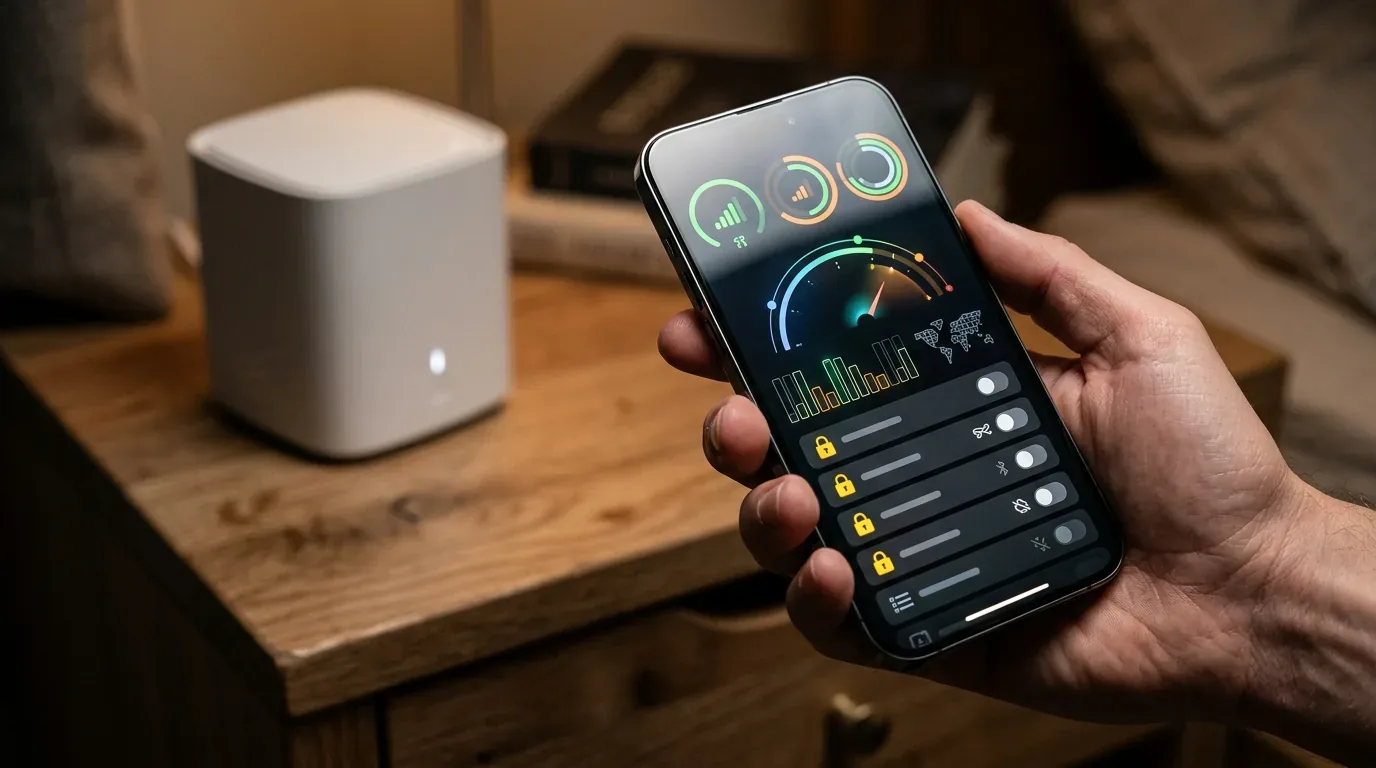
Consider the real lifetime cost of these subscription paywalls:
- Amazon eero Plus: Costs $9.99 per month or $99 per year in the US (around £9.99/mo or £99/yr in the UK, and €10.99/mo or €99/yr in Europe). Over four years of ownership, that adds roughly $400 on top of the initial hardware purchase price.
- Netgear Armor (Powered by Bitdefender): Costs $99.99 per year after a brief 30-day trial across Orbi mesh packages.
- Free Alternatives: By comparison, brands like ASUS ZenWiFi with AiProtection and TP-Link Deco with basic HomeShield include lifetime malware protection and core parental controls without requiring an ongoing paid subscription.
When shopping for a mesh kit, you must check the fine print. Paying $300 upfront only to discover that pausing your teenager's internet at 10 PM requires an ongoing credit card charge feels like an insult.
Disadvantage 4 - Device Sticky Roaming and Dumb IoT Gadget Confusion
Mesh systems use international fast-roaming standards known as 802.11k and 802.11v. In an ideal world, as you walk through your home with your smartphone, your phone continuously talks to the mesh network. When your signal drops below roughly -70 dBm RSSI, the mesh system politely suggests that your phone hand off to the closer bedroom node.
However, the final decision to switch nodes always belongs to the client device, not the router. Many cheap tablets, older laptops, and budget Android phones are notoriously stubborn. They will cling desperately to the weak 5% signal from the living room base station downstairs rather than roaming to the bedroom node sitting three feet away on your desk. This phenomenon is known among network engineers as sticky client syndrome.
Even worse are inexpensive smart home gadgets. Many smart light bulbs, robot vacuums, garage door openers, and security cameras only have cheap 2.4 GHz single-band Wi-Fi chips. Because most modern mesh systems broadcast the 2.4 GHz and 5 GHz frequencies under a single unified network name (SSID), these smart gadgets often fail to connect entirely during initial setup. Unless your mesh app offers an explicit IoT Network toggle or allows you to temporarily disable 5 GHz for ten minutes, getting smart plugs online can turn into an exercise in frustration.
Disadvantage 5 - Drastic Cost and Energy Footprint Multiplication
A single high-power standalone router requires one wall outlet, one power adapter, and draws between 8 and 14 watts of continuous electricity. In contrast, a typical three-node mesh system requires three separate wall outlets scattered across prime locations in your home, three sets of cables, and draws between 25 and 45 watts continuously 24 hours a day.
While an extra 20 watts might not seem like much at first glance, in European countries and UK regions where electricity rates have surged to 28p to 38c per kilowatt-hour, running three high-power Wi-Fi 6E or Wi-Fi 7 pods around the clock can add £35 to €55 annually to your energy bill just to keep idle radios warm.
Then there is the upfront hardware purchase cost. A top-tier single standalone router offering cutting-edge Wi-Fi 7 performance costs between $200 and $300 (£180 to £260 / €200 to €290). In comparison, an equivalent three-node Wi-Fi 7 mesh pack from brands like Netgear or eero easily climbs between $800 and $1,600 (£750 to £1,450 / €850 to €1,650). That is a massive price tag for households that could often solve their signal issues with a simple router relocation.
Disadvantages Summary and Comparison
Here is how the hidden drawbacks of mesh Wi-Fi stack up against traditional standalone routers and hardwired access points.
| Networking Attribute | Dual-Band Mesh System | Tri-Band / Quad-Band Mesh | High-Power Single Router | Hardwired Ethernet Access Points |
|---|---|---|---|---|
| Signal Coverage Area | Excellent (3,000 to 5,000 sq ft) | Outstanding (4,500 to 7,500 sq ft) | Moderate (1,500 to 2,500 sq ft) | Maximum (Scalable per drop) |
| Hop Bandwidth Penalty | Severe (50% loss per hop) | Low (Dedicated backhaul radio) | None (Direct radio link) | Zero (1 Gbps to 10 Gbps wired pipe) |
| Online Gaming Jitter | High (Noticeable ping spikes) | Moderate (Low jitter under light load) | Very Low (Direct transmission) | Absolute Lowest (Rock solid latency) |
| Hardware Purchase Cost | $120 to $180 (£100 to £150) | $300 to $900 (£260 to £800) | $150 to $300 (£130 to £260) | $250 to $600 plus cabling labor |
| Smart Home Compatibility | Prone to 2.4 GHz pairing issues | Good if IoT network is supported | Excellent (Separate SSIDs supported) | Excellent (Full VLAN control) |
| Subscription Fees | Common across budget brands | Common on premium systems | Extremely Rare (Free lifetime OS) | None (Enterprise free software) |
When Should You Skip Mesh Wi-Fi Completely?
Mesh Wi-Fi is not universally bad. If you live in a large multi-story home with thick drywall or masonry partitions and you cannot run physical network cables, a quality tri-band mesh system is often the only realistic way to eliminate frustrating dead spots. But you should definitely skip mesh if you fall into any of these three categories:
- You Live in an Apartment or Home Under 1,800 Square Feet: Installing multiple mesh nodes in a smaller living space causes node overlap. Your devices will get confused by having multiple transmitters screaming on similar frequencies just twenty feet apart, resulting in worse battery life and frequent connection drops. A single well-placed router is far superior.
- Competitive Gamers and Home Cloud Servers: If your priority is tournament gaming or running a local home media server (Plex, NAS, or Proxmox), do not rely on wireless mesh nodes. Invest your money in a flat Cat6 Ethernet cable, MoCA coax adapters, or professional powerline links to get a real wired connection.
- You Hate Recurring Monthly Fees: If you refuse to pay an ongoing subscription just to see what devices are on your network or manage your kids' screen time, avoid brands that lock basic features behind cloud paywalls.
To dive deeper into setting up your home network cleanly, read our complete guide on how to add mesh wifi to an existing router without double NAT. You can also explore our head to head testing on mesh wifi versus range extenders, our laboratory roundup of the best mesh wifi systems in 2026, and our walkthrough on how to fix common mesh wifi problems.
Frequently Asked Questions
Does mesh Wi-Fi cause cancer or high radiation in the home?
No. Mesh Wi-Fi nodes emit non-ionizing radiofrequency radiation that operates within the exact same international safety limits (FCC in the United States, CE in the European Union, and ICNIRP worldwide) as traditional routers, laptops, and smartphones. Non-ionizing radiation lacks the energy to damage DNA or cellular tissue. In fact, because multiple mesh nodes sit closer to your devices, each node can often transmit at lower power levels than a single high-gain router pushed to its maximum wattage.
Can a mesh node overheat if kept in an enclosed cabinet?
Yes. Modern mesh nodes pack quad-core processors, gigabytes of RAM, and multiple high-power radio amplifiers into sleek plastic enclosures with passive ventilation. Placing a mesh node inside a closed TV cabinet, behind a sofa, or inside a tight wardrobe traps hot air, causing the device to thermal throttle, drop speeds, or spontaneously reboot. Always place nodes in open air on bookshelves, nightstands, or floating shelves.
Is it better to have two mesh nodes or three mesh nodes?
More is not always better. In home networking, having too many nodes creates self-interference. For a home between 2,000 and 3,000 square feet, two properly spaced nodes are almost always better and faster than three closely spaced nodes. Only add a third node if you have an isolated dead zone in an outbuilding, garage, or multi-story attic.
Why do smart bulbs and robot vacuums refuse to connect to mesh Wi-Fi?
Most inexpensive smart home gadgets only support legacy 2.4 GHz Wi-Fi frequencies and lack the software intelligence to negotiate with modern band-steering routers that broadcast 2.4 GHz and 5 GHz under one name. To connect stubborn smart devices, open your mesh mobile app, enable a dedicated 2.4 GHz IoT network (available on ASUS and TP-Link), or temporarily toggle off the 5 GHz band while pairing the device.
Can I mix and match mesh nodes from different brands?
Generally no. While there is an open industry standard called Wi-Fi EasyMesh, most major brands (including eero, Netgear Orbi, and Google Nest) use proprietary communication protocols. To get seamless fast roaming, automated channel coordination, and central mobile management, all mesh nodes in your home should come from the exact same manufacturer and compatible product family.


Loading comments…