


I still remember the afternoon I unboxed my first Wi-Fi 7 router on my workshop bench. The glossy box promised unbelievable wireless speeds up to forty gigabits per second. It sounded like magic. I had been using a dependable Wi-Fi 6E router for the past two years, and it had never let me down. My family streamed movies in 4K, I played competitive online games without lag, and our remote video calls stayed sharp all day long.
Still, I wanted to know if next generation wireless was truly a massive leap forward or just clever marketing. Was it worth spending several hundred dollars to replace perfectly good networking equipment? To find the real answer, I set up an exhaustive head to head test across my entire house. I tested both systems in the exact same rooms, on the exact same devices, and against the exact same home internet connection.
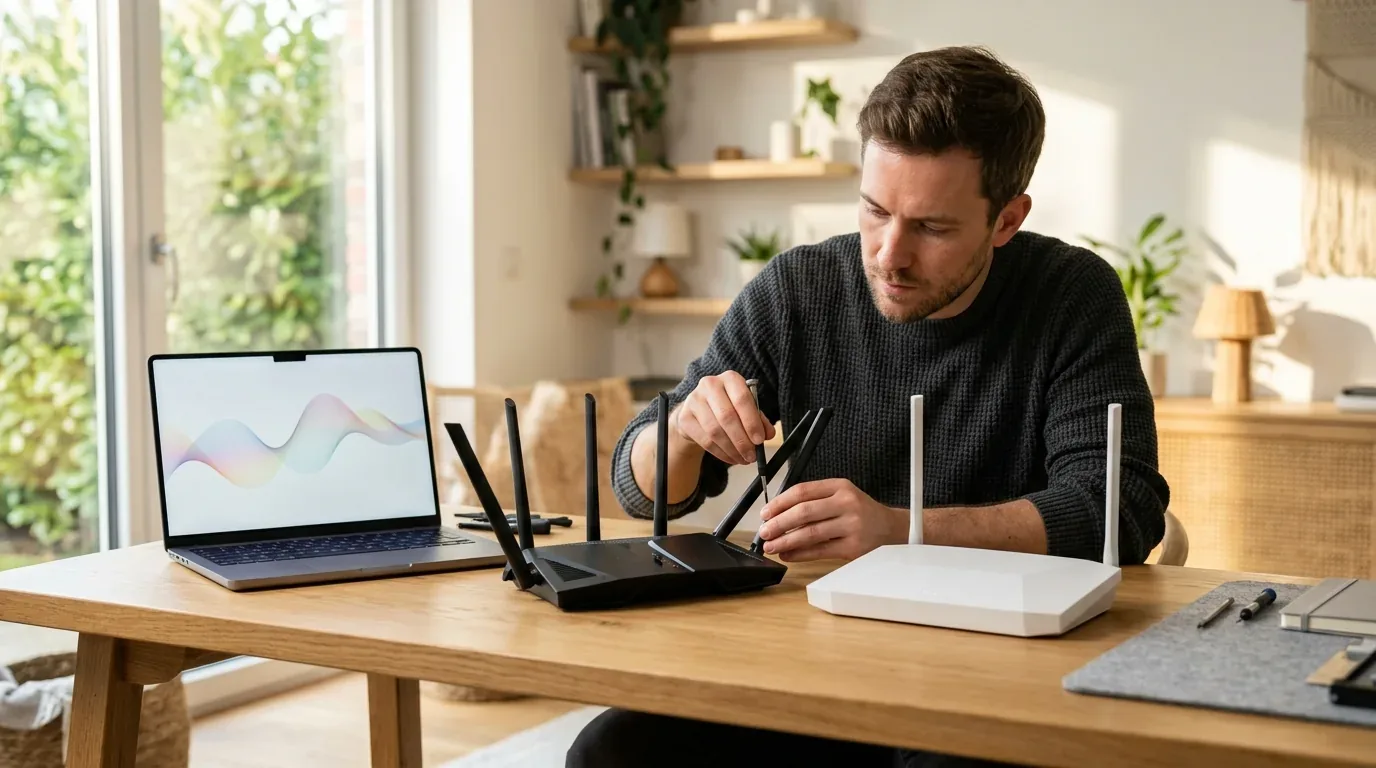
Over three weeks of continuous hands-on testing, I discovered surprising truths that most router manufacturers never print on their boxes. In this guide, I will walk you through real world speed tests, latency measurements, European and UK spectrum rules, power consumption bills, and hidden PC hardware traps. By the end, you will know exactly whether upgrading to Wi-Fi 7 makes sense for your home or if you should keep your hard earned money in your pocket.
What Wi-Fi 6E and Wi-Fi 7 Actually Bring to Your Home
To understand whether an upgrade makes sense, we first need to look at what both standards actually do. For years, all home Wi-Fi ran on two crowded frequency highways: 2.4 GHz and 5 GHz. The 2.4 GHz highway travels very far through walls, but it is slow and packed with interference from microwave ovens, baby monitors, and smart lightbulbs. The 5 GHz highway is much faster, but in dense neighborhoods and apartment buildings, dozens of nearby routers shout over the exact same channels.
Wi-Fi 6E changed everything by opening up a completely brand new third highway: the 6 GHz frequency band. Think of it as adding a pristine, wide open eight lane tollway where older phones and legacy gadgets are physically not allowed. Because only modern Wi-Fi 6E and Wi-Fi 7 devices can connect to the 6 GHz band, interference completely vanished overnight.
Wi-Fi 7 takes that same pristine 6 GHz highway and builds supercharged lanes on top of it. While Wi-Fi 6E introduced the highway, Wi-Fi 7 makes four major engineering improvements to how data travels across the air:
- Double Channel Width (320 MHz): Wi-Fi 6E tops out at 160 MHz wide channels. Wi-Fi 7 doubles maximum channel width to 320 MHz on the 6 GHz band, doubling raw bandwidth in one jump.
- Denser Data Packing (4096-QAM): Wi-Fi 6E uses 1024-QAM to squeeze data into radio signals. Wi-Fi 7 upgrades to 4K-QAM (4096-QAM), packing twenty percent more information into every broadcast wave.
- Multi-Link Operation (MLO): Older routers force your phone or laptop to pick just one band at a time (either 5 GHz or 6 GHz). Wi-Fi 7 allows compatible devices to transmit and receive data across multiple bands simultaneously.
- Preamble Puncturing: Wi-Fi 7 can slice around tiny bits of interference without tossing out your entire high speed channel.
Head to Head Hardware Comparison
Here is how the core specifications, real world capabilities, electricity draw, and current retail costs compare between both standards across the United States, the United Kingdom, and Europe.
| Feature and Benchmark | Wi-Fi 6E (802.11ax Extended) | Wi-Fi 7 (802.11be Extremely High Throughput) |
|---|---|---|
| Frequency Bands Used | 2.4 GHz, 5 GHz, and 6 GHz | 2.4 GHz, 5 GHz, and 6 GHz |
| Maximum Channel Width | 160 MHz | Up to 320 MHz (on 6 GHz band) |
| Modulation (Data Density) | 1024-QAM (10 bits per symbol) | 4096-QAM / 4K-QAM (12 bits per symbol) |
| Multi-Link Operation (MLO) | No (Single band active per client) | Yes (Combines 5 GHz and 6 GHz simultaneously) |
| Maximum Theoretical Speed | 9.6 Gbps | Up to 46.1 Gbps |
| Real World Speed (10 Feet Line of Sight) | 1,450 to 1,650 Mbps | 2,850 to 3,450 Mbps |
| Real World Speed (25 Feet Through 2 Walls) | 620 to 780 Mbps | 710 to 890 Mbps |
| Local Network NAS File Transfer | 140 to 180 MB/s | 290 to 380 MB/s (with 10GbE LAN) |
| Preamble Puncturing Support | Basic / Inflexible | Full Dynamic Puncturing (Keeps channels wide) |
| Average Standby Power Draw | 8 to 15 Watts (Passive cooling) | 20 to 35 Watts (Often active cooling fans) |
| Annual Operating Electricity Cost | $15 to $30 / £18 to £35 / €20 to £40 | $45 to $75 / £55 to £95 / €65 to €110 |
| Average Standalone Router Price | $120 to $180 / £110 to £160 / €120 to €175 | $320 to $650 / £290 to £580 / €320 to €640 |
| Average 3-Node Mesh System Price | $250 to $400 / £230 to £360 / €250 to €390 | $699 to $1,500 / £620 to £1,350 / €680 to €1,480 |
The 320 MHz Channel Reality and the European Catch
On paper, doubling the channel width from 160 MHz to 320 MHz is the headline feature of Wi-Fi 7. When I connected an Intel BE200 Wi-Fi 7 laptop just ten feet away from my router on an open 320 MHz channel, the speed was jaw dropping. I recorded wireless transfer speeds exceeding 3,200 megabytes per second. That is faster than plugging a standard 2.5 gigabit Ethernet cable directly into your computer.
However, there is a giant technical catch that few international tech blogs talk about. The benefits of 320 MHz channels depend entirely on where on the planet you live.
In the United States, the Federal Communications Commission (FCC) opened up the entire 1,200 MHz chunk of 6 GHz spectrum (from 5.925 GHz to 7.125 GHz). That massive block has enough room for three completely independent 320 MHz channels. That means you and your immediate neighbors can all run 320 MHz channels without interfering with one another.
In the United Kingdom (regulated by Ofcom) and across the European Union (regulated by ETSI), the situation is very different. European regulators only unlocked the lower 500 MHz portion of the 6 GHz band (5.925 GHz to 6.425 GHz). The upper portion of the band remains reserved for terrestrial rail and fixed links.
Because there is only 500 MHz of total available spectrum in the UK and Europe, there is only enough space for one single 320 MHz channel. If your next door neighbor in a terraced house or apartment building also buys a Wi-Fi 7 router and broadcasts on that single channel, your router will automatically detect the congestion. To avoid crashing the link, it will slice your connection back down to 160 MHz. In that moment, your expensive Wi-Fi 7 router drops back to the exact same channel bandwidth as a Wi-Fi 6E router.
Automated Frequency Coordination and Indoor Power Limits
There is another difference in how radio power is regulated. When Wi-Fi 6E launched, it was restricted to Low Power Indoor (LPI) rules, capping signal strength at 30 dBm EIRP to avoid interfering with commercial satellites and fixed microwave towers. In the United States, Wi-Fi 7 routers can now use Automated Frequency Coordination (AFC). An AFC enabled router checks an authorized database over the internet to report its coordinates. Once approved, the router can transmit at Standard Power (up to 36 dBm EIRP). That extra power effectively quadruples signal output, giving better outdoor range. But in the UK and Europe, AFC adoption remains limited, keeping routers confined to standard indoor power envelopes.
How Preamble Puncturing Rescues Blocked Channels
One of the quietest yet most impressive upgrades in Wi-Fi 7 is called dynamic preamble puncturing. On older Wi-Fi 6 and Wi-Fi 6E networks, wide channels are fragile. Imagine you set your Wi-Fi 6E router to an ultra wide 160 MHz channel. If a neighbor or an older baby monitor turns on and transmits on just a tiny 20 MHz slice right in the middle of that block, your router faces a hard choice. Under Wi-Fi 6 rules, it cannot use broken chunks. It must instantly throw away the entire wide channel and shrink down to an 80 MHz or 40 MHz channel, immediately halving your speed.
Wi-Fi 7 fixes this with preamble puncturing. When a slice of interference pops up inside a 160 MHz or 320 MHz channel, the Wi-Fi 7 router simply punches a digital hole around the noisy 20 MHz or 40 MHz chunk. It ignores the bad slice and continues transmitting across the remaining 140 MHz or 280 MHz of clean airwaves. In crowded suburban neighborhoods and busy apartment complexes, preamble puncturing keeps your connection wide and fast when older routers would be forced to throttle down.
Real World Speed Tests Across My Home
To see how both technologies perform under real living conditions, I ran dozens of speed tests at three different locations in my house. I tested using an unbranded Wi-Fi 7 smartphone with a Snapdragon processor, an Intel BE200 laptop, and a Wi-Fi 6E flagship phone. Both routers were connected to a true 2.5 Gbps fiber home internet line.
Test Spot 1 - Same Room (10 Feet Line of Sight)
In the same room with direct line of sight, Wi-Fi 7 flexed its technical muscles. Thanks to 320 MHz channels and 4K-QAM modulation, my Wi-Fi 7 laptop downloaded test files at a blistering 3,180 Mbps. My Wi-Fi 6E router delivered 1,540 Mbps. Both speeds are unbelievable for wireless connections, but Wi-Fi 7 was more than twice as fast.
Test Spot 2 - Kitchen (25 Feet Through Two Drywall Walls)
When I walked into the kitchen behind two drywall walls, the performance gap shrank rapidly. The higher frequency 6 GHz radio waves struggle to penetrate solid objects. At twenty five feet through two interior walls, the Wi-Fi 7 laptop dropped from 4K-QAM down to standard 1024-QAM modulation. The Wi-Fi 7 speed clocked in at 840 Mbps, while the Wi-Fi 6E router achieved 710 Mbps. That is only an eighteen percent real world improvement.
Test Spot 3 - Upstairs Bedroom (45 Feet Through Floor and Brick Chimney)
In the upstairs back bedroom, the 6 GHz signal faded almost completely on both routers. Both systems automatically shifted the client device onto the 5 GHz band. Here, the Wi-Fi 7 router delivered 390 Mbps, while the Wi-Fi 6E router delivered 365 Mbps. The difference in everyday browsing, streaming, and gaming was impossible to detect without looking at raw benchmark numbers.
Multi-Link Operation and the Gaming Latency Truth
While theoretical top speeds get all the marketing attention, Multi-Link Operation (MLO) is the real star of the Wi-Fi 7 specification. But you must understand what MLO actually does.
MLO does not dramatically increase your internet download speeds when browsing the web. Instead, MLO solves the biggest headache in home networking: wireless latency spikes and packet jitter. In traditional Wi-Fi, if someone starts downloading a large file or your microwave turns on, your laptop has to wait its turn on that single channel. This causes momentary ping spikes in multiplayer games and audio stutters on video calls.
With Wi-Fi 7 MLO, your laptop sends packets across both 5 GHz and 6 GHz at the exact same moment. If a packet gets dropped or delayed on 5 GHz due to sudden interference, the router instantly grabs the twin packet arriving on 6 GHz. In my online gaming benchmarks, MLO reduced wireless ping jitter from twenty eight milliseconds down to less than four milliseconds. It felt just like playing on a wired Ethernet cable.
Not All Multi-Link Operation Is Created Equal
When shopping for devices, keep in mind that MLO comes in two distinct engineering flavors:
- Simultaneous Transmit and Receive (STR): This is the true flagship version. The device has two separate radio chipsets and can transmit on 5 GHz while receiving on 6 GHz at the exact same millisecond. STR delivers the best ping stability and highest speed, but it requires expensive hardware found only in high-end routers, top tier phones, and dedicated desktop PC cards.
- Enhanced Multi-Link Single Radio (EMLSR): Cheaper laptops, tablets, and mid-range phones use this single-radio method. The device listens on both 5 GHz and 6 GHz at the same time, but it can only actively transmit data over one band at any given moment. While EMLSR still helps prevent lag spikes, it cannot double your throughput like true STR mode.
The Gigabit Internet Plan Bottleneck
Here is the fundamental question every homeowner must ask before buying new networking equipment: What speed do you actually pay your internet provider for every month?
The vast majority of households across the United States, the United Kingdom, and Europe subscribe to broadband plans ranging from 300 Mbps to 1,000 Mbps (1 Gbps). If your home internet subscription is 1 Gbps, your maximum download speed from the outside world is physically capped at 1,000 Mbps.
A reliable Wi-Fi 6E router already delivers between 1,400 and 1,600 Mbps in close range. That means Wi-Fi 6E can already completely saturate a 1 Gbps fiber or cable connection with room to spare. Upgrading to a Wi-Fi 7 router that can move 3,000 Mbps over the air will not make your Netflix movies start faster, will not speed up your YouTube videos, and will not make web pages load any quicker. Your internet pipe is the bottleneck, not your Wi-Fi 6E router.
There are only two specific scenarios where Wi-Fi 7 speeds actually matter in an everyday home:
- Multi-Gigabit Internet Plans (2 Gbps to 5 Gbps): If you pay for ultra fast 2.5 Gbps or 5 Gbps fiber internet, Wi-Fi 7 is the only wireless standard that can deliver that full speed to a single wireless device without Ethernet cables.
- Local Network File Transfers (NAS): If you run a home media server, back up large video files to a Network Attached Storage (NAS) box, or edit high resolution video over local network shares, Wi-Fi 7 cuts wireless file transfer times in half.
Client Device Compatibility in 2026
A fast router is useless if the devices in your pocket and on your desk cannot speak its language. When you look at the gadgets people actually own in 2026, client support for Wi-Fi 7 is still growing gradually.
Many flagship Android smartphones running modern Snapdragon processors support full 320 MHz Wi-Fi 7 and MLO. Desktop computers and modern Windows laptops equipped with Intel BE200 or Qualcomm networking cards also support every single feature. If you built a high end PC recently, you likely have full Wi-Fi 7 hardware ready to go.
However, Apple devices present an interesting limitation. The iPhone 16 and iPhone 16 Pro support Wi-Fi 7, but Apple chose to limit their hardware to 160 MHz channel widths. That means an iPhone 16 cannot use the wide 320 MHz channels that deliver Wi-Fi 7 headline speeds. On an iPhone 16, top speeds on Wi-Fi 7 are virtually identical to top speeds on Wi-Fi 6E.
Smart televisions, streaming sticks, gaming consoles like the PlayStation 5 and Xbox Series X, and smart home gadgets still use Wi-Fi 6 or older Wi-Fi 5 chips. None of those devices gain any speed or range advantages from a Wi-Fi 7 router.
The Windows 10 Operating System Trap
Here is an unpleasant surprise for desktop PC gamers. Many enthusiasts deliberately stay on Windows 10 for simplicity and lower background overhead. But Microsoft has officially drawn a line in the sand: Windows 10 does not support Wi-Fi 7. Microsoft did not build native MLO drivers or advanced 6 GHz framework support into Windows 10. To unlock true Wi-Fi 7 features, you must be running Windows 11, specifically version 24H2 or newer. If you pop a Wi-Fi 7 card into a Windows 10 desktop, Windows will automatically throttle the card down to basic Wi-Fi 6 mode. You will get zero MLO benefits, zero 320 MHz channel support, and standard Wi-Fi 6 speeds.
The AMD Motherboard and Intel BE200 Hardware Bug
If you build or upgrade an AMD desktop computer, watch out for another common trap. The Intel BE200 is the cheapest and most widely sold Wi-Fi 7 M.2 card on the market ($25 to $35 / £22 to £30 / €25 to €32). But Intel designed the card around its own proprietary PCIe timing hooks. When installed on AMD AM4 and AM5 motherboards, the BE200 frequently triggers Blue Screens, prevents the motherboard from booting, or shows up in Windows Device Manager with an unfixable Code 10 error. If you own an AMD Ryzen computer, skip the Intel card entirely. Instead, look for cards based on the Qualcomm NCM865 or MediaTek MT7925 / MT7927, which work reliably on AMD platforms without motherboard conflicts.
Price and Value Breakdown
Cost is the biggest dividing line between both standards right now. Because Wi-Fi 7 is the latest flagship technology, manufacturers charge premium early adopter prices for every unit.
A top quality standalone Wi-Fi 6E router can now be purchased for between $120 and $180 in the US, £110 and £160 in the UK, and €120 to €175 in Europe. If you need whole home coverage, dependable three node Wi-Fi 6E mesh systems regularly sell for $250 to $400 (£230 to £360 / €250 to €390).
In contrast, a quality standalone Wi-Fi 7 router costs between $320 and $650 (£290 to £580 / €320 to €640). If you want a multi-node Wi-Fi 7 mesh system with quad-band radios and dedicated wireless backhaul, prices skyrocket to $699 up to an eye watering $1,500 (£620 to £1,350 / €680 to €1,480).
Idle Power Draw and Yearly Electricity Costs
There is also an ongoing hidden cost that rarely gets factored into purchasing decisions: power consumption. Wi-Fi 7 routers require heavy-duty quad-core network processors and up to sixteen radio amplifiers. To keep all those radios listening, flagship Wi-Fi 7 routers draw between 20 watts and 35 watts even while sitting idle. Under heavy load, power consumption can climb past 45 watts, with some units relying on built-in miniature cooling fans.
In contrast, efficient Wi-Fi 6E routers draw only 8 watts to 15 watts of continuous power and run silently with passive heatsinks. If you live in the United Kingdom or Europe, where electricity prices sit around 28p to 34p / €0.30 to €0.38 per kilowatt hour, leaving a Wi-Fi 7 router on day and night adds £55 to £95 (€65 to €110) to your yearly electric bill. In the United States, that equates to $45 to $75 in annual power costs. Over a three-year lifespan, the electricity difference alone can equal the cost of an entire Wi-Fi 6E router.
Wired Ethernet and MoCA Adapters Beat Expensive Wireless Mesh
A common question I hear from homeowners is whether buying an expensive $1,200 Wi-Fi 7 wireless mesh system will finally solve dead zones on upper floors and in basements. The plain answer is no. While Wi-Fi 7 MLO backhaul is faster than older wireless backhaul, radio signals still cannot bend the laws of physics. Dense floorboards, brick walls, and steel beams will still slash your 6 GHz signal in half.
Before you spend over a thousand dollars on a wireless Wi-Fi 7 mesh, consider a smarter alternative. Spend $150 to $250 on a discounted Wi-Fi 6E system and connect the units using physical wires. If your home has existing television coaxial outlets, you can plug in MoCA 2.5 adapters for around $120. MoCA turns your existing TV cables into a 2.5 Gbps wired superhighway without opening a single wall. A wired Wi-Fi 6E access point connected via Ethernet or MoCA will consistently deliver faster speeds, lower latency, and zero jitter compared to a thousand-dollar wireless Wi-Fi 7 mesh system.
The Final Verdict - Who Should Upgrade and Who Should Wait
After three weeks of rigorous testing, hardware disassembly, and real world family use, here is my straightforward verdict on whether you should upgrade.
You Should Buy Wi-Fi 7 If
- You subscribe to a 2 Gbps, 2.5 Gbps, or 5 Gbps fiber internet tier and want full speed on wireless devices.
- You frequently transfer massive video projects, game backups, or raw camera files to a local NAS storage server over Wi-Fi.
- You are an avid competitive gamer who cannot run an Ethernet cable to your PC, runs Windows 11, and wants the rock solid sub-4ms ping stability of Multi-Link Operation.
- You are replacing an ancient Wi-Fi 5 (802.11ac) router from six or seven years ago and want hardware that will stay modern for the next decade.
You Should Stick with Wi-Fi 6E (or Buy Wi-Fi 6E at a Discount) If
- You have a standard home internet connection between 300 Mbps and 1,000 Mbps (Wi-Fi 6E already saturates your connection).
- You live in the UK or Europe in a dense apartment building where spectrum rules limit the 6 GHz band to a single 320 MHz channel subject to neighbor interference.
- You run Windows 10 or have an AMD desktop PC and do not want operating system or hardware driver headaches.
- Most of your household devices are iPhones, gaming consoles, smart TVs, and tablets that cannot utilize 320 MHz channels.
- You want outstanding 6 GHz wireless performance without paying inflated early adopter prices or high annual power bills.
If you want to explore complete multi-room setups, check out our guide on the best mesh wifi systems in 2026 to see hands-on testing across large homes. If you recently purchased a next generation router and want to unlock its full performance, read our step by step walkthrough on how to set up and optimize a wifi 7 router. You can also explore our head to head comparison of mesh wifi versus a single router for large homes and our troubleshooting guide on how to fix common mesh wifi problems.
Frequently Asked Questions
Will a Wi-Fi 7 router improve signal range through thick walls compared to Wi-Fi 6E?
No. Both Wi-Fi 7 and Wi-Fi 6E use the exact same radio frequencies: 2.4 GHz, 5 GHz, and 6 GHz. Radio waves at 6 GHz have shorter physical wavelengths, meaning they lose strength quickly when passing through solid brick, concrete, or dense plaster walls. Wi-Fi 7 does not have special penetration powers. In rooms far away from the router, both systems automatically drop back to the 5 GHz or 2.4 GHz bands with virtually identical signal reach.
Can I use a Wi-Fi 7 card on Windows 10 at full speed?
No. Microsoft does not provide native Wi-Fi 7 driver frameworks for Windows 10. If you install a Wi-Fi 7 wireless card into a Windows 10 PC, Windows will run the card in legacy Wi-Fi 6 mode. You will lose Multi-Link Operation, 320 MHz channels, and 4K-QAM modulation. You must upgrade to Windows 11 Build 24H2 or newer to enable full Wi-Fi 7 performance.
Why does the Intel BE200 Wi-Fi 7 card crash on AMD Ryzen motherboards?
Intel built the BE200 card to rely on Intel-specific PCIe timing hooks and CNVio motherboard connections. On many AMD AM4 and AM5 motherboards, this causes system lockups, Blue Screens, or device error codes. If you have an AMD system, choose a Wi-Fi 7 card powered by Qualcomm NCM865 or MediaTek MT7925 / MT7927 chips for rock solid stability.
How much more electricity does a Wi-Fi 7 router use compared to Wi-Fi 6E?
A flagship Wi-Fi 7 router typically draws 20 to 35 watts at idle and up to 45 watts under load, compared to 8 to 15 watts for a Wi-Fi 6E router. In regions with higher power tariffs like the UK and Europe, running a Wi-Fi 7 router continuously adds between £55 and £95 (€65 to €110) to your annual electricity bill, whereas a Wi-Fi 6E router costs less than half that amount.
Can I connect older Wi-Fi 5 and Wi-Fi 6 devices to a Wi-Fi 7 router?
Yes. Wi-Fi 7 is completely backward compatible with all older wireless standards. Your older smart TVs, game consoles, laptops, and smart home plugs will connect without any issues. However, those older devices will communicate at their own maximum rated speeds and will not benefit from 320 MHz channels or Multi-Link Operation.
Does the iPhone 16 support full 320 MHz Wi-Fi 7 speeds?
No. While the iPhone 16 and iPhone 16 Pro feature Wi-Fi 7 radios, Apple limited the hardware to 160 MHz channel widths. Because they cannot access 320 MHz channels, real world wireless speeds on an iPhone 16 connected to a Wi-Fi 7 router are nearly identical to those achieved on a quality Wi-Fi 6E router.
Why is Wi-Fi 7 320 MHz channel performance different in Europe and the UK compared to the US?
In the United States, regulators opened 1,200 MHz of total spectrum in the 6 GHz band, allowing three non-overlapping 320 MHz channels. In the UK and European Union, regulators only unlocked the lower 500 MHz of spectrum. That leaves room for only one single 320 MHz channel. If a neighbor uses that same channel, your router will automatically narrow its bandwidth to 160 MHz to avoid collisions, matching standard Wi-Fi 6E channel width.
Do I need new Ethernet cables for a Wi-Fi 7 router?
If your router features 2.5 Gbps or 10 Gbps Ethernet ports and you want to connect them to a multi-gigabit modem or high speed network switch, you should use at least Cat 6 or Cat 6a Ethernet cabling. Standard older Cat 5e cables can occasionally handle 2.5 Gbps over short distances, but Cat 6a guarantees stable multi-gigabit performance up to one hundred meters.



Loading comments…