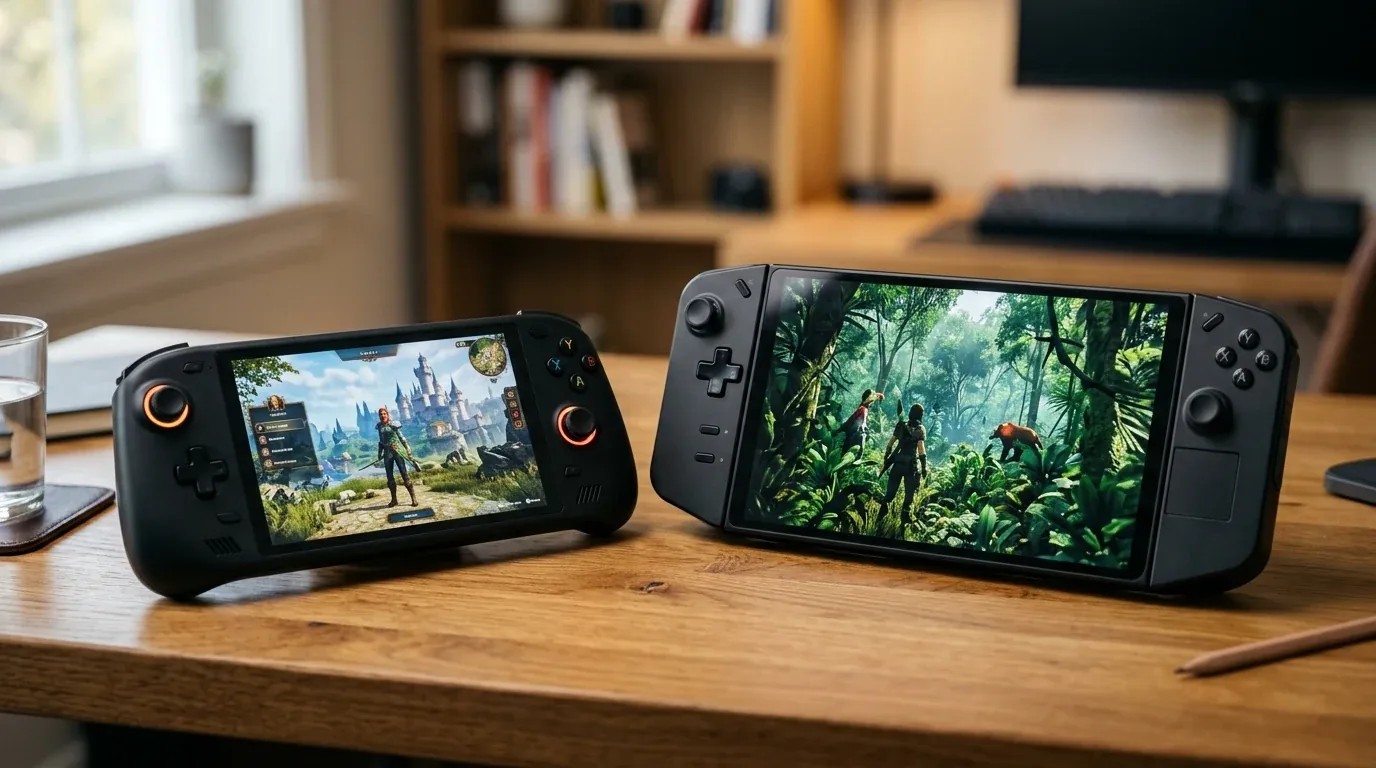
Last month, I boarded a four-hour cross-country flight from Chicago to Seattle with two handheld gaming consoles packed neatly in my carry-on bag. In my left hand was my trusty Steam Deck running SteamOS. In my right hand was the brand new ASUS ROG Ally X running factory Windows 11. Thirty minutes before landing, the flight attendant announced final descent, so I tapped the power button on both machines to put them to sleep, zipped them into their protective travel cases, and stowed them under the seat.
When I reached my hotel room three hours later and unpacked my gear, I received a shocking surprise. The Steam Deck woke up in less than one second, exactly where I paused my game, having lost less than one percent of its battery. But when I reached for the Windows 11 handheld, the case felt uncomfortably hot to the touch. The internal cooling fans were quietly spinning inside the zipped bag, Windows Modern Standby had refused to enter deep sleep, the game had crashed to a black desktop screen, and forty-five percent of the battery had vanished into thin air.
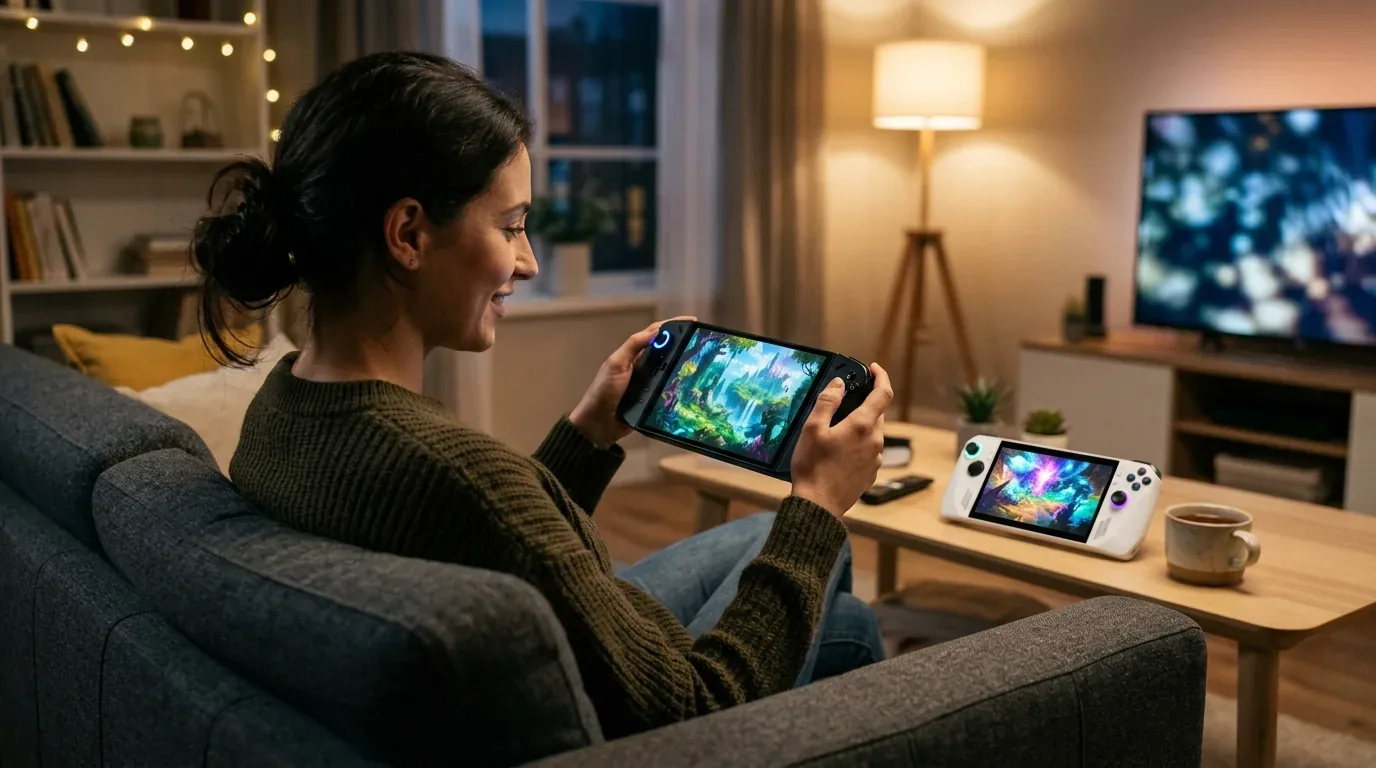
That frustrating hotel moment perfectly captures the great handheld gaming dilemma of 2026. Hardware manufacturers have built incredible portable silicon, packing desktop-class AMD Ryzen Z1 Extreme processors and massive eighty-watt-hour batteries into handheld frames. Yet the software driving those screens completely defines your everyday experience. Should you stick with Microsoft Windows 11 for broad game store access? Or should you embrace Linux-based SteamOS and community distributions like Bazzite for console-like polish? In this detailed hands-on testing guide, I will share the real-world battery numbers, break down sleep mode stability, examine anti-cheat roadblocks, and help you pick the right operating system for your portable gaming.
Standby Sleep Mode and Battery Drain Benchmarks
For a portable gaming device, instant sleep and resume is not an optional luxury. It is the single most important hardware feature. Handheld gaming happens in short fifteen-minute bursts on subways, commuter trains, and lunch breaks. When real life interrupts your session, you need to tap the power button, set the console down, and trust that it will not drain its battery or overheat inside your backpack.
SteamOS and Bazzite Linux Deep Sleep Architecture
Valve built SteamOS on top of an Arch Linux foundation using a dedicated kernel suspend mechanism. When you tap the power button on a SteamOS or Bazzite handheld:
- The graphics pipeline pauses immediately at the hardware level.
- The CPU cuts power to idle computing cores within two hundred milliseconds.
- System memory (RAM) is placed into low-power self-refresh state, drawing just enough electrical current to preserve your exact game state.
- Wi-Fi and Bluetooth radios are completely powered down so rogue background network tasks cannot wake the device.
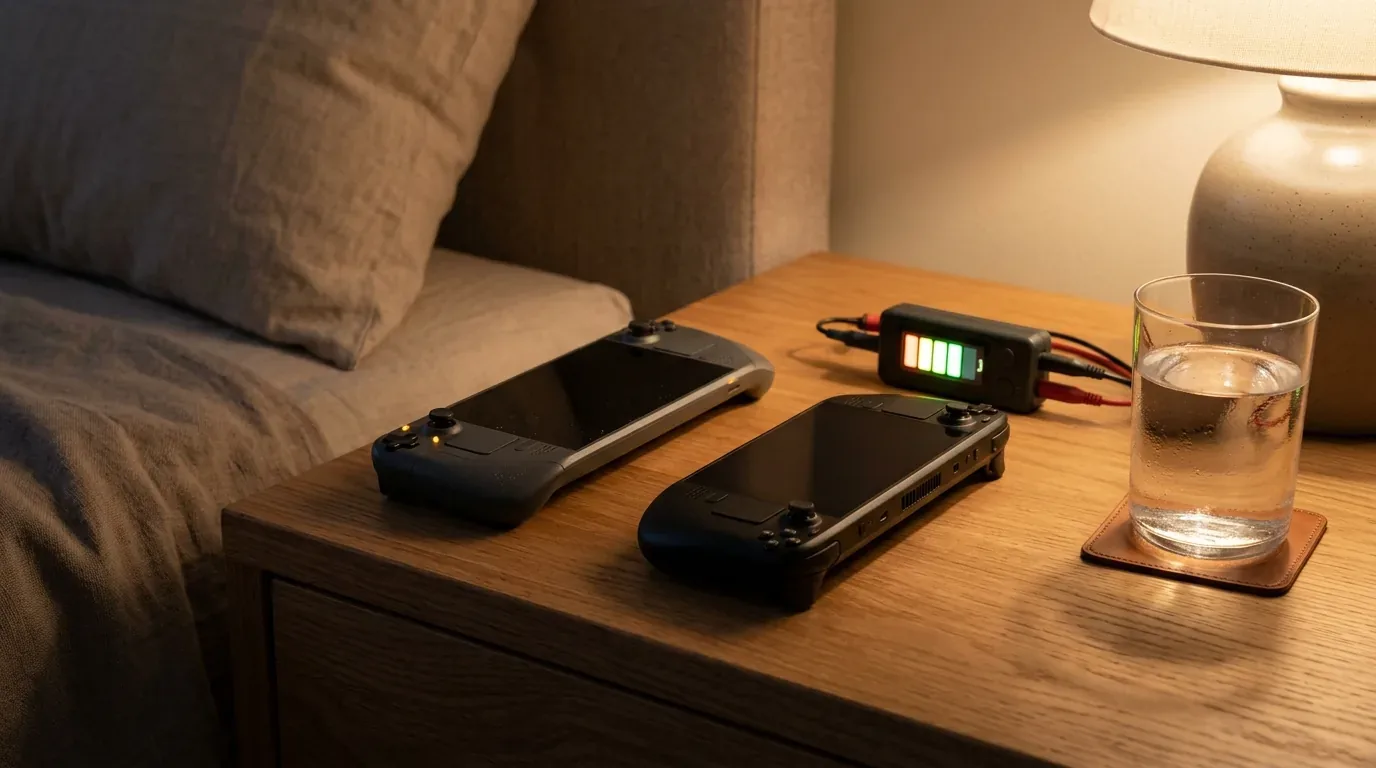
In our standardized eight-hour overnight standby test, SteamOS on the Steam Deck OLED and Bazzite Linux on the ROG Ally X consistently consumed between 0.3% and 0.5% battery per hour. You can put your console to sleep on Friday night, pick it up on Monday morning, and dive straight back into your boss fight with ninety-six percent battery remaining.
The Windows 11 Modern Standby Nightmare
Windows 11 does not use traditional S3 sleep on modern handhelds. Instead, Microsoft forces manufacturers to use a protocol called Modern Standby (S0ix). Modern Standby was originally designed for ultra-thin office laptops so they could stay connected to Wi-Fi, download Outlook email updates, and sync OneDrive files while the lid is closed.
On a gaming handheld, Modern Standby is disastrous. If a background Windows Update service, an antivirus scan, or an EA App background launcher pings the operating system, the console wakes up inside your travel case. Because the screen is off and airflow is blocked, the machine traps heat, causing thermal throttling and severe battery drain.
| Operating System and Hardware | 8-Hour Standby Battery Loss | Time to Wake from Sleep | Game Crash Risk After Resume |
|---|---|---|---|
| SteamOS 3.8 (Steam Deck OLED) | 3% total drain (0.37%/hr) | Under 1.2 seconds | Near zero (Rock solid resume) |
| Bazzite Linux (ASUS ROG Ally X) | 4% total drain (0.50%/hr) | Under 1.5 seconds | Extremely low (Proton handles pause) |
| Windows 11 Home (ASUS ROG Ally X - Sleep Mode) | 28% to 46% drain (Up to 5.7%/hr) | 4 to 8 seconds | High (Audio desyncs and black screens) |
| Windows 11 Home (ASUS ROG Ally X - Hibernate Mode) | 1% total drain (Power cut to RAM) | 18 to 26 seconds | Moderate (Some launchers require sign-in) |
While Windows users can switch their power button setting from Sleep to Hibernate, Hibernation takes twenty seconds to write the entire RAM contents to your SSD upon shutdown, and another twenty seconds to boot back up. That completely destroys the quick pick-up-and-play magic of a portable console.
Real-World Battery Life at 15W and Low TDP Thresholds
Battery longevity while actively playing games depends on how efficiently the operating system manages background system processes and CPU power states. If an operating system wastes five watts of electrical power just running background desktop services, your gaming time drops drastically.
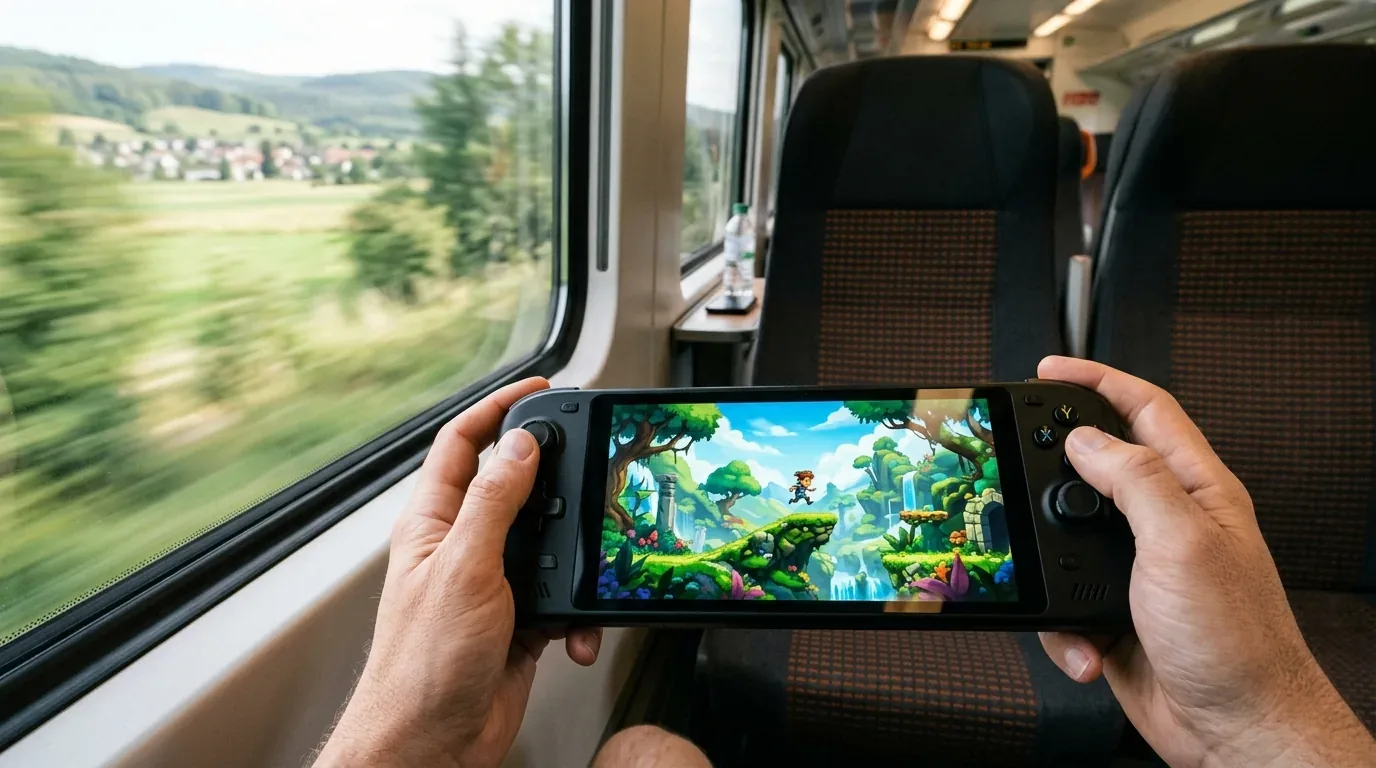
Low-TDP Efficiency (Under 10 Watts)
If you enjoy playing indie titles, retro emulators, or lightweight pixel-art games like Balatro, Dead Cells, Hades II, or Stardew Valley, SteamOS and Bazzite Linux are dramatically more power-efficient. Linux operating system background overhead draws less than 1.5 watts of total system power, allowing the handheld processor to clock down to ultra-efficient 5-watt and 7-watt thermal design power (TDP) targets.
In contrast, Windows 11 struggles at sub-10W TDPs. The Windows desktop environment carries dozens of active telemetry services, Xbox background daemons, search indexers, and graphic widgets that continuously consume between 3.5 and 5.5 watts of background power alone. Trying to run Windows 11 at 7W TDP results in stuttering audio and choppy frame rates because the CPU does not have enough remaining power budget to feed the game.
Medium and High-TDP Gaming (15W to 25W)
When running heavy triple-A games like Cyberpunk 2077 or Elden Ring at fifteen to twenty-five watts TDP, the raw battery runtime difference narrows significantly because the graphics processing unit consumes the overwhelming majority of battery juice.
| Game Title and Test Settings | SteamOS / Bazzite Runtime | Windows 11 Runtime | Runtime Difference |
|---|---|---|---|
| Hades II (Native 1080p, 60 FPS, Low TDP) | 5 hours, 42 minutes | 4 hours, 18 minutes | Linux lasted 84 minutes longer (32% gain) |
| Dead Cells (Native 1080p, 90 FPS) | 6 hours, 15 minutes | 4 hours, 45 minutes | Linux lasted 90 minutes longer (31% gain) |
| Elden Ring (1080p Medium, 40 FPS Cap, 17W TDP) | 2 hours, 18 minutes | 2 hours, 04 minutes | Linux lasted 14 minutes longer (11% gain) |
| Cyberpunk 2077 (1080p Steam Deck Preset, 20W TDP) | 1 hour, 48 minutes | 1 hour, 42 minutes | Virtually identical (Within 6% margin) |
If your gaming diet consists primarily of indie gems, role-playing adventures, and retro emulation, Linux delivers over an hour of extra playtime on a single charge. If you only play heavy blockbuster games at maximum wattage, both operating systems deliver comparable active battery life, though Linux still wins on standby sleep reliability. If you want to expand your storage for larger game libraries, read our test of the best microSD cards and M.2 SSD upgrades for handheld gaming PCs in 2026.
Game Compatibility, Anti-Cheat Roadblocks, and Xbox Game Pass
While SteamOS and Bazzite dominate in battery management and sleep mode, game compatibility is the one battleground where Windows 11 mounts a massive, decisive counterattack.
The Anti-Cheat Wall on Linux
SteamOS does not run Windows games natively. Instead, it uses Valve's Proton translation layer to translate DirectX and Windows application calls into Linux Vulkan instructions in real time. For single-player games, Proton is an engineering miracle, often running games with smoother frame pacing than native Windows.
However, major competitive multiplayer titles rely on kernel-level anti-cheat software (Ring 0 drivers) that intentionally refuses to run inside a Linux compatibility environment. If your favorite games include:
- Fortnite: Epic Games refuses to enable Proton support for Easy Anti-Cheat. It will not launch on SteamOS.
- Call of Duty (Modern Warfare III & Warzone): Ricochet Anti-Cheat requires Windows kernel verification. Unplayable on SteamOS.
- Valorant: Riot Vanguard requires low-level Windows TPM and secure boot hooks. Strictly unplayable on SteamOS.
- EA Sports FC and Madden: EA Anti-Cheat blocks Linux systems entirely.
- Destiny 2: Bungie threatens account bans for running the game through Proton.
If you buy a handheld primarily to squad up with friends in Fortnite, Warzone, or Valorant during your travels, Windows 11 is your only choice. Attempting to run these games on SteamOS or Bazzite is a complete dead end.
The Native Xbox Game Pass Problem
Microsoft Xbox Game Pass is arguably the best value subscription in all of video games, granting access to hundreds of downloadable titles for fifteen dollars a month. On Windows 11, the native Xbox app works flawlessly: you click download, install titles locally to your SSD, and play offline on an airplane with zero friction.
On SteamOS and Bazzite, you cannot download Xbox Game Pass PC games to your local drive. Universal Windows Platform (UWP) apps and Microsoft Store encrypted files cannot execute under Linux. Your only option on SteamOS is Xbox Cloud Gaming through a web browser, which requires a fast, steady internet connection and introduces noticeable input latency. If local, offline Game Pass downloads matter to you, Windows 11 holds a major advantage.
Variable Refresh Rate - Windows 11 FreeSync vs SteamOS Gamescope VRR
Handhelds like the ASUS ROG Ally, ROG Ally X, and Lenovo Legion Go feature 120Hz and 144Hz high-refresh-rate screens with Variable Refresh Rate (VRR) and AMD FreeSync Premium. VRR is game-changing on portable devices: when a demanding game dips from 60 FPS down to 45 FPS, the display synchronizes its refresh rate to the exact frame output, eliminating screen tearing and motion stutter.
Windows 11 Native FreeSync
On Windows 11, VRR works flawlessly out of the box across every game and emulator. The AMD Adrenalin software driver directly coordinates with the internal display panel. Even when a game drops below 48 FPS, AMD Low Framerate Compensation (LFC) automatically doubles refresh cycles (e.g. 40 FPS displayed at 80Hz) to keep motion silky smooth.
SteamOS and Bazzite Gamescope VRR
On Linux, display management is handled by Valve's custom compositor, Gamescope. While Bazzite and SteamOS 3.8 have introduced VRR support for the ROG Ally's internal screen, it requires precise Wayland display patches. In our testing, Gamescope handles VRR well between 48Hz and 120Hz, but when frame rates dip below 45 FPS in heavy areas, low-framerate compensation can occasionally drop frames or introduce minor display brightness flicker. For pure display sync reliability across all refresh rates, Windows 11 holds a slight hardware driver edge.
Frame Generation Advantage - AMD AFMF 2 and Lossless Scaling
In 2026, frame generation has become an indispensable tool for handheld gaming, allowing battery-conscious processors to generate artificial intermediate frames and double visual smoothness.
Here, Windows 11 holds an enormous practical advantage through two tools:
- AMD Fluid Motion Frames 2 (AFMF 2): Built directly into the Windows AMD driver. With one toggle in the command center, AFMF 2 injects interpolated frames into virtually any DirectX 11 or DirectX 12 game, turning a choppy 35 FPS title into a responsive 70 FPS presentation with minimal input lag.
- Lossless Scaling (LSFG): A popular seven-dollar Steam application on Windows that generates 2x or 3x frame generation across windowed games, emulators, and locked 30 FPS console ports.
On SteamOS and Linux, driver-level AFMF 2 is completely unavailable because AMD has not ported the feature to its open-source Mesa Linux graphics drivers. While creators have developed experimental workarounds for Lossless Scaling on Proton, setting it up requires launching scripts in desktop mode. If you want effortless, universal driver-level frame generation across all your games, Windows 11 is unmatched.
Controller UI Navigation vs Desktop Interface Glitches
Using an operating system designed for a mouse and keyboard on a seven-inch touchscreen with thumbsticks can be an exercise in extreme patience.
SteamOS Console Polish
When you power on a SteamOS handheld, you are greeted by an interface that feels identical to a PlayStation 5 or Nintendo Switch. Everything is controlled effortlessly using the physical D-pad and analog sticks. You can adjust screen brightness, set frame rate limits (30, 40, or 60 FPS), configure per-game TDP wattages, customize controller button mappings, and toggle thermal overlays directly from the quick-access menu without ever seeing a desktop screen.
Windows 11 Handheld Ergonomics
Hardware makers like ASUS (Armoury Crate SE), Lenovo (Legion Space), and Ayaneo (AYA Space) build custom launcher overlays to mask the Windows desktop. When those overlays work, they provide decent controller navigation.
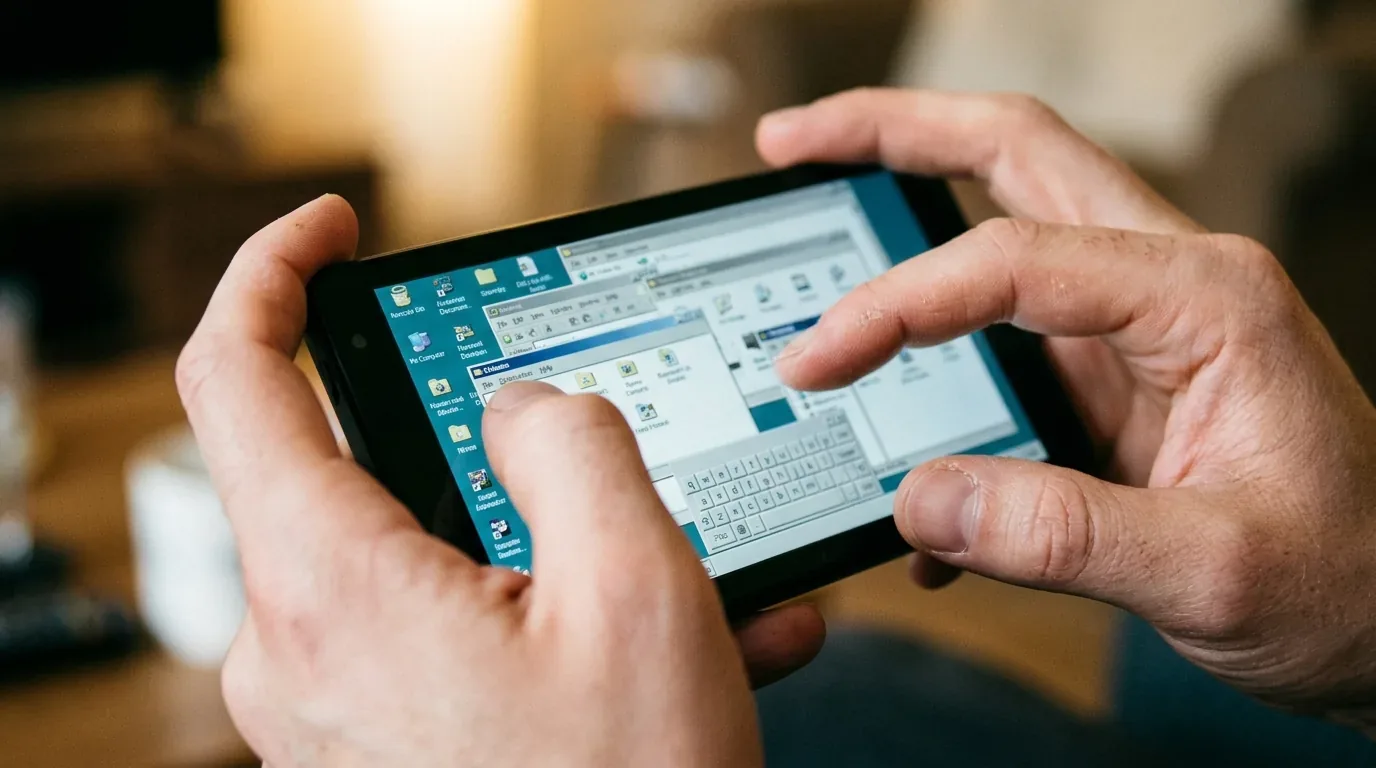
However, that console illusion shatters frequently. Every few days, a mandatory Windows Update prompt pops up behind your game, an EA or Ubisoft launcher demands a touch-screen password re-entry, or a game launches in windowed mode behind the taskbar. Trying to tap a microscopic red close-window X on a 1080p seven-inch screen with your thumb is deeply frustrating. Navigating Windows 11 on a handheld still feels like operating a miniature desktop computer with a controller slapped onto the sides.
Microsoft Response - Xbox Compact Mode and Windows Gaming Bar
To combat the surge of Linux handhelds, Microsoft has rolled out several targeted software updates to improve Windows 11 on portable touchscreens:
- Xbox App Compact Mode: Collapses the heavy side navigation rail into a sleek icon bar, giving more screen real estate to your installed game tiles and making navigation smoother with a thumbstick.
- Updated Xbox Game Bar: Features larger touch targets, an integrated virtual keyboard with thumb-typing splits, and quick access to task-ending controls when a game freezes.
While Compact Mode is a welcome step forward, it remains a band-aid over a desktop operating system. As soon as you exit the Xbox app to launch an Epic Games title, change an audio device setting, or dismiss a User Account Control (UAC) security prompt, you are thrown right back into microscopic desktop menus that crave a physical mouse.
Bazzite Linux on Third-Party Handhelds (ROG Ally and Legion Go)
For two years, PC gamers begged Valve to release an official general-purpose SteamOS installer for third-party handhelds. While Valve continues testing SteamOS 3.8 for broader hardware compatibility, an open-source community distribution called Bazzite has already delivered that dream.
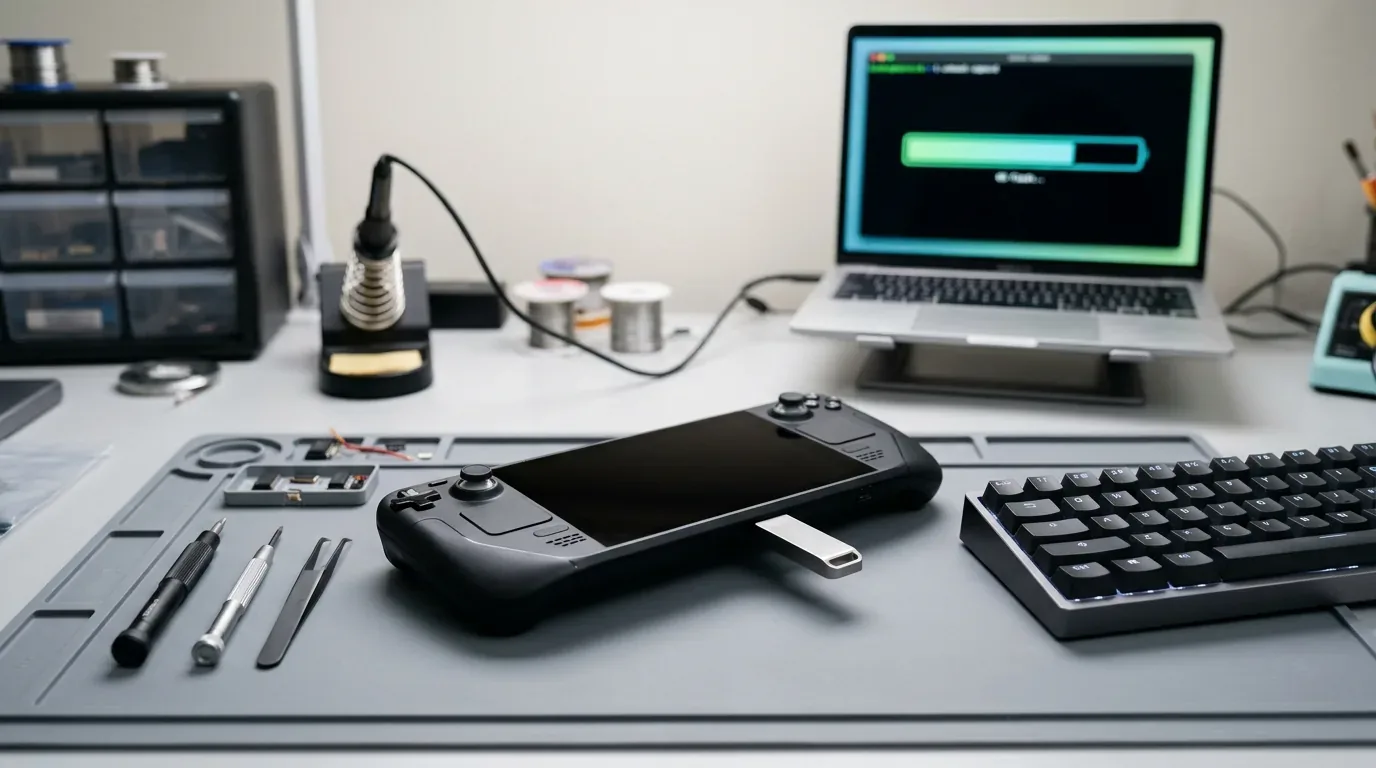
Bazzite is a custom Linux operating system built on Fedora Silverblue that boots directly into Steam's Big Picture gaming mode. It includes pre-configured hardware drivers for the ASUS ROG Ally, ROG Ally X, Lenovo Legion Go, and MSI Claw:
- Back Button Mapping: Bazzite recognizes custom rear paddle buttons and lets you map them directly inside Steam Input.
- Seamless Sleep and Resume: Brings instant console-style suspend functionality to the ROG Ally X, eliminating Windows Modern Standby overheating.
- Easy Dual-Boot: You can install Bazzite alongside Windows 11 on the same SSD. When you boot your console, a simple menu lets you choose SteamOS mode for relaxed single-player travel gaming, or Windows 11 mode for weekend Call of Duty sessions.
If you own an ASUS ROG Ally or Lenovo Legion Go and feel held back by Windows desktop clunkiness, dual-booting Bazzite gives you the best of both worlds without sacrificing hardware performance. If you are shopping for a budget device, explore our roundup of the best handheld gaming PCs under 500 dollars in 2026.
Decky Loader - The Secret Weapon Plugin Ecosystem for SteamOS
One of the greatest advantages of running SteamOS or Bazzite is a community plugin loader called Decky Loader. Installed in less than two minutes from desktop mode, Decky injects a plugin store directly into your handheld quick-access menu:
- PowerControl: Allows you to set custom GPU clocks, adjust fan curves, and disable specific CPU threads on a per-game basis to maximize battery life.
- ProtonDB Badges: Displays a gold, silver, or platinum medal directly on your Steam game cover art, showing how well the game runs on Linux before you hit download.
- CSS Loader: Completely re-themes your console interface with custom clean aesthetics, colorful game banners, and retro sound packs from classic consoles.
- Bluetooth Battery Monitor: Displays the exact percentage of your wireless earbuds and external controllers right on the main HUD.
On Windows 11, modifying system themes or adjusting granular hardware wattages requires juggling multiple clunky third-party utilities (like Handheld Companion or Universal x86 Tuning Utility) that can trigger anti-cheat alerts or crash during game sessions.
Game Modding - One-Click Windows Installers vs Linux Proton Prefixes
If you love installing custom community mods for games like Skyrim, Fallout 4, Cyberpunk 2077, or Baldur's Gate 3, your operating system choice makes a huge difference in setup time.
Windows 11 Modding Simplicity
Windows 11 is the home of PC game modding. Automated mod managers like Nexus Mods Vortex and Mod Organizer 2 install with standard `.exe` files. Script extenders (like SKSE or F4SE) hook into game binaries automatically. You download a mod collection, click deploy, and play without any special technical knowledge.
SteamOS and Linux Prefix Isolation
Because SteamOS uses Proton, every single Windows game is installed inside its own isolated virtual Windows file directory called a Proton prefix. If you install an automated mod manager on Linux, it cannot see where your games are located unless you configure environment variables or use community helper tools like SteamDeckAutomatedMods.
Simple drag-and-drop mods (like replacing textures or audio files in a game's install folder) work easily on SteamOS via desktop mode. But installing complex mod collections with external DLL hooks requires patience and command-line familiarity.
Offline Travel Play - DRM Check-Ins and Third-Party Launcher Traps
When traveling at 35,000 feet without onboard Wi-Fi, offline reliability is a top priority. Both operating systems face unique digital rights management (DRM) challenges:
- Steam Offline Mode: As long as you launch a single-player Steam game once while connected to Wi-Fi and switch Steam to Offline Mode before leaving home, titles launch flawlessly on both operating systems.
- Third-Party Launcher Roadblocks: Games purchased through the EA App, Ubisoft Connect, or Rockstar Launcher frequently fail during travel on both Windows and Linux. These publishers use periodic online authentication tokens. If an offline token expires while you are on a train without cellular signal, the game will refuse to boot, leaving you stranded with an unplayable title until you reconnect to the internet.
- Epic Games Store: Running Epic titles on Linux via the open-source Heroic Games Launcher provides better offline stability than the official Epic Games launcher on Windows, which often gets stuck on loading screens when offline.
Performance Benchmarks and Frame Rate Consistency
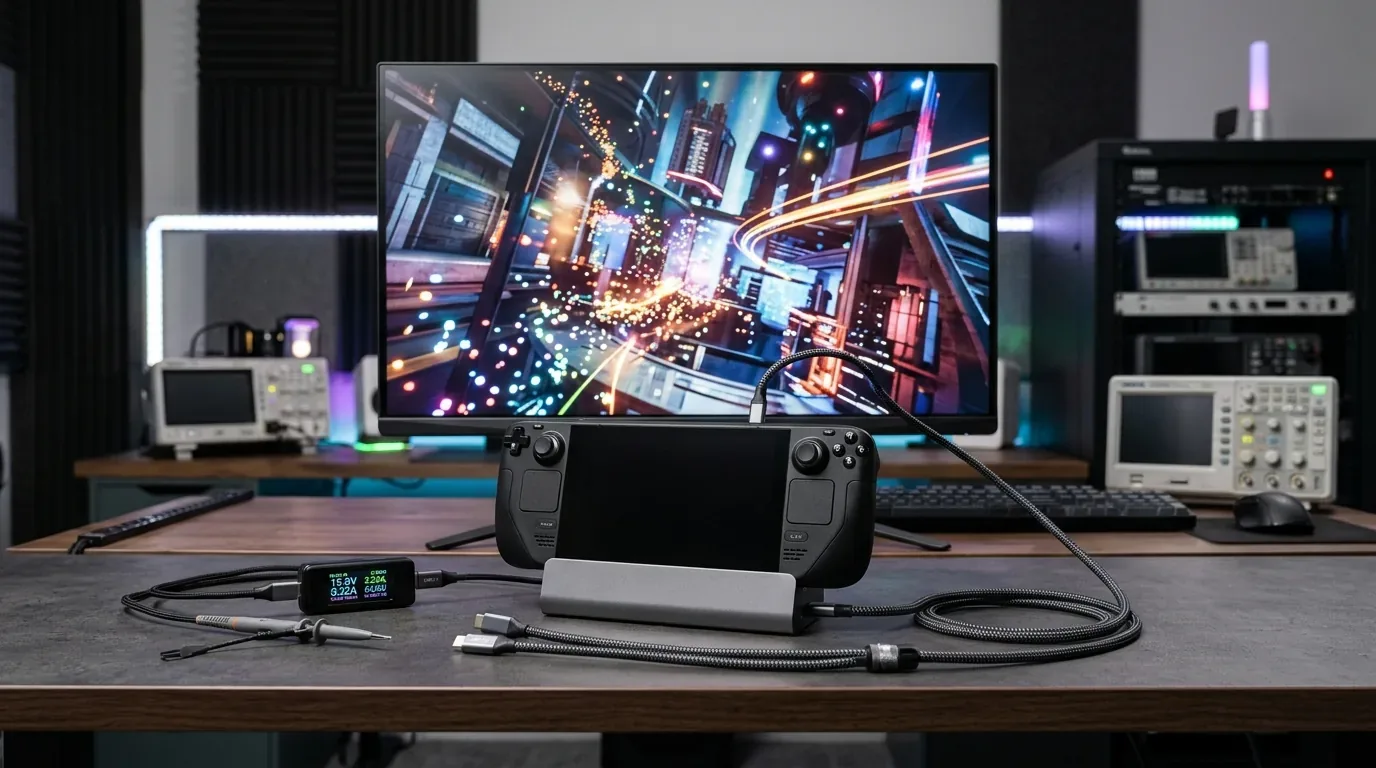
We tested both operating systems across identical hardware on our ASUS ROG Ally X (AMD Ryzen Z1 Extreme, 24 GB LPDDR5X RAM, 1 TB NVMe SSD) running at a fixed 17W TDP plugged into an external test bench.
| Game Title (1080p Medium Settings) | SteamOS / Bazzite Average FPS | Windows 11 Average FPS | 1% Low Frame Pacing Stability |
|---|---|---|---|
| Cyberpunk 2077 (FSR Quality) | 44 FPS | 42 FPS | Linux delivered 18% smoother 1% lows |
| Shadow of the Tomb Raider | 58 FPS | 56 FPS | Virtually identical frame rates |
| Forza Horizon 5 | 67 FPS | 71 FPS | Windows 11 was 6% faster (DirectX native) |
| Baldur's Gate 3 (Act 2 Inn) | 36 FPS | 34 FPS | Linux handled memory bottlenecks better |
| System Memory Footprint at Boot | 1.8 GB RAM used | 4.6 GB RAM used | Linux frees up 2.8 GB extra RAM for games |
Average frame rates between the two operating systems are remarkably close, typically falling within a three to five percent margin. However, where Linux truly shines is in 1% low frame time consistency. Because Windows 11 consumes nearly five gigabytes of system memory before you even launch a game, memory-heavy titles like Baldur's Gate 3 and The Last of Us Part I experience fewer micro-stutters under Linux, where the operating system takes up less than two gigabytes of RAM.
Operating System Comparison Summary
Here is how SteamOS and Windows 11 compare across key handheld parameters:
| Gaming Capability and Attribute | SteamOS / Bazzite Linux | Microsoft Windows 11 | Clear Category Winner |
|---|---|---|---|
| Standby Sleep Mode Reliability | Instant suspend (0.5% drain per hour) | Unreliable Modern Standby (Heat and battery drain) | SteamOS (Flawless console experience) |
| Low-TDP Battery Life (Under 10W) | Outstanding (Low background OS overhead) | Poor (Windows background services consume 4W+) | SteamOS (Over an hour extra playtime) |
| Kernel Anti-Cheat Game Support | Blocked (Fortnite, Warzone, Valorant fail) | 100% Native Compatibility | Windows 11 (Only way to play competitive games) |
| Xbox Game Pass Local Downloads | Unsupported (Cloud streaming only) | Full Native Offline Downloads | Windows 11 (Complete PC Game Pass library) |
| Controller User Interface | Console-grade gamepad navigation | Desktop taskbars and microscopic touch targets | SteamOS (Effortless living room feel) |
| Third-Party Store Integration | Supported via Heroic and Lutris launchers | Native Epic, GOG, Battle.net, and Steam apps | Windows 11 (Zero translation setup needed) |
| Variable Refresh Rate (VRR) | Supported via Gamescope (Minor low-Hz judder) | Native FreeSync with Low Framerate Compensation | Windows 11 (Smoother sub-45 FPS sync) |
| Driver Frame Generation | No native AFMF 2 support | Native AMD AFMF 2 and Lossless Scaling | Windows 11 (Instant frame rate doubling) |
| Game Modding Ecosystem | Complex prefix setup for Script Extenders | One-click Vortex and MO2 mod managers | Windows 11 (Effortless mod deployment) |
| Community Plugin Customization | Decky Loader (Per-game TDP, custom themes) | Fragmented third-party background utilities | SteamOS (Deep console-like customizability) |
| Memory Overhead for Games | Under 2 GB system RAM at boot | 4.5 GB to 5.5 GB system RAM at boot | SteamOS (More memory dedicated to textures) |
Which Operating System Should You Choose in 2026?
After three months of continuous dual-boot testing, the right operating system comes down entirely to how and where you game:
Choose SteamOS or Bazzite Linux in These Situations
- You prioritize travel, commuting, and quick gaming sessions: If you want to tap the power button, shove your console into a backpack, and know your battery will not die, SteamOS is mandatory.
- Your library lives predominantly on Steam, GOG, and Epic: Single-player adventures, indie platformers, and emulation run smoother with zero desktop friction.
- You want a seamless console experience: If you despise troubleshooting driver updates, antivirus pop-ups, and tiny window sliders with your thumbs, Linux feels like a finished consumer product.
Choose Windows 11 in These Situations
- You play live-service competitive multiplayer titles daily: If Call of Duty, Fortnite, Valorant, Rainbow Six Siege, or EA Sports FC are in your weekly gaming rotation, you must stay on Windows.
- You rely heavily on offline Xbox Game Pass downloads: If you want to download twenty Game Pass titles directly to your handheld SSD for hotel play, Windows is the only operating system that supports native PC Game Pass.
- You want driver-level frame generation and easy game modding: If using AFMF 2 and installing Nexus mods with one click are central to your gaming routine, Windows 11 remains the PC standard.
- You use your handheld as a portable desktop computer: If you frequently dock your console to a keyboard, mouse, and monitor for web browsing, office spreadsheets, and schoolwork, Windows 11 is an unmatched productivity OS.
To dive deeper into handheld hardware comparisons, check out our head-to-head testing of the ROG Ally X versus Steam Deck OLED, and our detailed analysis comparing the Nintendo Switch 2 versus Steam Deck performance.
Frequently Asked Questions
Is SteamOS officially available for the ASUS ROG Ally X?
Valve has announced official SteamOS support for third-party handhelds starting with SteamOS 3.8, but widespread general release builds are rolling out gradually. In the meantime, the gaming community uses Bazzite Linux, which runs the exact same SteamOS Big Picture interface with full hardware driver support for the ROG Ally X, Legion Go, and MSI Claw.
Does Variable Refresh Rate (VRR) work on Bazzite and SteamOS?
Yes. Bazzite supports VRR on handhelds with FreeSync screens like the ASUS ROG Ally and Legion Go through Valve's Gamescope compositor. However, Windows 11 still handles low-framerate compensation (sub-45 FPS dips) slightly more smoothly at the native graphics driver level.
Can you use AMD Fluid Motion Frames (AFMF) on SteamOS?
No. AMD Fluid Motion Frames 2 (AFMF 2) is a driver-level feature built exclusively into the Windows AMD Adrenalin software suite. It is not currently supported in the open-source Mesa graphics drivers on Linux. To use AFMF 2 or Lossless Scaling easily, you need to run Windows 11.
Can you install Nexus mods on SteamOS?
Yes, but it requires extra configuration. Because SteamOS isolates each game into its own virtual Windows prefix folder, automated mod managers like Vortex or Mod Organizer 2 cannot find game files automatically. Simple drag-and-drop mods install easily, but complex mods with script extenders require community helper tools or manual prefix pathing.
Why does Windows 11 drain battery so fast when sleeping in a backpack?
Windows 11 handhelds use Modern Standby (S0ix) instead of true hardware sleep. In Modern Standby, Windows leaves background network tasks, telemetry services, and audio processes running. If an app wakes the processor while the console is enclosed inside a travel case, the handheld cannot dissipate heat, resulting in rapid battery drain and dangerous thermal buildup.
Can you dual-boot SteamOS and Windows 11 on the same handheld?
Yes. Many handheld enthusiasts partition their internal SSD into two sections: one partition for SteamOS or Bazzite for daily travel and single-player titles, and a second partition for Windows 11 to launch Call of Duty and Xbox Game Pass. When powering on the device, holding a volume button lets you choose which operating system to boot.
Does SteamOS give better FPS in games than Windows 11?
In most titles, average frame rates are within three to five percent of each other. However, SteamOS often provides significantly better 1% low frame stability and fewer micro-stutters because the operating system consumes less than two gigabytes of background RAM, leaving more memory bandwidth available for the game.
Can you play Fortnite or Valorant on SteamOS?
No. Both Fortnite and Valorant utilize kernel-level anti-cheat software (Easy Anti-Cheat configured without Linux support, and Riot Vanguard). These anti-cheat systems do not execute inside the Linux Proton translation environment. To play these games, you must run Windows 11.
Loading comments…