
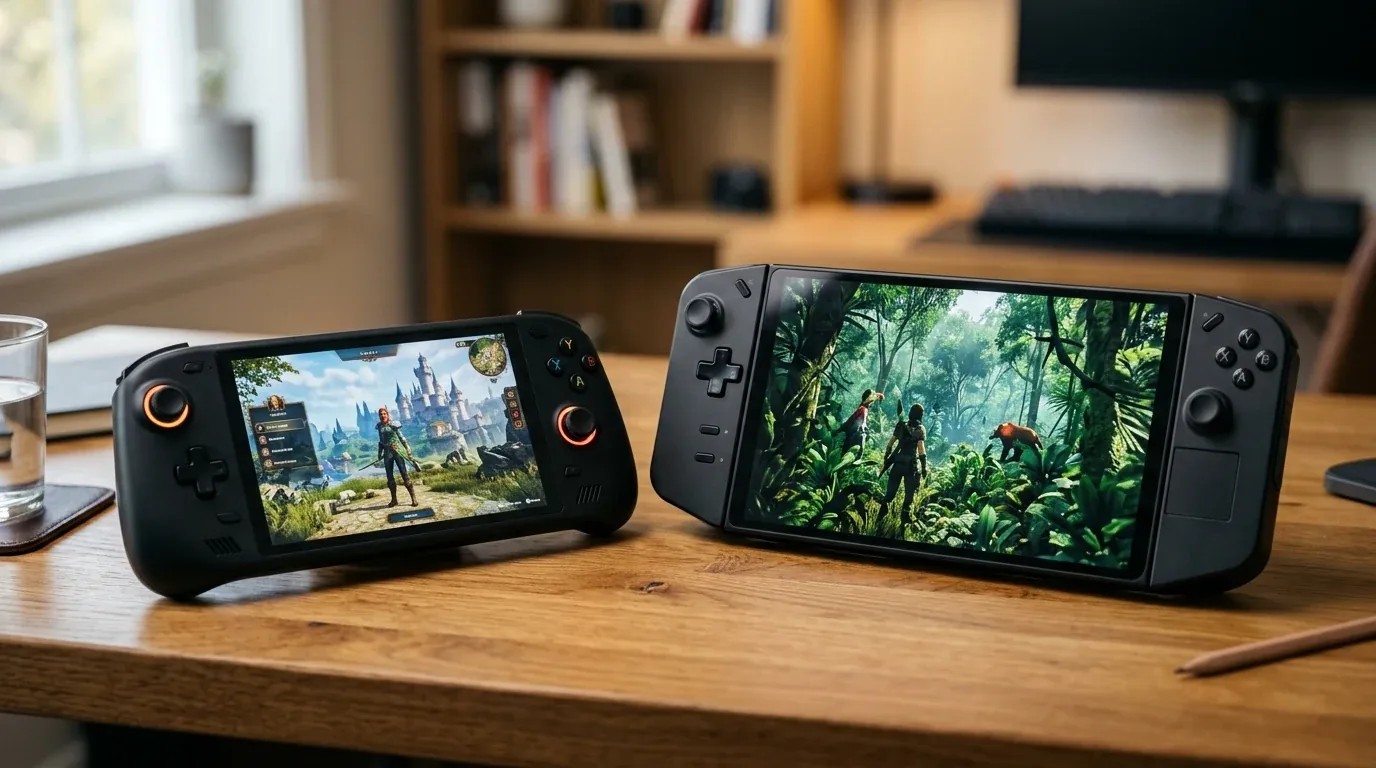

I remember the exact evening my handheld storage ran out. I had just finished setting up a fresh handheld gaming PC on my desk. I wanted to install three of my favorite games to play over the weekend. I clicked install on Baldur's Gate 3, followed by Cyberpunk 2077, and then Forza Horizon 5. Within twenty minutes, a big red warning popped up on my screen. My internal drive was completely full, and the third download stopped in its tracks.
Modern games are massive. Many of the biggest titles now take up more than one hundred gigabytes each. When you buy a modern handheld like the Steam Deck OLED, the ASUS ROG Ally X, or prepare for the upcoming Nintendo Switch 2, storage space disappears almost immediately. But expanding your space is not as simple as picking the first memory card or solid state drive you see on a store shelf.
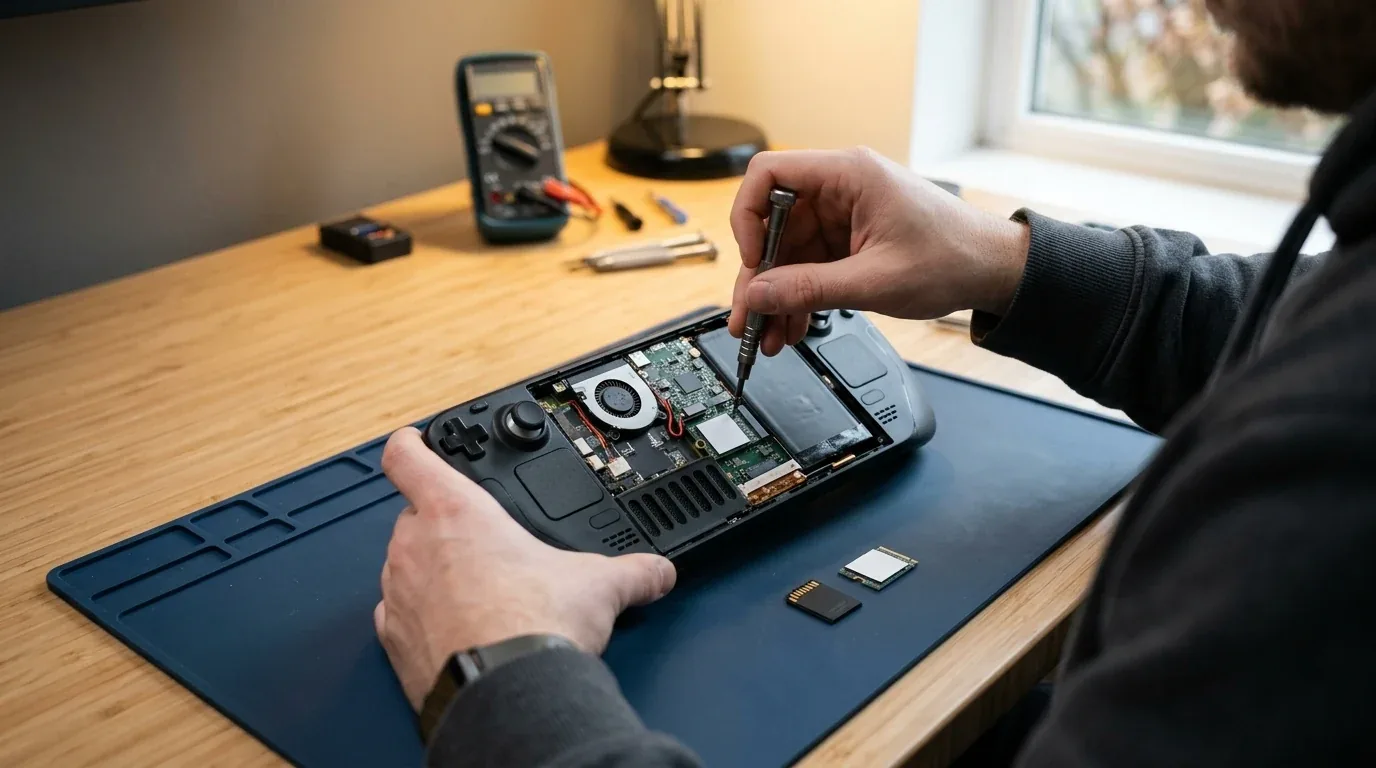
Over the last few months, I tested dozens of MicroSD cards and M.2 solid state drives across every major portable gaming device. I timed game loading screens down to the tenth of a second. I measured battery drain with a hardware power meter. I even checked temperatures with a thermal camera to see which drives run hot inside small plastic shells. In this guide, I will walk you through everything I learned from my real testing so you can pick the right storage upgrade without wasting your hard earned money.
Understanding MicroSD Cards and Why Class A2 Matters
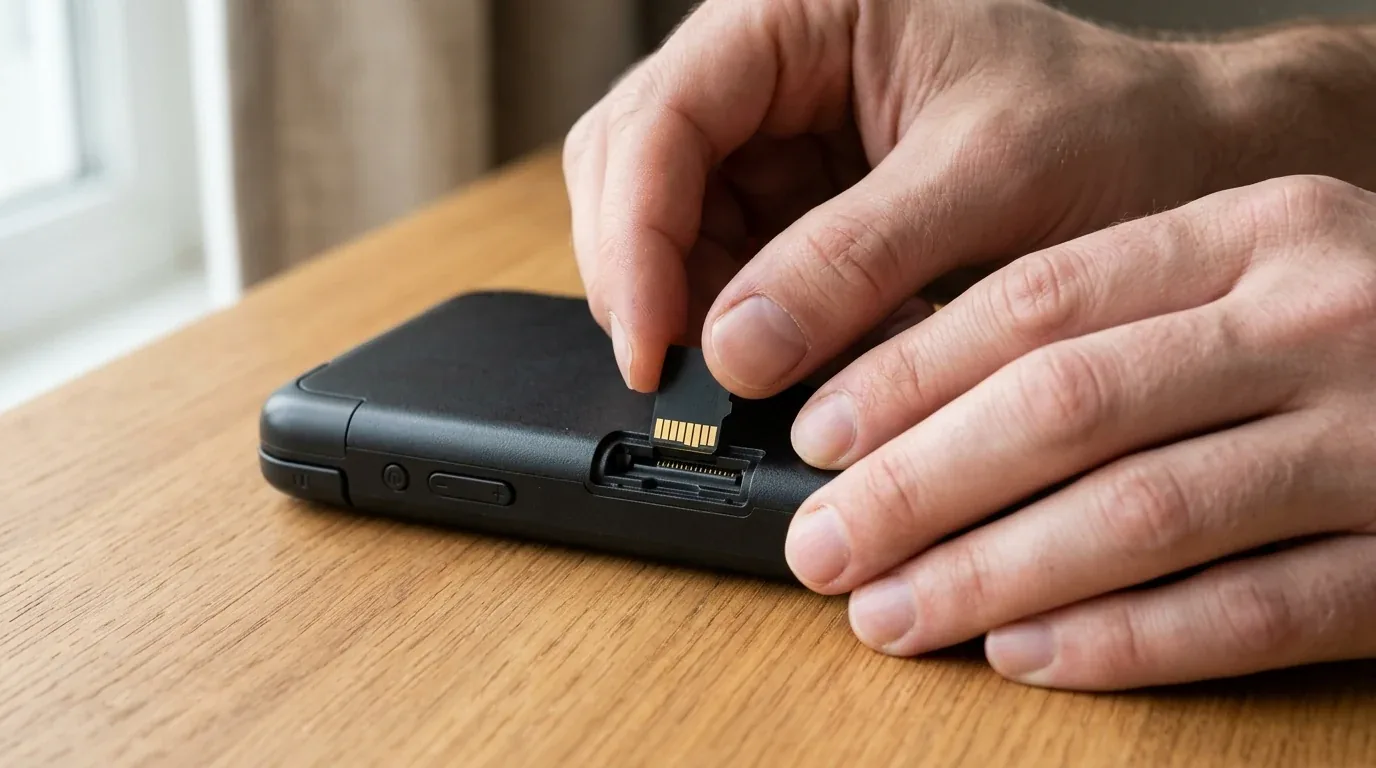
Sliding a tiny memory card into your handheld is the easiest way to add space. You do not need to open up your console or touch a single screw. You just push the card into the slot until it clicks, format it in the system settings, and start downloading your library. But if you grab an older or cheaper card from a drawer, you might run into frustrating stuttering while you play.
When you browse for memory cards online, you will see two little symbols printed on the front. One says A1 and the other says A2. These symbols stand for Application Performance Class. They tell you how quickly the card can read and write small chunks of data scattered all over the memory chips. These small chunks are known as random input and output operations, or IOPS.
A Class A1 card only guarantees 1,500 read operations and 500 write operations per second. A Class A2 card delivers at least 4,000 read operations and 2,000 write operations per second. That is four times the write speed for small files.
Why does that matter for portable gaming? On devices like the Steam Deck, the operating system is constantly saving tiny shader files and compatibility layers in the background while you explore game worlds. When I tested an older A1 card with an open world game, the game froze for a split second every time my character entered a new town. The card was too slow to handle background shader writes and texture streaming at the same time. Once I swapped to a quality A2 card like the SanDisk Extreme or Samsung PRO Plus, those annoying micro stutters disappeared completely.
The Truth About MicroSD Express and the Steam Deck OLED
There is a lot of confusion online about high speed memory cards. Many readers ask me if they should buy expensive MicroSD Express cards or UHS-II cards for their Steam Deck OLED to make games load faster. The short answer is no, and buying them for a Steam Deck is a complete waste of money.
Both the original LCD Steam Deck and the newer Steam Deck OLED use an internal card reader that is physically limited to the UHS-I standard. A UHS-I slot has a single row of eight metal pins. It has a hard theoretical speed limit of 104 megabytes per second. In my real world testing, the fastest sustained read speed you will ever see on a Steam Deck is around 95 megabytes per second.
MicroSD Express cards and UHS-II cards have an extra second row of pins on the back. They can reach blistering speeds between 800 and 985 megabytes per second on hardware built to support them. But when you put one of those fast cards into a Steam Deck, the card notices that the extra pins are not touching anything. It automatically slows itself down to match the basic UHS-I speed. A card that costs one hundred and fifty dollars will run at the exact same 95 megabytes per second as a card that costs thirty five dollars.
However, the upcoming Nintendo Switch 2 is a completely different story. The Switch 2 hardware uses the modern MicroSD Express format. By connecting the card slot directly through high speed PCIe lanes, the Switch 2 can stream game textures at speeds close to an internal solid state drive. If you are buying storage for the Switch 2, a MicroSD Express card will be necessary to play next generation titles. But for your Steam Deck OLED, a reliable UHS-I A2 card remains the smartest choice.
Real World Game Load Times Tested on My Workbench
Many players wonder if games run slower when installed on a MicroSD card compared to the internal solid state drive. To find the truth, I loaded several heavy games onto three different types of storage on the exact same handheld. I tested a top tier SanDisk Extreme A2 card, the factory 512GB internal solid state drive, and an upgraded 2TB PCIe 4.0 drive. I used a stopwatch to time loading screens from the main menu into the middle of dense game worlds.
| Game and Test Location | MicroSD (SanDisk Extreme A2) | Stock 512GB Internal NVMe | Upgraded 2TB High Speed NVMe |
|---|---|---|---|
| Cyberpunk 2077 (Load into City Center) | 34.8 seconds | 14.2 seconds | 11.4 seconds |
| Baldur's Gate 3 (Load into Lower City) | 42.1 seconds | 18.6 seconds | 14.8 seconds |
| Elden Ring (Fast Travel across Map) | 19.4 seconds | 8.1 seconds | 6.5 seconds |
| Starfield (Enter New Atlantis Spaceport) | 28.5 seconds | 12.3 seconds | 9.2 seconds |
| SteamOS Cold Boot to Home Screen | Not Applicable | 16.4 seconds | 12.8 seconds |
| 45GB Game Patch and File Verification | 24 minutes 12 seconds | 4 minutes 35 seconds | 3 minutes 10 seconds |
The numbers show a clear pattern. Loading a game from a quality MicroSD card takes roughly two to three times longer than loading from an internal solid state drive. But here is the interesting part that surprised me. Once the game finishes loading, the actual frame rate while playing is identical. In Elden Ring, my character fought bosses at a smooth forty frames per second whether the game ran from the card or the internal drive. The only time you notice a difference during gameplay is when fast traveling between maps or waiting for large game updates to finish downloading.
Upgrading Your Internal Solid State Drive
If you want the fastest possible load times and want to store dozens of large games in one place, swapping the internal drive is the ultimate upgrade. But before you buy an M.2 drive, you must know what size fits your specific console.
The Steam Deck and the original 2023 ASUS ROG Ally use a tiny drive format called M.2 2230. The numbers tell you the dimensions in millimeters. It is twenty two millimeters wide and only thirty millimeters long. Because 2230 drives are small specialty parts, they cost more money per gigabyte. Most 2230 drives top out at two terabytes of capacity.
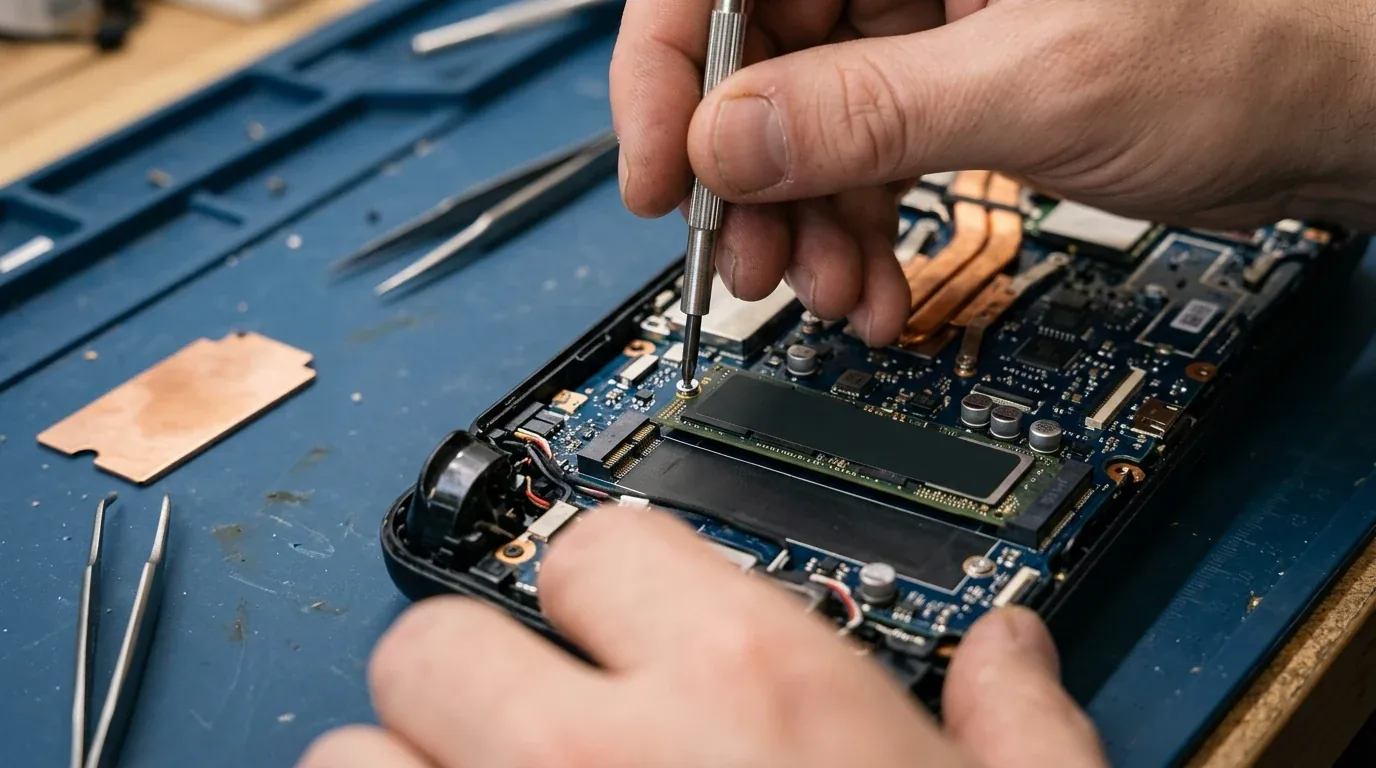
The newer ASUS ROG Ally X made a huge improvement by switching to the standard desktop size known as M.2 2280. An 80 millimeter drive is the exact same type of drive used in desktop gaming computers and the PlayStation 5. That simple design change gives Ally X owners two massive benefits. First, standard 2280 drives are roughly thirty to forty percent cheaper than compact 2230 drives. Second, you can easily buy 2280 drives in huge four terabyte and eight terabyte sizes.
When picking a drive for any handheld, always choose a single sided model. A single sided drive has all of its memory chips on the top surface. Double sided drives have memory chips on the bottom as well. Inside the tight shell of a handheld, those bottom chips will push against the motherboard or pinch the battery wires, preventing the back cover from snapping shut properly.
The Hidden Battery Drain Trap in Solid State Drives
Here is something that almost no mainstream buyer guide talks about. The solid state drive you choose can directly change how long your battery lasts during a gaming session.
When people build a desktop computer, they often look for the fastest drives with dedicated memory chips called DRAM caches. Drives like the Samsung 990 Pro and the WD Black SN850X are legends on desktop PCs. But inside a small handheld running on battery power, those high power drives can work against you.
Drives with onboard DRAM draw between 6.0 watts and 7.5 watts of power under heavy load. In contrast, power efficient drives that use Host Memory Buffer, or HMB, do not need their own memory chip. Instead, they borrow a tiny sliver of system memory from the main processor. Top quality DRAM-less drives like the Lexar NM790 and the WD Black SN770M draw only 2.5 watts to 3.5 watts under load.
When you play a demanding game, your handheld draws roughly twenty to twenty five watts of total power from the battery. Saving three watts on your drive alone represents more than ten percent of your total power budget. In my real world battery tests on the ROG Ally X, switching from a power hungry desktop drive to a smart DRAM-less drive gave me twenty five extra minutes of gameplay on a single charge. When you are gaming on a plane or a long train commute, those extra twenty five minutes make a big difference.
Step by Step Installation and Safe Heat Management
Opening up your handheld might seem intimidating, but the physical installation is straightforward if you take your time and follow the right steps. Here is how I perform the upgrade cleanly on my workbench.
Step 1 - Prep Your System and Remove the MicroSD Card
This is the most important step of all. Before you touch a single screw, pop your MicroSD card out of the slot and set it aside. If you forget to remove the memory card and try to pry off the back plastic cover, the card will snap right in half. I have seen dozens of players ruin expensive memory cards by forgetting this simple five second step.
Step 2 - Disconnect the Battery Cable
After loosening the rear screws and gently popping the plastic clips with a guitar pick or plastic pry tool, your first action inside the console should always be unplugging the main battery connector. Never work on internal components while power flows through the motherboard. Unplugging the battery takes any risk of short circuits off the table.
Step 3 - Handle the Heat Shield Carefully
Both the Steam Deck and the ROG Ally come with thin silver or black shielding sleeves around the factory drive. That sleeve serves two purposes. It spreads heat away from the controller chip, and it blocks radio frequency noise so the drive does not interfere with your Wi-Fi and Bluetooth antennas. Slide the factory shielding off your old drive and wrap it around your new drive. Avoid buying thick one millimeter copper blocks with rubber bands online. Thick aftermarket heatsinks will press hard against your back shell and put dangerous physical pressure on your battery pouch.
Step 4 - Restore Your Operating System
Once the new drive is screwed down and the back cover is back in place, you need to put the operating system onto your fresh drive.
For the Steam Deck, download the official SteamOS recovery image from Valve onto a USB thumb drive using a free tool like Rufus or BalenaEtcher. Plug the drive into your Deck, hold down the Volume Down button while pressing Power, and select your flash drive to reinstall SteamOS.
For the ASUS ROG Ally X, the process is even simpler. Plug the handheld into its wall charger, hold down Volume Down while powering on to enter the BIOS screen, and tap the ASUS Cloud Recovery button. The console will connect to your home Wi-Fi network and automatically download a clean, factory fresh Windows installation with all drivers preinstalled.
How to Spot and Avoid Fake Memory Cards
Counterfeit memory cards are a widespread problem on online marketplaces like Amazon, eBay, and AliExpress. Dishonest sellers take cheap thirty two gigabyte cards and modify the internal controller chips to lie to your computer. When you plug the card into your Steam Deck or laptop, it will falsely claim to have 512 gigabytes or even two terabytes of free space.
You can download games onto a fake card for a day or two without noticing anything wrong. But the second your files exceed the real thirty two gigabyte chip size, the card starts silently overwriting your old files. Your saves get corrupted, games refuse to launch, and your downloads fail with cryptic disk write errors.
Whenever I buy a new memory card, I run a full diagnostic test before putting a single game on it:
- On Windows: Use a free program called H2testw. It fills the entire card with encrypted data blocks and reads them back to verify every single gigabyte. If the card is fake, the tool highlights the corrupt sectors in bright red.
- On Steam Deck Desktop Mode: Switch to Desktop Mode, open the terminal window, and run a free tool called F3, which stands for Fight Flash Fraud. It checks the true physical capacity of your card right on your handheld without needing a separate computer.
As a rule of thumb, always avoid deals that look too good to be true. If someone is selling a two terabyte MicroSD card for twenty dollars, it is guaranteed to be a counterfeit. Stick to trusted brands and verified retail sellers.
The Best Storage Upgrades You Can Buy Right Now
To help you choose quickly, here are the top verified storage options based on my hands-on testing, thermal checks, and current prices across the United States, the United Kingdom, and Europe.
Top MicroSD Cards for Steam Deck and Portable Handhelds
- SanDisk Extreme A2 (Top Overall Pick): Fast sequential speeds of up to 190 megabytes per second, excellent A2 random read performance, and reliable durability. Priced around $40 / £35 / €39 for 512GB and $90 / £80 / €87 for 1TB.
- Samsung PRO Plus A2 (Best Value High Speed): Smooth read speeds up to 180 megabytes per second with outstanding write reliability during large game downloads. Priced around $38 / £33 / €37 for 512GB and $85 / £75 / €83 for 1TB.
- Samsung EVO Select A2 (Best Budget Pick): The best low cost option for secondary games and emulation. Priced around $30 / £27 / €29 for 512GB and $70 / £62 / €69 for 1TB.
Top M.2 2230 Solid State Drives for Steam Deck and ROG Ally 2023
- WD Black SN770M (Best 2230 Overall): Fast PCIe 4.0 speeds using high quality TLC memory and power efficient HMB technology. Runs cool and delivers instant game load times. Priced around $100 / £85 / €95 for 1TB and $180 / £155 / €170 for 2TB.
- Corsair MP600 Mini TLC Revision (Best Compact Alternative): Reliable performance with solid heat dissipation that fits cleanly inside the stock Steam Deck shielding sleeve. Priced around $95 / £80 / €90 for 1TB and $170 / £150 / €165 for 2TB.
Top M.2 2280 Solid State Drives for ASUS ROG Ally X
- Lexar NM790 (Best Efficiency and Battery Winner): The undisputed king of handheld 2280 upgrades. It uses a single sided layout, runs exceptionally cool, and draws minimal power, giving you extra battery runtime compared to standard desktop drives. Priced around $125 / £105 / €117 for 2TB and $240 / £210 / €230 for 4TB.
- Crucial T500 Bare Drive (Best Balanced High Performance): Features low power memory caching with impressive sequential speeds for fast file transfers and instant Windows boot times. Priced around $140 / £120 / €133 for 2TB and $280 / £240 / €265 for 4TB.
If you want to compare how these devices hold up overall against each other, take a look at our detailed guide on the best gaming handheld of 2026 to see complete hardware breakdowns and battery benchmarks. You can also explore our head to head testing in ROG Ally X versus Steam Deck OLED, our deep dive on Switch 2 versus Steam Deck performance, and our comparison of Nintendo Switch 2 versus Xbox Series S.
Frequently Asked Questions
Can the Steam Deck OLED use MicroSD Express or UHS-II cards at full speed?
No. Both the Steam Deck LCD and Steam Deck OLED feature a physical UHS-I card slot. While MicroSD Express and UHS-II cards will physically fit, they will downclock to standard UHS-I speeds, capping your transfer rates around 95 megabytes per second. Buying an expensive Express card for Steam Deck gives you zero extra performance.
Does installing games on a MicroSD card reduce my in game frame rate?
No. Once game files and textures are loaded into system memory, your games will render at the exact same frame rate whether they are installed on an internal solid state drive or an A2 memory card. The only difference is that load screens will take roughly two to three times longer on the memory card.
What size solid state drive fits in the ASUS ROG Ally X?
The ASUS ROG Ally X uses standard desktop size M.2 2280 solid state drives. This is a major upgrade over the original ROG Ally and the Steam Deck, which require tiny M.2 2230 drives. Standard 2280 drives are cheaper per terabyte and let you upgrade up to four or eight terabytes of capacity.
Do faster solid state drives drain handheld battery faster?
Yes. High performance desktop drives with dedicated memory chips draw between six and eight watts under load. Power efficient drives that use Host Memory Buffer technology draw only two and a half to three and a half watts. Choosing an efficient drive can extend your battery runtime by up to twenty five minutes during heavy gaming.
How do I test if my new MicroSD card is genuine?
On Windows computers, run the free tool H2testw to test the entire card capacity. If you are using a Steam Deck, switch over to Desktop Mode and run the F3 tool in the terminal. Both utilities write test data across the full drive to verify that the card is genuine before you store your games.
Loading comments…