
I have spent the last twelve years cutting video footage on every kind of computer imaginable. I started on an old desktop tower that sounded like a vacuum cleaner every time I hit the export button. Back then, waiting four hours for a five-minute family video to render was normal. If the program crashed at ninety percent, you had to start the entire process over from scratch.
Today, making great videos is faster and more exciting than ever. But picking the right software has actually gotten harder. Some programs trap you in expensive monthly subscriptions that bleed your bank account dry. Other programs promise to be free, but slap an ugly watermark over your finished work or hide the best export settings behind a paywall. Then you have professional tools that look so complicated they feel like flying an airplane.
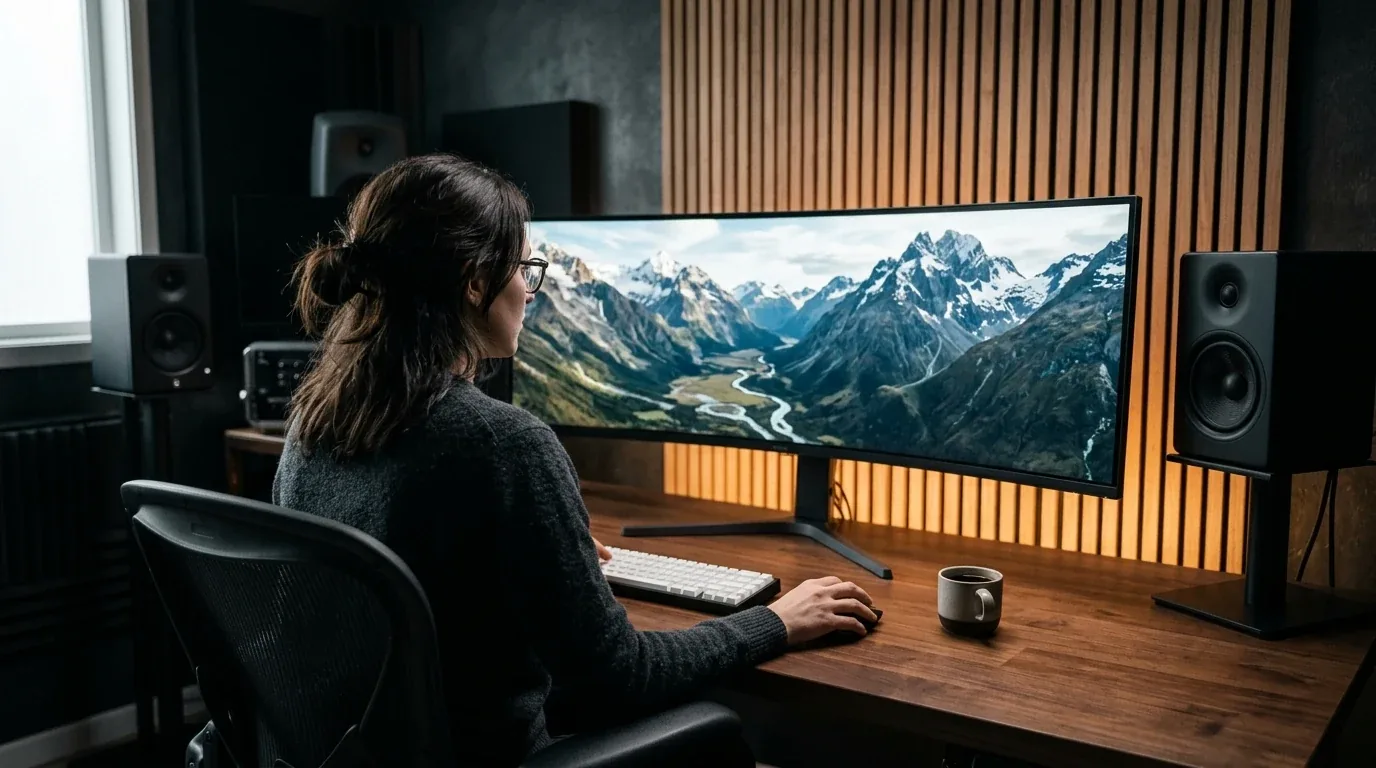
To find the absolute best video editing software in 2026, I spent three weeks running six top editing programs through identical real-world benchmarks on my test bench. I imported sixty gigabytes of 10-bit 4K clips from mirrorless cameras and smartphones. I added heavy color grades, multi-track audio, auto-generated subtitles, and background visual effects. I measured exact render times down to the second, tracked system memory usage, and checked how each program handles everyday cuts. Here is what I discovered from honest testing.
The Big Winner and Why DaVinci Resolve Leads the Industry
If you ask full-time video creators which program they trust most in 2026, one name comes up again and again. DaVinci Resolve by Blackmagic Design is the strongest, most stable video editor you can download today. It used to be known only as a specialized Hollywood color grading tool. Over the last few years, Blackmagic built it into an all-in-one powerhouse that combines editing, motion graphics, audio mixing, and color grading inside a single application.
What makes DaVinci Resolve so special is its honest pricing model. You can download the standard version of DaVinci Resolve completely free from the official Blackmagic Design website. This is not a crippled trial. There are no watermarks on your videos. There is no time limit. You can edit and export full 4K videos at up to sixty frames per second without paying a single penny. For ninety percent of YouTubers and home video creators, the free version gives you more features than you will ever need.
If you decide to step up to DaVinci Resolve Studio, it costs a one-time fee of $295 in the United States, £245 in the United Kingdom, and €275 in Europe. You pay once and own the software forever. Even better, Blackmagic gives you every major future update for free. People who bought DaVinci Resolve Studio ten years ago on version 12 still get free upgrades to the latest version today without paying another dime.
The Studio version unlocks neural engine AI tools, advanced noise reduction, lens distortion correction, and hardware accelerated encoding for multiple graphics cards. In my testing, DaVinci Resolve handled heavy 4K timelines without dropping a single frame during playback. The Fairlight audio page lets you clean up background noise and balance microphone levels like a professional recording engineer. The only real hurdle is the learning curve. Because Resolve offers so much depth, the interface can feel overwhelming during your first afternoon of editing.
Adobe Premiere Pro and The Industry Standard with a Monthly Bill
Adobe Premiere Pro remains the most widely taught video editor in colleges, television studios, and commercial advertising agencies. If your dream is to work at a video production agency or collaborate with other freelance editors, knowing Premiere Pro is an essential skill. Almost every professional production team uses the Adobe ecosystem.
Premiere Pro shines because of its sheer flexibility. It handles almost any video format you throw at it without requiring you to transcode files first. The text-based editing feature is fantastic for interview videos. Premiere automatically transcribes your spoken audio into words on your screen. You can read through the transcript, highlight the sentences you want to remove, hit delete on your keyboard, and Premiere cuts the video clips on your timeline automatically. That feature alone cuts hours off my talking-head video edits.
The biggest frustration with Premiere Pro is the price. Adobe refuses to sell a perpetual license. You must rent the software every single month through an Adobe Creative Cloud subscription. A single-app subscription to Premiere Pro costs roughly $23 per month on an annual plan, or nearly $35 if you pay month to month. If you want the full Creative Cloud suite with After Effects and Photoshop, you are looking at roughly $60 per month, which adds up to more than $700 every year.
Stability has improved in recent updates, but Premiere Pro still uses more computer memory than its rivals. If you make a living editing videos and need tight integration with Photoshop, the monthly cost is just a regular business expense. But for independent creators and hobbyists, that endless monthly subscription is tough to swallow.
Apple Final Cut Pro and Blistering Speed on Mac Hardware
If you edit on an Apple Mac, Final Cut Pro offers the fastest, smoothest editing experience on the planet. Apple built Final Cut Pro specifically to take full advantage of its custom Apple Silicon processors, including the M2, M3, M4, and latest M5 chips.
The magic of Final Cut Pro lies in its magnetic timeline. Traditional video editors let you drag clips onto fixed video tracks. If you delete a clip in the middle of a traditional timeline, you leave behind an empty black gap that you must manually close. Final Cut Pro treats clips like magnets. When you delete or rearrange a clip, the surrounding clips instantly snap together automatically, keeping your background music and sound effects perfectly in sync. Some old-school editors dislike the magnetic timeline, but for solo creators pumping out weekly content, it allows you to assemble rough cuts at lightning speed.
Final Cut Pro is also remarkably efficient on laptop batteries. When I edited a 4K project on a MacBook Pro running Final Cut Pro, the laptop stayed cool to the touch and the cooling fans never even turned on. In comparison, running Premiere Pro on the same laptop caused the fans to spin up after fifteen minutes of heavy scrubbing.
Final Cut Pro costs a one-time purchase price of $299 in the United States, £299 in the United Kingdom, and €349 in Europe. Like DaVinci Resolve, you pay once and receive free software updates for years. The only major downside is platform exclusivity. Final Cut Pro only runs on macOS and iPadOS. If you use a Windows PC, you cannot use it.
CapCut Desktop and The Best Fast Editor for Social Media and Beginners
Not everyone needs to grade Hollywood movies or master complex multi-track audio. If your primary goal is creating videos for YouTube Shorts, TikTok, Instagram Reels, or quick product demonstrations, CapCut Desktop has taken the creator world by storm.
Owned by ByteDance, CapCut Desktop takes the simple, intuitive feel of a smartphone app and brings it to a full computer screen. It is remarkably easy to pick up. Within five minutes of opening the app, anyone can trim video clips, add trending background music, apply smooth zoom transitions, and generate animated captions that highlight words as you speak.
The auto-caption feature in CapCut is the fastest in the business. It analyzes your spoken speech with astonishing accuracy and automatically creates stylish, eye-catching text templates with bright colors and bouncy animations. You also get built-in green screen removal, automatic background cutout, and speech enhancers that remove echo from cheap room microphones with a single click.
However, you need to watch out for the pricing model. CapCut Desktop is free to download, but ByteDance constantly moves popular effects, transitions, and AI export features behind their CapCut Pro paywall. The Pro subscription costs roughly $10 to $13 per month. In addition to that, CapCut is not designed for long-form narrative projects. If you try to build a sixty-minute documentary with hundreds of cuts and nested audio tracks, the timeline starts to bog down and stutter.
Real World 4K Export Speeds and Render Benchmarks
To see how each program handles intense hardware workloads, I assembled an identical ten-minute 4K test timeline. The timeline included 10-bit 4:2:2 video clips from a Sony mirrorless camera, three audio tracks with active noise cleanup, five animated title cards, and a primary color correction node. I exported each project to an H.265 video file at sixty frames per second on the exact same Windows workstation equipped with an AMD Ryzen 9 processor and an NVIDIA GeForce RTX graphics card, alongside testing on an Apple Silicon Mac.
| Software Name | Windows PC 4K Export Time | MacBook Pro 4K Export Time | Peak System RAM Usage | Pricing Model |
|---|---|---|---|---|
| DaVinci Resolve Studio | 2 minutes 45 seconds | 3 minutes 12 seconds | 14.8 GB | $295 One-Time Purchase |
| DaVinci Resolve (Free) | 3 minutes 58 seconds | 4 minutes 15 seconds | 12.2 GB | 100% Free (No Watermark) |
| Apple Final Cut Pro | Not Available on Windows | 2 minutes 38 seconds | 11.4 GB | $299 One-Time Purchase |
| Adobe Premiere Pro | 3 minutes 20 seconds | 3 minutes 44 seconds | 23.6 GB | $23 to $35 Monthly Rental |
| CapCut Desktop | 3 minutes 40 seconds | 3 minutes 52 seconds | 9.8 GB | Free Tier or $10 Monthly Pro |
| Shotcut (Open Source) | 5 minutes 15 seconds | 5 minutes 30 seconds | 8.4 GB | 100% Free and Open Source |
The benchmark results show two clear winners. On macOS, Final Cut Pro edges out the competition with a lightning-fast export time of two minutes and thirty-eight seconds while using minimal system memory. On Windows, DaVinci Resolve Studio takes the crown, utilizing NVIDIA hardware encoding to finish the export in just two minutes and forty-five seconds. Premiere Pro performed well, but chewed through almost twenty-four gigabytes of system memory in the process.
How Much RAM Do You Really Need for Video Editing in 2026?
One of the most common questions readers ask me is how much computer memory they need to edit videos smoothly without stuttering. Computer memory, or RAM, acts like your editing desk. The larger your desk, the more high-resolution video frames, audio tracks, and effects your computer can hold in active memory at once.
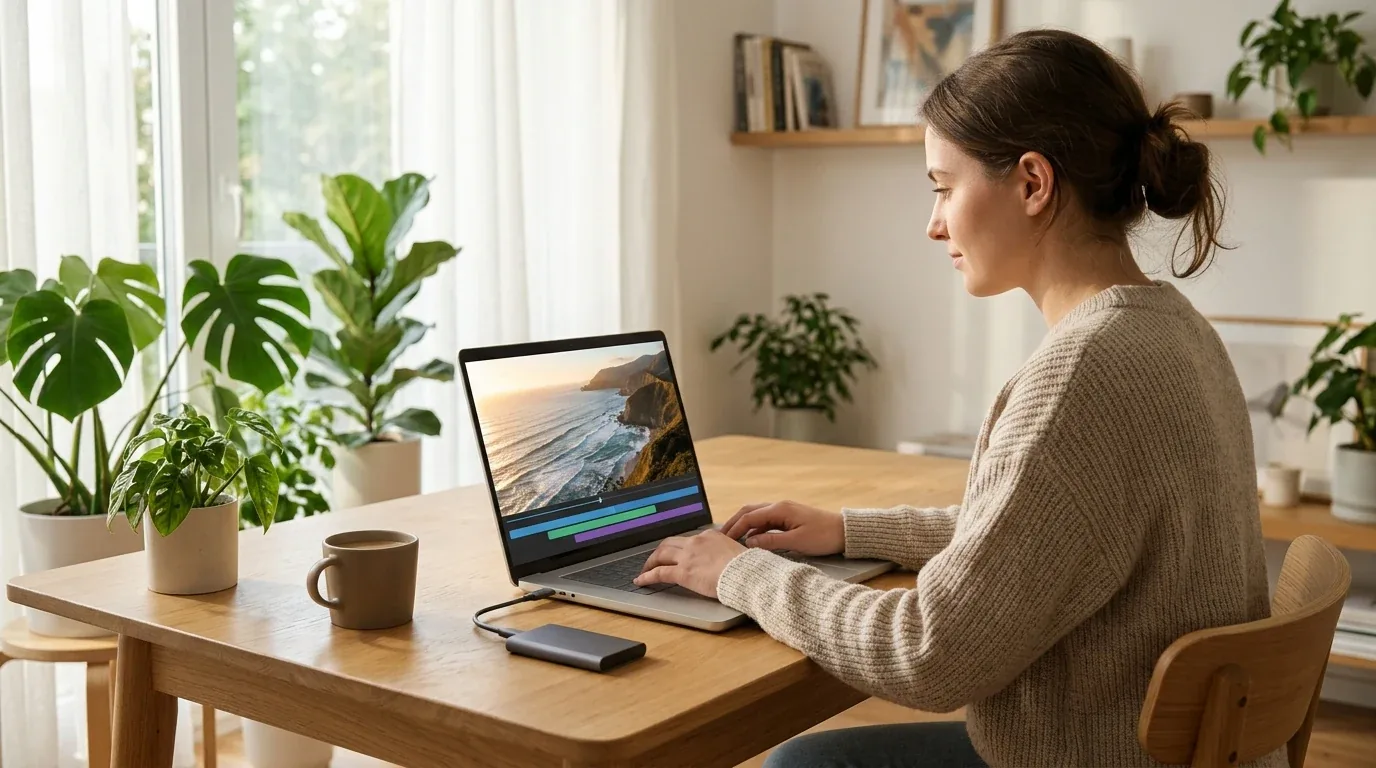
16 Gigabytes of RAM - The Bare Minimum
In 2026, sixteen gigabytes of RAM is the absolute minimum for basic video editing. It is perfectly fine if you edit 1080p high definition videos, cut simple smartphone footage, or produce short vertical clips in CapCut. However, if you try to scrub through heavy 10-bit 4K clips from mirrorless cameras or open multiple browser tabs while editing in Premiere Pro, sixteen gigabytes will fill up fast. Your computer will start swapping data to your storage drive, causing choppy playback and dropped frames.
32 Gigabytes of RAM - The Sweet Spot
For ninety percent of content creators, thirty-two gigabytes of RAM is the ideal sweet spot. With thirty-two gigabytes, you can scrub smooth 4K timelines in DaVinci Resolve and Premiere Pro without stuttering. You can run color grades, play background music, and keep photo editing software open in the background without worrying about running out of memory. If you are buying or building a computer for video editing today, aim for thirty-two gigabytes.
64 Gigabytes of RAM or More - The Pro Level
You only need sixty-four gigabytes or more if you edit multi-camera 4K and 8K footage, work with uncompressed RAW camera files, or build complex animated visual effects in After Effects and DaVinci Fusion. Visual effects engines store thousands of rendered frames directly in memory for real-time playback. If you do motion graphics or composite heavy 3D scenes, sixty-four gigabytes gives your system the breathing room it needs.
The Best Free Video Editing Software with No Watermark
If you are on a tight budget, you do not need to spend hundreds of dollars or pirate expensive software. There are genuinely fantastic free video editors available in 2026 that will never put a watermark on your work.
- DaVinci Resolve Free Version (Best Overall Free Editor): The absolute best free software available. You get a full professional non-linear timeline, industry-standard color wheels, Fairlight audio tools, and clean exports up to 4K resolution. It runs on Windows, Mac, and Linux. The only limitation is that it lacks a few specialized AI effects and multi-GPU acceleration found in the $295 Studio edition.
- Shotcut (Best Lightweight Open Source): A completely free, open-source video editor that runs smoothly even on older budget laptops. It supports hundreds of video formats, offers clean audio filters, and never pesters you with ads or upgrade prompts. The interface is utilitarian, but it is rock solid and dependable.
- Kdenlive (Best for Linux and Windows Enthusiasts): Another outstanding open-source editor packed with dual monitors, audio leveling, motion tracking, and customizable keyboard shortcuts. It gives you deep timeline control without commercial restrictions.
- CapCut Desktop Free Tier (Best for Quick Mobile Style Videos): Great for fast social media clips and automatic subtitles, provided you stick to the free templates and avoid clicking on the Pro icons.
Windows PC versus Mac and Which is Better for Video Editing
The battle between Windows and Mac for creative work has never been closer. Both platforms have distinct advantages depending on your budget and workflow.
Apple Mac computers offer unbeatable efficiency and convenience. A modern MacBook Pro equipped with an M3 or M4 chip can edit multi-stream 4K footage on battery power for six to eight hours without breaking a sweat. Apple Silicon unified memory allows the processor and graphics cores to share the same high-speed pool of memory, making scrub times on ProRes video footage instantaneous. If you prioritize portability, quiet operation, and color-accurate laptop screens out of the box, the Mac is a joy to use. If you want to see how modern mobile chips hold up for video editing, check out our analysis of MacBook Pro M5 versus M4 Pro for content creators.
Windows PCs, on the other hand, deliver raw graphical horsepower and easy upgradeability. If you build or buy a desktop PC with an NVIDIA GeForce RTX graphics card, you get access to massive amounts of dedicated video memory and blistering 3D rendering speeds. If you want to see how modern desktop cards perform under heavy creative workloads, take a look at our guide on NVIDIA RTX 5080 versus RTX 5090. You can easily upgrade your storage drives, swap in more RAM, and replace your graphics card down the road without buying an entirely new computer. Windows is also the better platform if you plan to use your machine for both video editing and gaming on the best gaming laptops of 2026.
How to Pick the Right Video Editor for Your Needs
Here is my straightforward advice for choosing the right program based on who you are and what you create:
- Choose DaVinci Resolve if you want the best overall value, love color grading, hate monthly subscriptions, and want a professional tool that grows with your skills over the next decade.
- Choose Adobe Premiere Pro if you work with commercial production clients, collaborate with other video editors, or rely heavily on After Effects and Photoshop for your daily business.
- Choose Apple Final Cut Pro if you edit on a Mac, want lightning-fast exports, and prefer a magnetic timeline that lets you assemble videos as quickly as possible.
- Choose CapCut Desktop if you create vertical short-form videos for social media and want instant animated captions without learning complex editing theory.
- Choose Shotcut or Kdenlive if you want an open-source, lightweight editor that respects your privacy and runs on older computers without slowing down.
Frequently Asked Questions
Which is the number one video editing software in 2026?
For overall value and professional capabilities, DaVinci Resolve takes the top spot. Its free version offers professional-grade tools with zero watermarks, and its one-time purchase price of $295 for the Studio version eliminates costly monthly subscriptions.
How much RAM do I need for smooth 4K video editing?
Thirty-two gigabytes of RAM is the recommended sweet spot for editing 4K video smoothly in 2026. While sixteen gigabytes can handle basic clips, thirty-two gigabytes prevents choppy playback when working with color grades and multiple audio tracks.
Is DaVinci Resolve really completely free?
Yes. The standard version of DaVinci Resolve is completely free to download and use for both personal and commercial projects. It never places watermarks on your videos and lets you export clean files up to 4K resolution at sixty frames per second.
Can you buy Adobe Premiere Pro without a subscription?
No. Adobe does not sell a one-time perpetual license for Premiere Pro. You can only access the software by paying a monthly or annual subscription through Adobe Creative Cloud.
Which video editor is easiest for absolute beginners?
CapCut Desktop is the easiest video editor for beginners because its interface resembles a smartphone app. It lets you add animated text, trending music, and simple transitions with single-click buttons.
Loading comments…