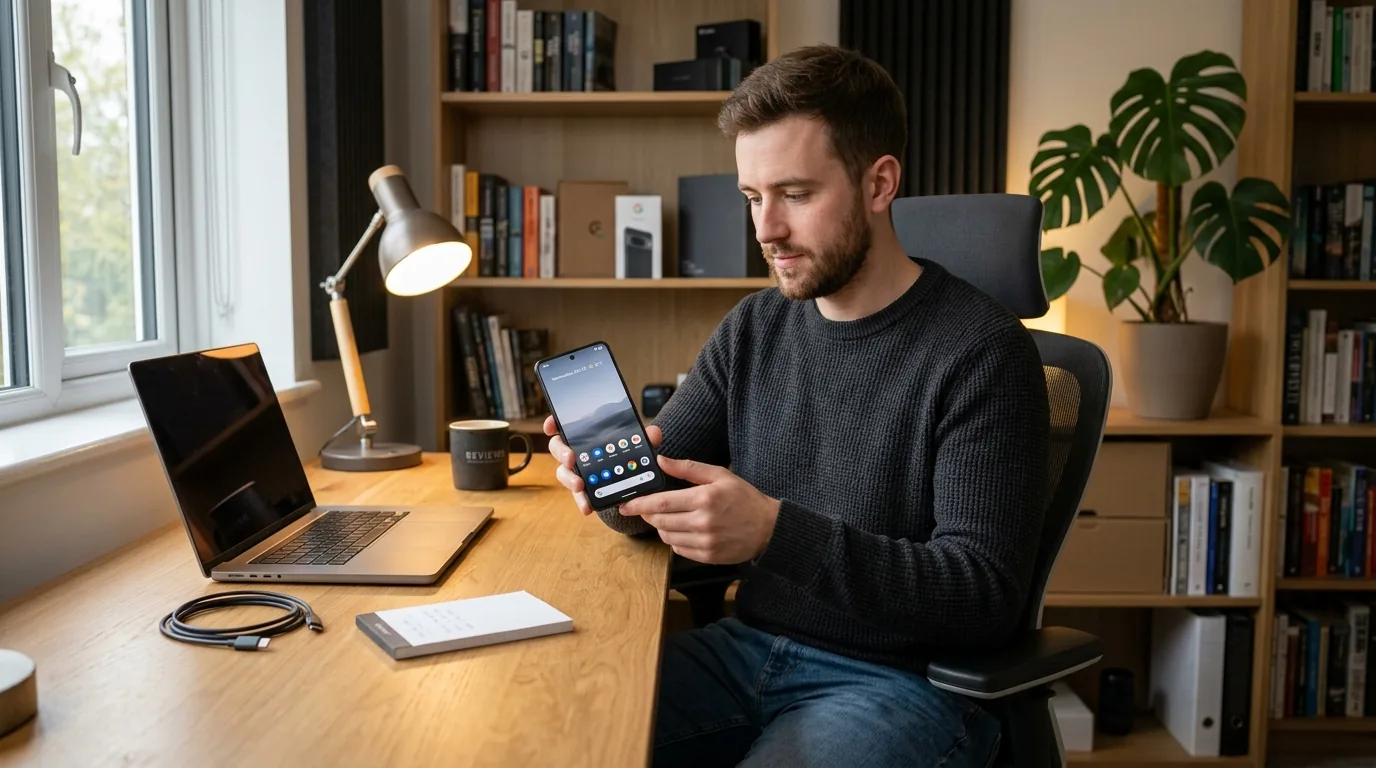

I plugged my Google Pixel phone into my laptop on a sunny morning to test the first Android 16 developer preview. I wanted to see if the new features really made a difference in everyday use. After spending days testing the new software, two big updates stood out right away. Google turned on predictive back animations for all apps, and they added a brand new Privacy Sandbox shield that stops apps from sharing your private habits with advertisers.

Why Google Changed the Android Release Schedule and Picked the Name Baklava
For more than ten years, Google followed a very predictable calendar. They released early developer previews in February, ran public betas through the spring, and pushed the final update in August or October. That schedule caused a big headache for phone makers. When companies launched new phones in the summer, those devices shipped with old software because the new Android update was not ready yet.
With Android 16, Google broke that old rule. They moved the major launch up to the second quarter of the year, aiming for June. This means upcoming summer phones, like the Pixel 10 and new folding devices, will arrive with the newest Android version on day one. A smaller second update will arrive toward the end of the year to add polish and clean up minor bugs without breaking app code.
There is also a funny story behind the sweet treat codename for this release. Google usually names each Android version after a dessert in alphabetical order. Android 14 was Upside Down Cake, and Android 15 was Vanilla Ice Cream. Everyone expected Android 16 to start with the letter W. Instead, Google engineers switched to a new internal development system called trunk-based development. Their new project branch started with the letter B, so the team named Android 16 Baklava. It is a sweet flaky pastry layered with honey and nuts, and it marks a fresh start for how Android gets built.
What Happened When I Tried the New Predictive Back Gesture
Have you ever filled out a long form in an app, swiped your thumb from the side of the screen to go back one step, and watched the whole app close by accident? I have done that dozens of times, and it is super annoying. You lose your typed words, your shopping cart empties, and you have to start all over again.
Android 16 fixes this problem for good with predictive back animations. In older versions of Android, developers had to turn this feature on manually inside their code, so most apps never used it. In Android 16, Google turned it on by default for every app that targets the new system.
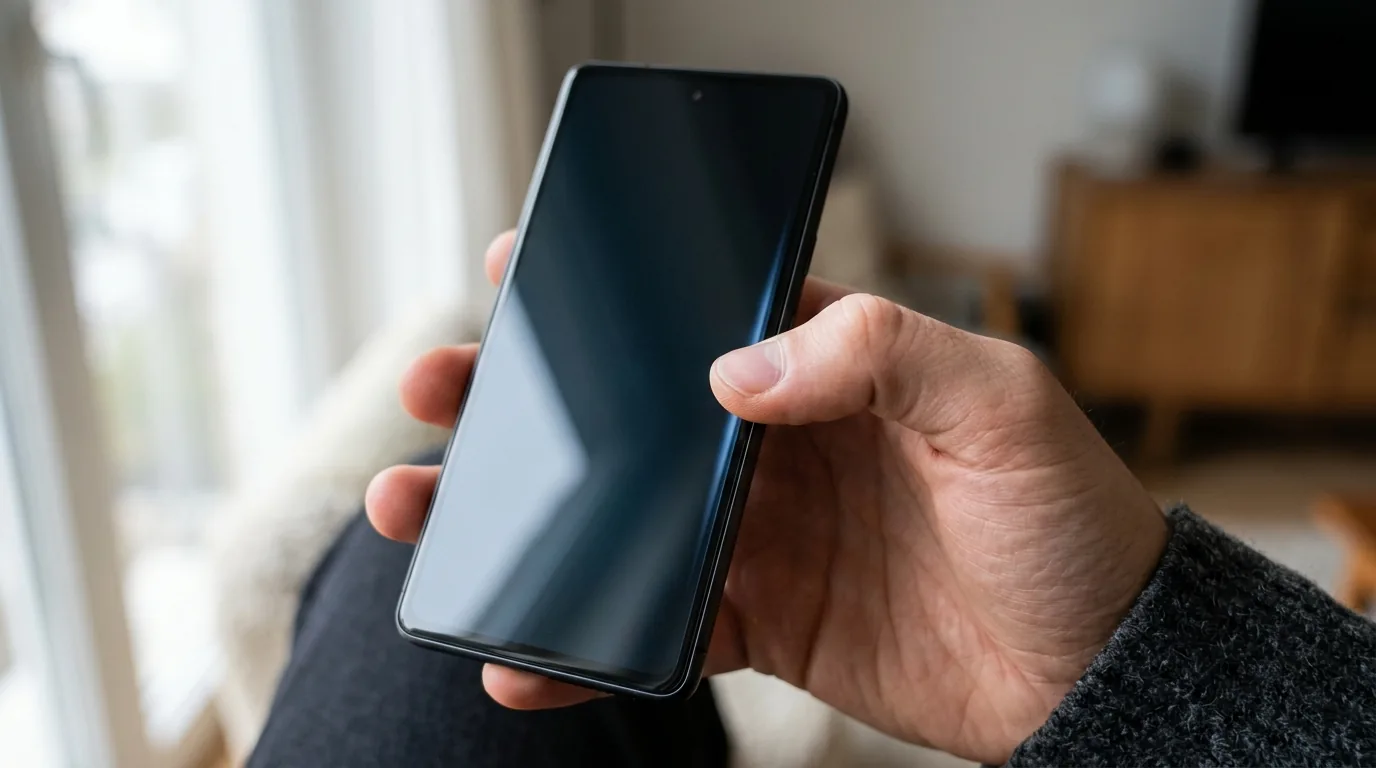
When I placed my thumb on the side edge of the screen and dragged slowly toward the center, the active app window shrank like a sheet of paper. As I kept dragging, the phone gave me a live peek at what was behind it. If the gesture was going to close the app, I could see my home screen wallpaper right behind the window. If I decided I did not want to leave the app, I just slid my thumb back to the edge and let go. The app popped right back open, and none of my work was lost.
I also checked what happens if you prefer the classic three-button navigation bar at the bottom instead of gestures. In Android 16, tapping and holding the back arrow button also triggers these predictive animations. Google completely retired the old back button code, making the whole phone feel much smoother and more predictable.
Testing the Privacy Sandbox and How It Stops Secret Tracking
Most free apps and mobile games make money by showing advertisements. In the past, companies added third-party tracking tools, known as advertising SDKs, directly into the app code. Because the tracking code lived in the same digital room as the main app, it had access to everything you allowed the app to see. If you let a weather app check your location, the ad company inside that app could quietly track where you walked all day long.
To see how Google solved this, I dug into the new Privacy Sandbox tools on Android 16. Google built a separate digital room called the SDK Runtime. In this new setup, advertising code runs in its own isolated sandbox completely apart from the host app.
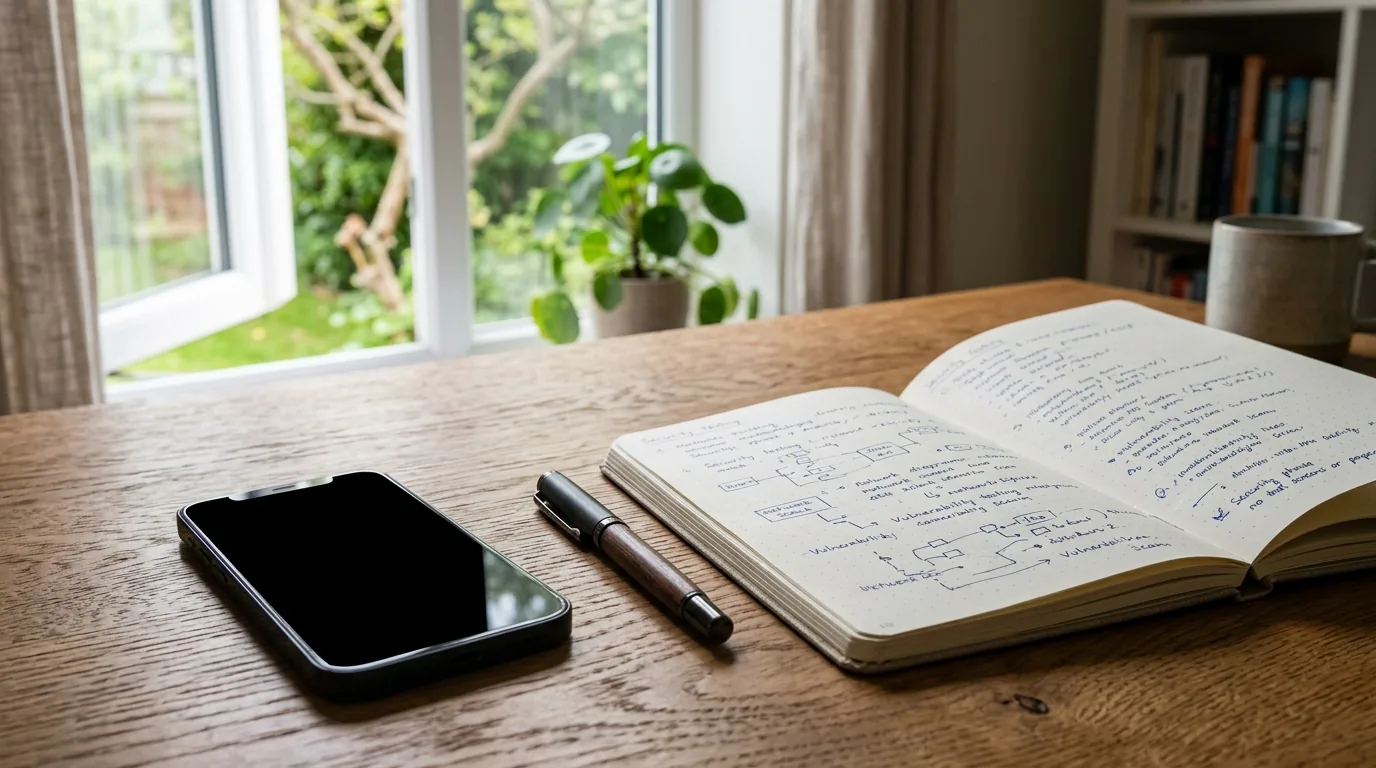
The difference is huge. Even if you give an app permission to access your contacts or precise location, the advertising tracker trapped inside the SDK Runtime cannot touch that data. It cannot check your battery level or device serial number to build a secret fingerprint of your identity.
Instead of tracking you across different websites and apps, your phone uses a clever system called the Topics API. Your phone looks at the types of apps you enjoy, like cooking or soccer, and keeps a short list of general topics on the device itself. When an app wants to show an ad, it asks your phone for a general topic without ever knowing your name, your email, or your exact browsing history. Your personal life stays locked on your phone where it belongs.
If you enjoy learning about how mobile operating systems protect private data across personal computers and laptops, you can read our breakdown of Google laptop hardware in our Googlebook launch specs and operating system guide.
Photo Picker and Why Apps Do Not Need Full Storage Access Anymore
Think about what happens when you want to change your profile picture on social media. In the past, the app would pop up a scary warning saying it needed permission to see all photos and videos on your phone. If you wanted to share one picture of your dog, you had to hand over the keys to your entire photo library.
Android 16 solves this with an updated embedded Photo Picker. Instead of opening a separate full-screen menu, the photo selector appears smoothly inside the app interface itself.
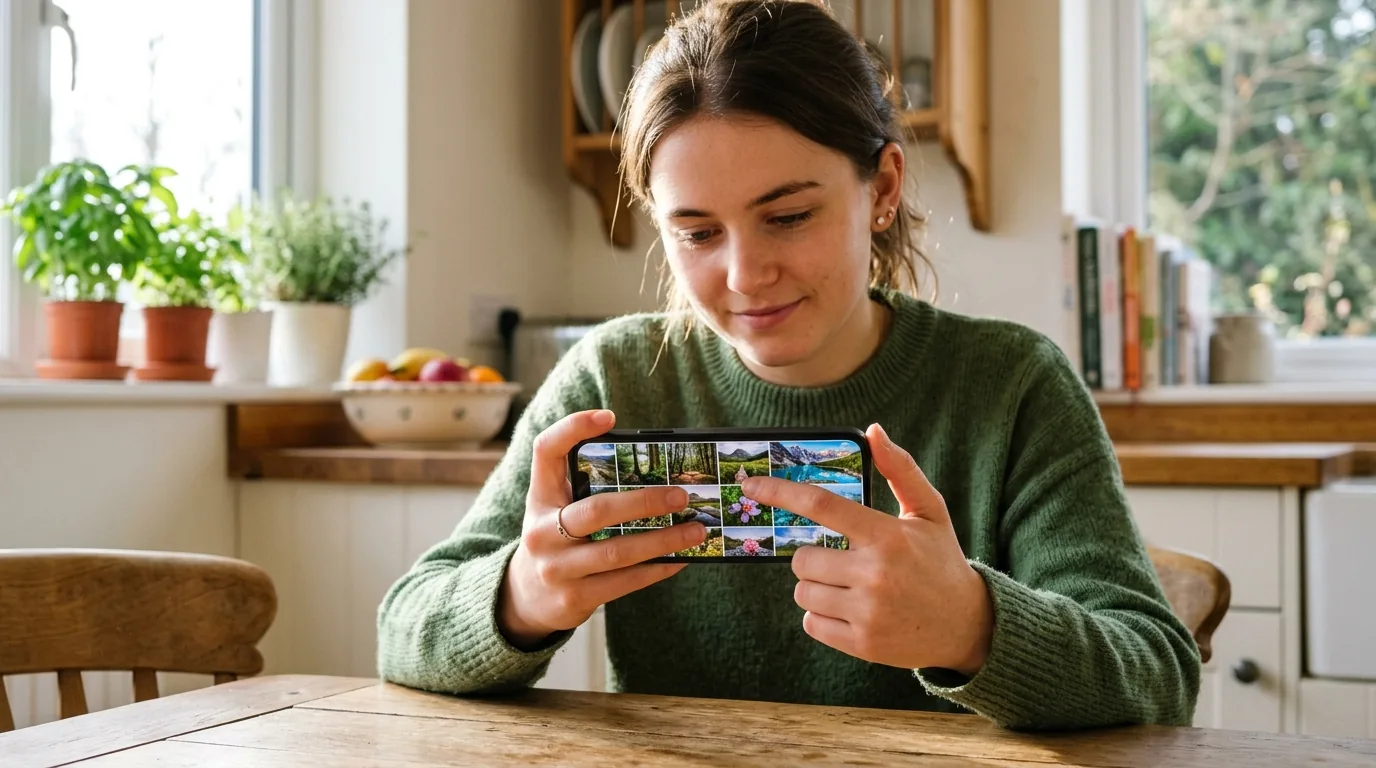
When I tapped to add a picture in a test messaging app, a neat little grid of my recent photos slid up from the bottom. I tapped the exact photo I wanted, and the app received only that single file. The app never asked for storage permission, and it had zero access to the thousands of other personal photos saved on my device. It gives you total control over what you share.
Notification Cooldown and Calming the Chat Chaos
We all have that one busy group chat with family or friends that suddenly erupts into fifty messages in two minutes. Your phone buzzes on the desk like a mini jackhammer, vibrating every single second and driving you crazy.
In Android 16, Google added a smart feature called Notification Cooldown. When I set up a test to send multiple alerts in a row, the phone behaved very differently than older Android models. The first message arrived with a normal chime and a strong vibration. When the next few messages arrived seconds later, the phone automatically lowered the volume and reduced the vibration.
The phone kept the alerts peaceful without hiding any text. When I looked at the lock screen, all the messages were still sitting neatly in my notification shade. It stops your phone from constantly interrupting your day while making sure you never miss an important conversation.
For more insights on how tech companies handle user notifications and assistant privacy disputes, check out our report on the Apple Siri AI settlement and behind the scenes delays.
Health Connect and Keeping Medical Records Safe
Fitness trackers and smartwatches collect all kinds of helpful data, from daily step counts to sleep patterns. With Android 16, Google expanded the built-in Health Connect platform to support official medical records using a global standard called FHIR, which stands for Fast Healthcare Interoperability Resources.
This means your phone can securely store lab test results, vaccine records, and doctor visit summaries in one private place. Instead of logging into five different hospital web portals with separate passwords, your health data stays safely encrypted in your phone chip. No app can read your medical records without your explicit permission, giving you a safe and simple way to keep track of your family health history.
To see how high-speed local wireless networks keep smart health accessories connected around the house, read our detailed Wi-Fi 7 complete guide.
Feature Comparison Between Android 15 and Android 16
To help you see how much changed between generations, I built this side by side comparison table tracking the everyday features you will notice most.
| Feature | Android 15 Behavior | Android 16 Behavior | What It Means For You |
|---|---|---|---|
| Predictive Back Gesture | Optional setting that apps had to turn on manually | Enabled by default for all apps targeting Android 16 | Shows a live preview of the previous screen so you never close apps by mistake |
| Privacy Sandbox | Early test version with limited developer support | Full SDK Runtime separating ad tools into isolated memory boxes | Stops ad companies from tracking your location or device identity across apps |
| Photo Picker | Opened as a separate full-screen dialog box | Embedded directly inside app layouts as a native sheet | Pick single pictures quickly without giving apps permission to see your whole gallery |
| Release Schedule | Launched in October alongside autumn phone releases | Major release moved up to June (Q2) with minor update in Q4 | Summer phones ship with the latest Android software on day one |
| Notification Cooldown | Full volume sound and vibration for every single message | Smart volume reduction when multiple alerts arrive in rapid bursts | Prevents buzzing overload when busy group chats send dozens of quick texts |
| Health Records | Tracked fitness stats like steps, heart rate, and sleep only | Adds encrypted support for medical records using the FHIR format | Keep lab results and vaccination records stored privately on your phone |
How I Tested Android 16 and What Developers Should Know
Getting the Android 16 preview running on a test device is straightforward if you have an unlocked Google Pixel phone. I used the web-based Android Flash Tool in Google Chrome. I plugged my phone into my computer with a high-speed USB-C cable, enabled USB debugging in developer options, and followed the on-screen steps.
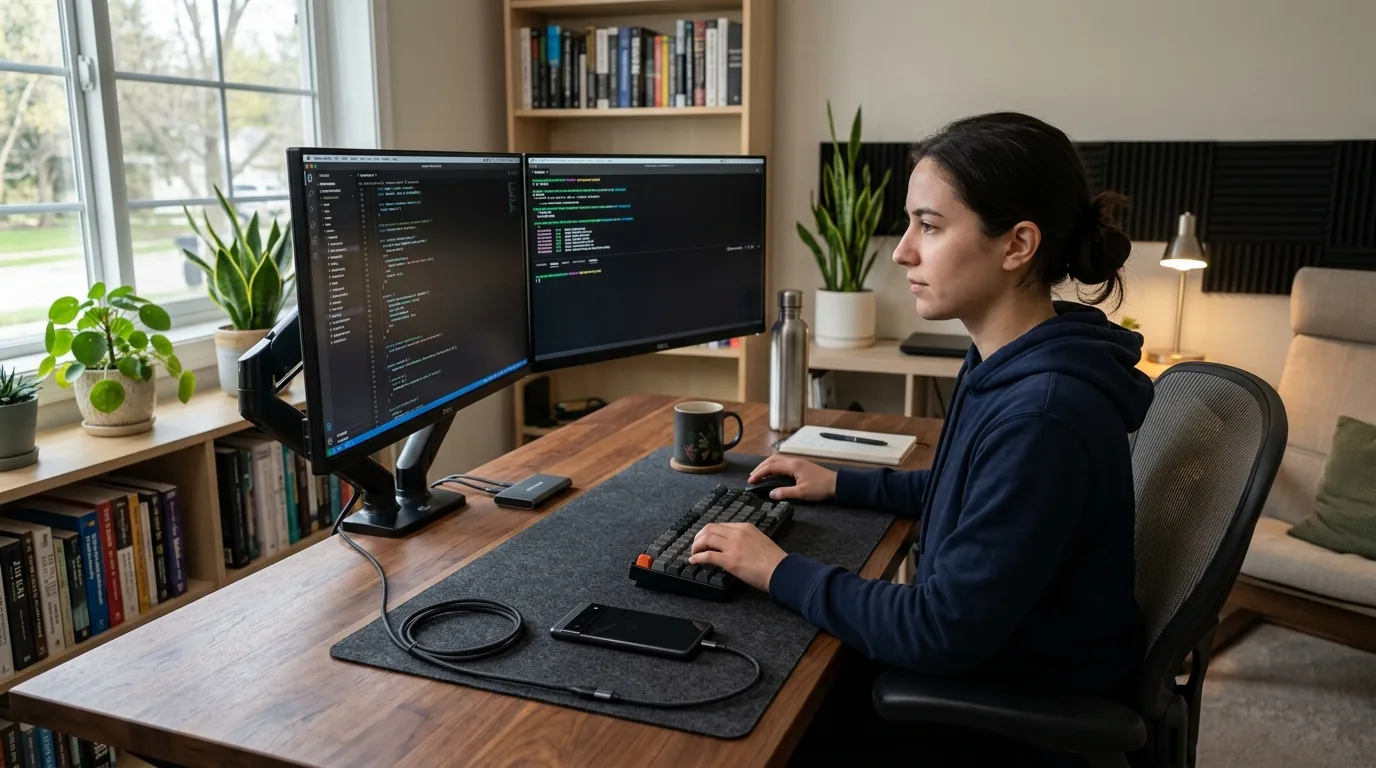
A quick word of caution for everyday phone owners. Developer previews are meant for software creators, not daily drivers. In my testing, some banking apps refused to open because the system software was uncertified. Battery life was also lower than normal because debug logging runs constantly in the background. If you only have one phone that you rely on for school, work, or emergencies, it is best to wait for the public beta release when everything is stable and polished.
Frequently Asked Questions
When will Android 16 be released to the public?
Google plans to launch the official public version of Android 16 in the second quarter of the year, likely in June. This new timeline lets upcoming summer phones launch with the newest Android software pre-installed from the factory.
What is the dessert codename for Android 16?
The internal dessert name for Android 16 is Baklava. Google engineers switched to a new internal branch system starting with the letter B, so they named this release after the delicious flaky honey pastry instead of a dessert starting with W.
How does the predictive back gesture work?
When you swipe your thumb from the side of the screen, the current app window shrinks to give you a live peek at what is underneath. If you see your home screen and do not want to exit, you simply slide your thumb back to the edge to stay inside the app.
Does predictive back work with the three-button navigation bar?
Yes. In Android 16, tapping and holding the back button on the classic navigation bar triggers the exact same animated preview, showing you where the back action will take you before you release your finger.
What is the Privacy Sandbox on Android?
The Privacy Sandbox is a security shield that isolates advertising tools inside a separate container called the SDK Runtime. It allows apps to show relevant ads while blocking companies from secretly tracking your location, personal files, or hardware identifiers.
Do I have to grant full storage permission to share one photo?
No. The embedded Photo Picker lets apps show a photo selection menu directly inside their interface. The app only receives the exact photo you tap, keeping the rest of your camera roll completely private.
What does Notification Cooldown do?
Notification Cooldown lowers the alert volume and softens phone vibrations when an app sends many messages in a short burst. It keeps busy group chats from constantly buzzing on your desk while preserving all messages in your notification tray.
Can I install the Android 16 Developer Preview on my main phone?
It is not recommended to install developer previews on your daily phone. Early previews can have bugs, reduced battery life, and compatibility issues with banking apps. Everyday users should wait for the public beta program.


Loading comments…